Help
Time clock system
Clock in / clock out
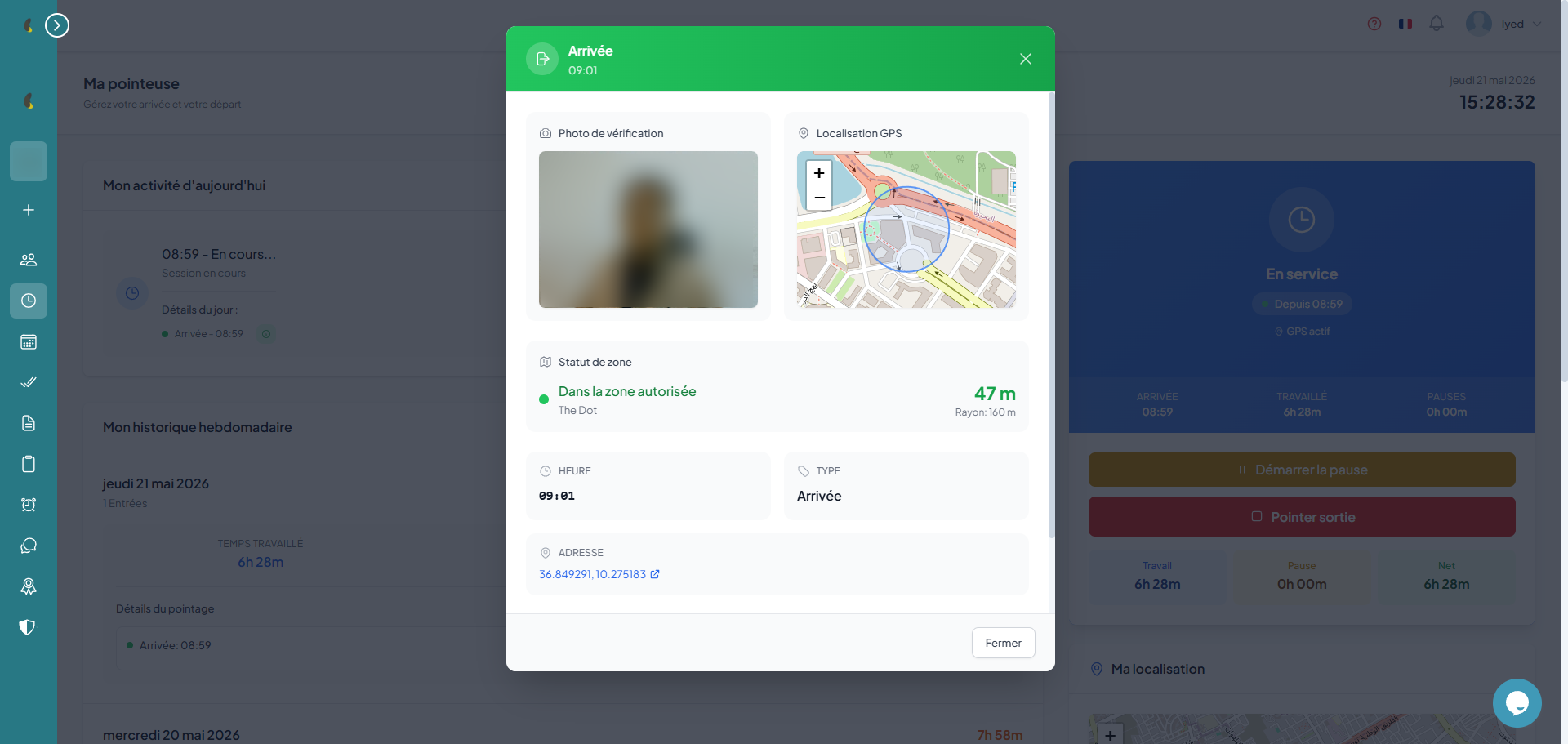
Employees clock in and out with one click. The system automatically records the time, GPS position and address. A verification photo may be required depending on the configuration.
How to
- Go to Temps & Présence › Supervision - Pointage to open your clocking dashboard.
- When you arrive, click Pointer entrée; the system records the time, GPS position and address, and takes the verification photo if it is required.
- At the end of the day, click Pointer sortie to record your departure and close the session; worked hours are shown immediately.
- If you have already clocked in, the Pointer entrée button stays blocked until you have recorded your departure.
Data recorded automatically
Employee view
The employee sees their personal dashboard with: clock-in button, hours worked today, activity timeline (arrival, breaks, departure) and individual break details.
Manager view
The manager accesses an interactive map showing the real-time position of all their employees, with geofencing zones. Quick stats show present employees, lateness and absences.
Desktop (Activity Tracking & Automatic Clock-In)
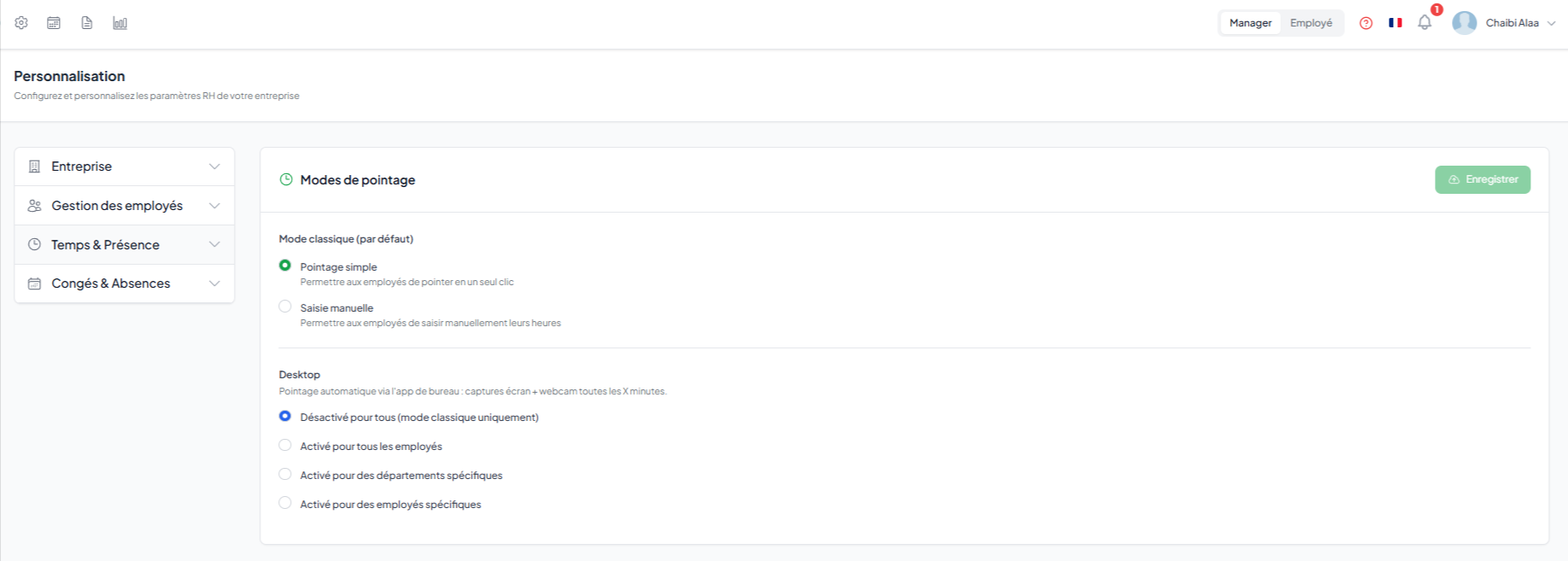
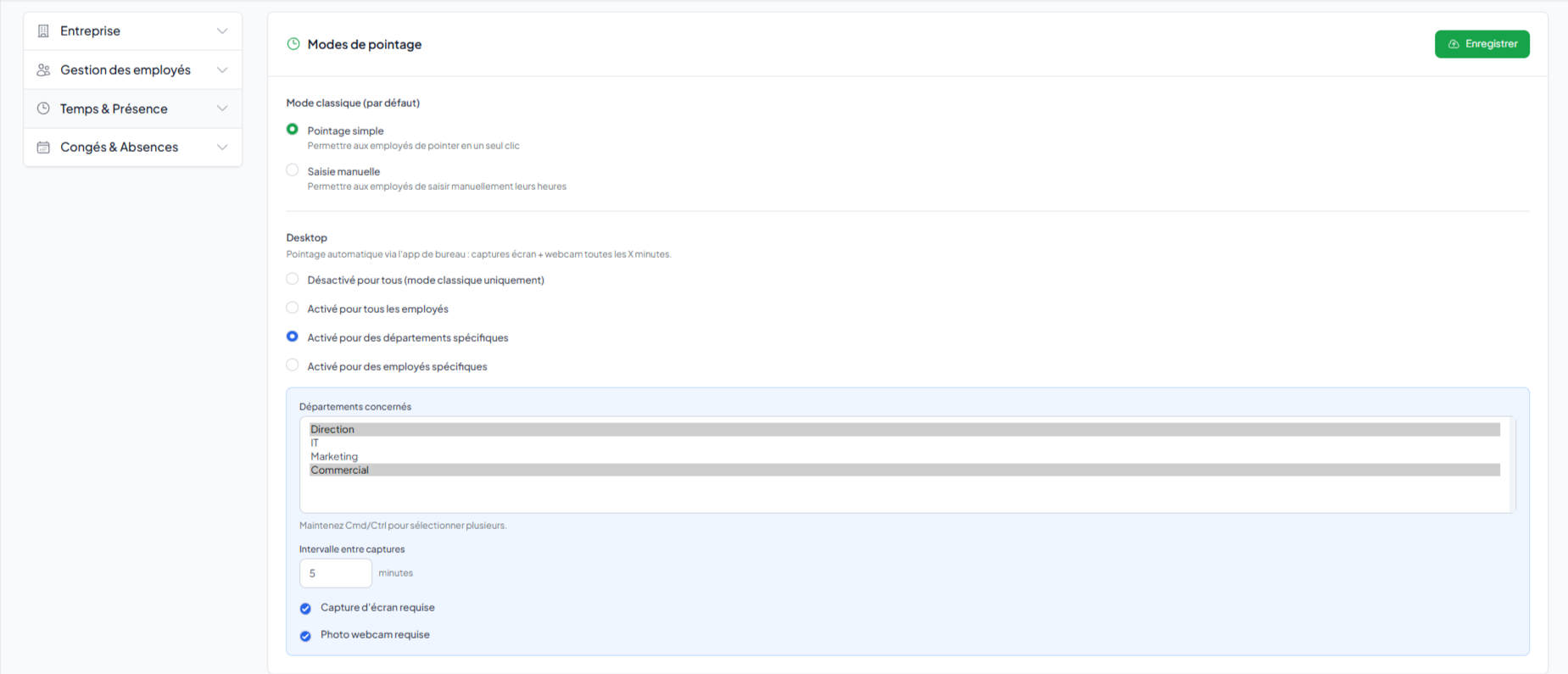
The Desktop section allows you to configure automatic clock-ins and monitor employee activity through the desktop application. This option captures screenshots and webcam photos at regular, predefined intervals.
How to
- Go to Personnalisation › Temps & Présence then open the Modes de pointage section.
- In the Desktop block, choose the scope: Désactivé pour tous, Activé pour tous les employés, Activé pour des départements spécifiques or Activé pour des employés spécifiques.
- Set the Intervalle entre captures in minutes, then tick Capture d'écran requise or Photo webcam requise as needed.
- Click Enregistrer to apply; make sure staff have installed the desktop app and granted the screen and webcam permissions.
Activation Options
Capture Settings
Geolocation & geofencing
Define authorized work zones with a customizable radius for each location. Three modes are available: strict (blocks clock-in outside the zone), warning (alerts but allows) or disabled. Assign locations by department or by employee.
Geofencing modes
Location configuration
- Create a location — name, address, GPS coordinates (manual entry or map selection)
- Define the radius — authorized zone in meters around the central point
- Assign — link to a department or specific employees

Facial recognition
Enable identity verification by facial recognition when clocking in. The employee or administrator registers a reference face, then the system verifies identity at each clock-in with a confidence score.
- Registration — the employee or administrator captures a reference photo via the webcam
- Verification — at each clock-in, the system compares the face with the reference photo
- Confidence score — a score from 0 to 1 determines if identity is confirmed
- Configurable threshold — the minimum confidence threshold is configurable in the settings

Break management
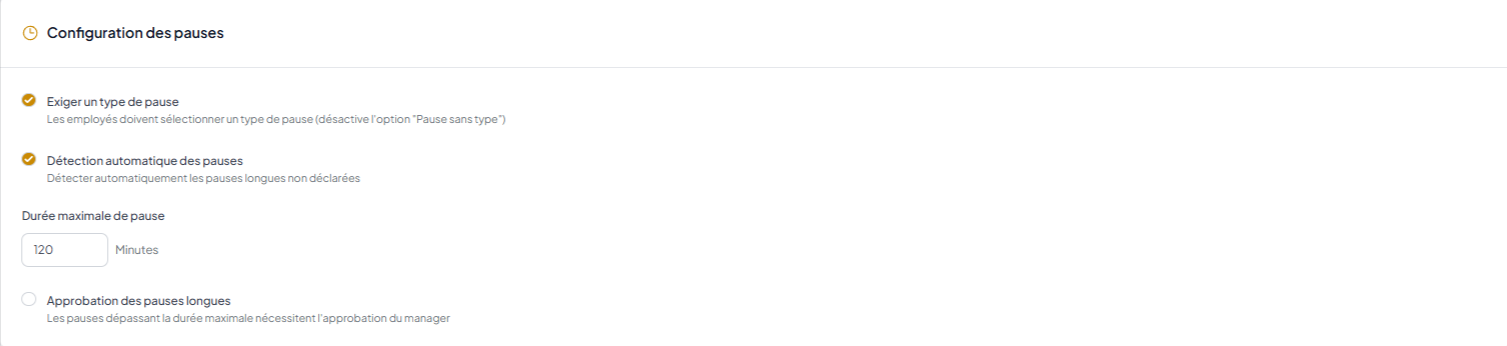
Breaks are tracked with start and end time, type (lunch, coffee, etc.), automatically calculated duration. Configure break types, paid/unpaid distinction and optional photo captures.
How to
- During your day, open Temps & Présence › Supervision - Pointage and click Démarrer la pause.
- Choose the break Type (lunch, coffee, prayer, personal); the duration is calculated automatically.
- When you resume, click Terminer la pause; the end time and the duration are recorded.
- To configure break types and the paid / unpaid setting, go to Personnalisation › Temps & Présence, Modes de pointage section.
Information per break
Work schedules
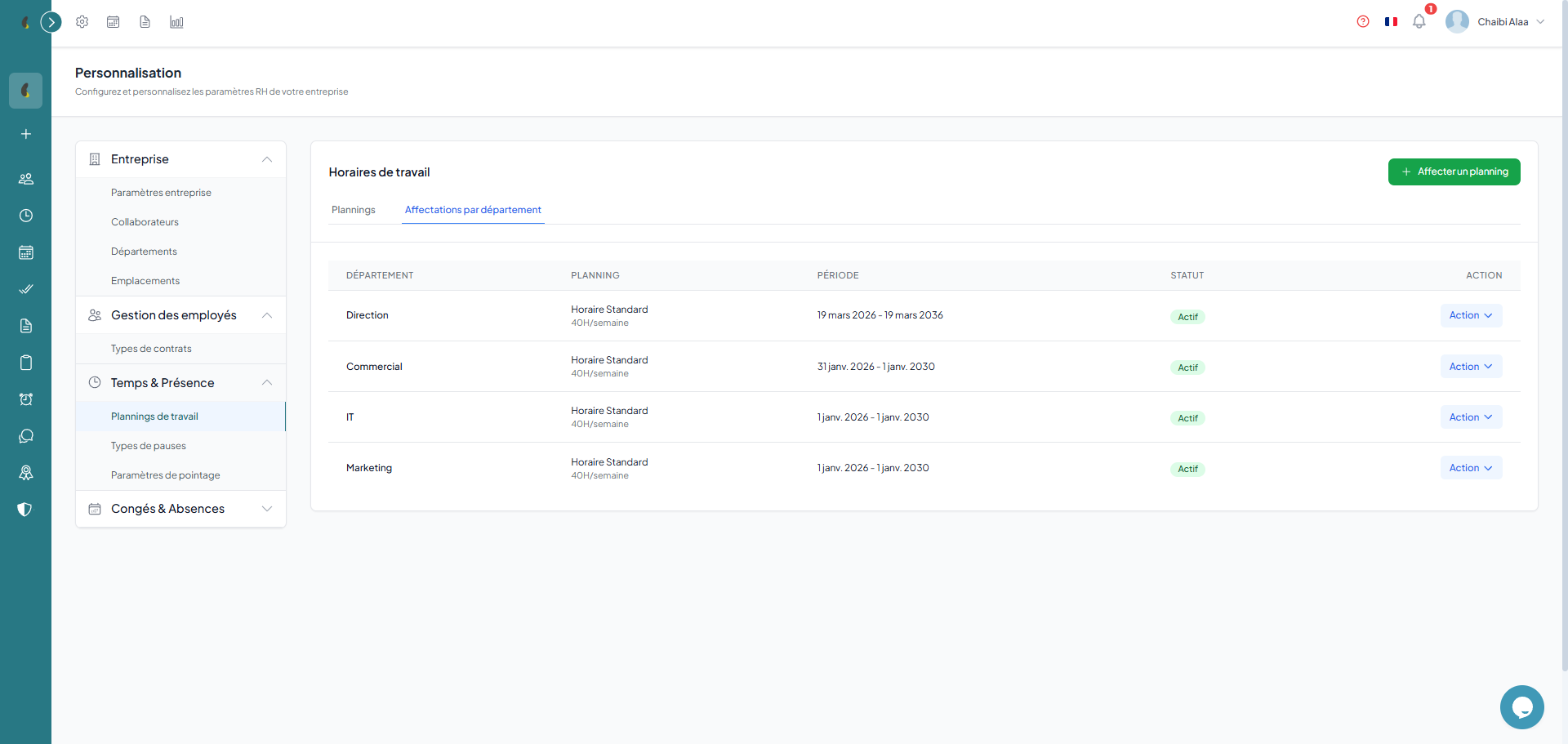
Create default schedules for the company with working hours per day of the week. Departments can have their own schedule, and each employee can have a custom schedule that overrides the department one.
Schedule levels
- Company — default schedule for all employees (e.g. Mon-Fri 8am-5pm)
- Department — overrides the company schedule for a specific department
- Employee — overrides the department schedule for an individual employee
Configuration per day
For each day of the week, define: start time, end time, and whether the day is worked or not. Flexible hours allow defining a time range rather than a fixed time.
Attendance tracking
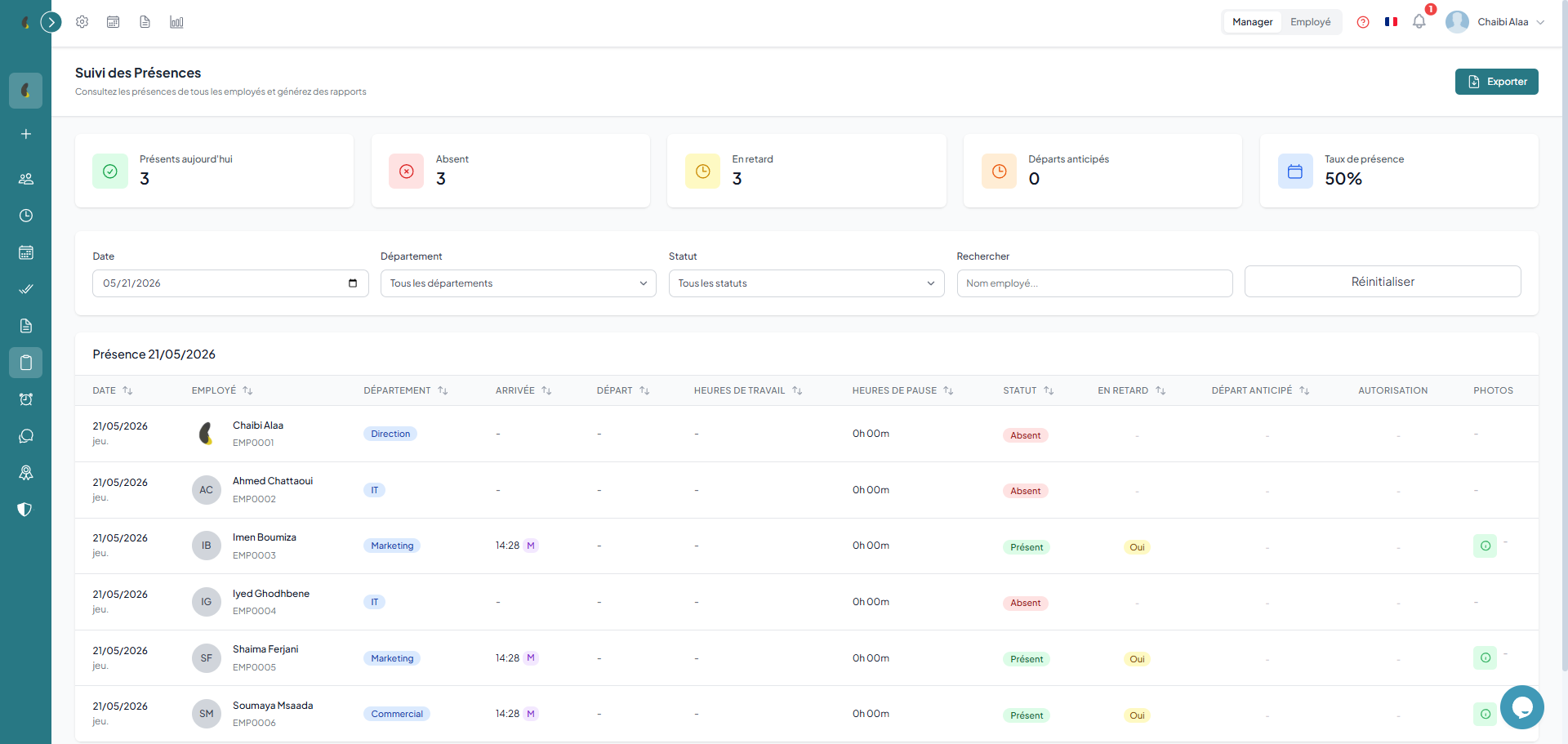
Attendance records are automatically generated from clock-ins. Each entry has a status: present, absent, late, on leave or half-day. Filter by employee, department and period.
How to
- Go to Temps & Présence › Suivi des Présences to display the sheets generated automatically from the clockings.
- Use the Employé, Département and Période filters to target the data you want.
- Check the status of each row (Présent, En retard, Absent, En congé, Demi-journée) and create a manual entry if needed.
- Click Exporter to download the data in Excel, CSV or PDF with the active filters.
Attendance statuses
attendance records are automatically generated from clock-ins. You can also create manual entries for managers (out-of-system entries).
Export
Export attendance data to Excel, CSV or PDF with active filters (period, department, employee).
Anomalies
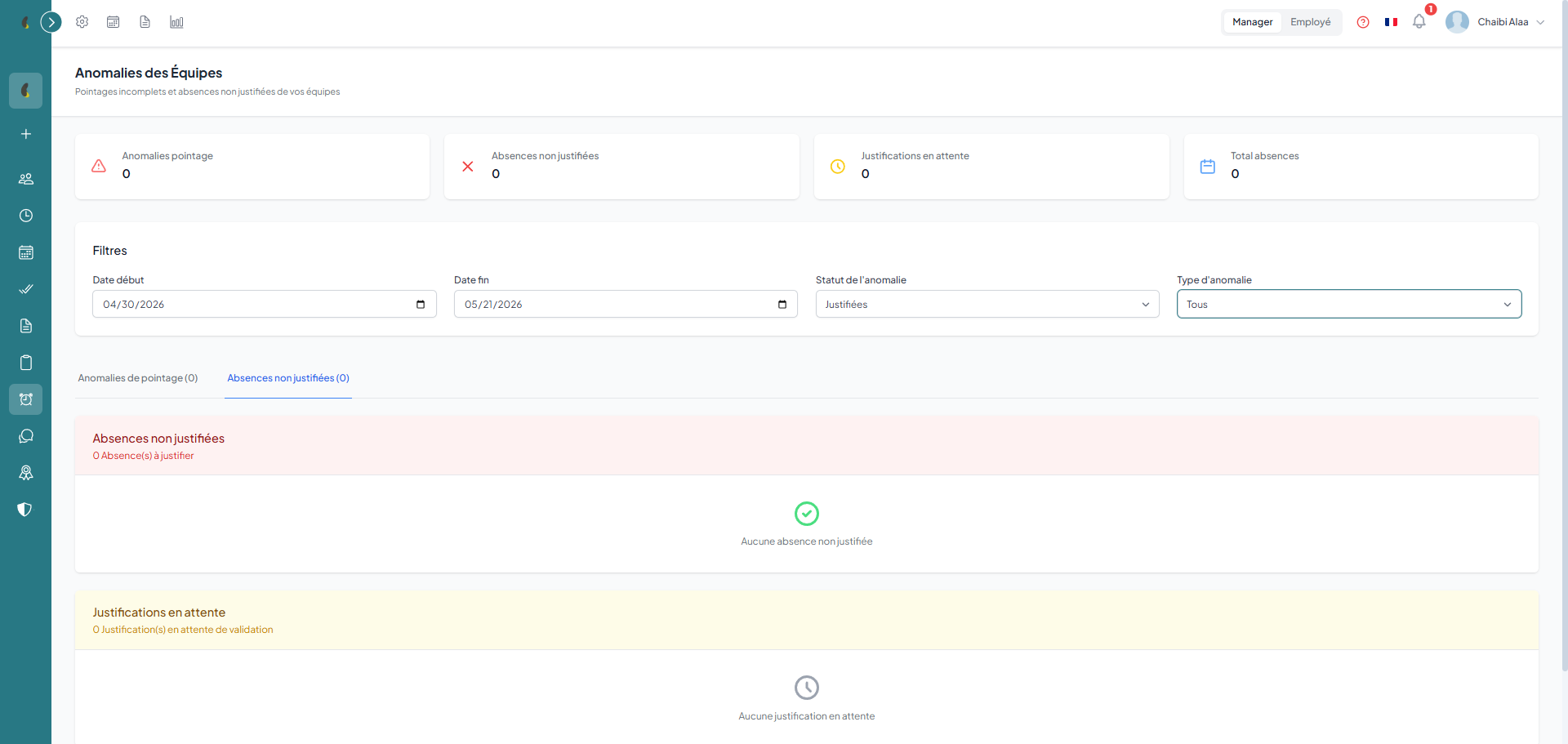
The system automatically detects anomalies: missing clock-ins, unjustified absences, recurring lateness. Managers see a dashboard with counters and alerts for their team.
How to
- Go to Temps & Présence › Anomalies des Équipes to open the dashboard of automatically detected anomalies.
- Review the counters by type: Pointage manquant, Absence injustifiée, Retard récurrent and Justification en attente.
- Click an anomaly to see the detail, then Justifier or Valider depending on the case.
- Employees find their own anomalies through Temps & Présence › Mes anomalies.
Types of anomalies detected
Managers see a dashboard with real-time counters for each type of anomaly. Employees can consult their own anomalies.
Time clock configuration
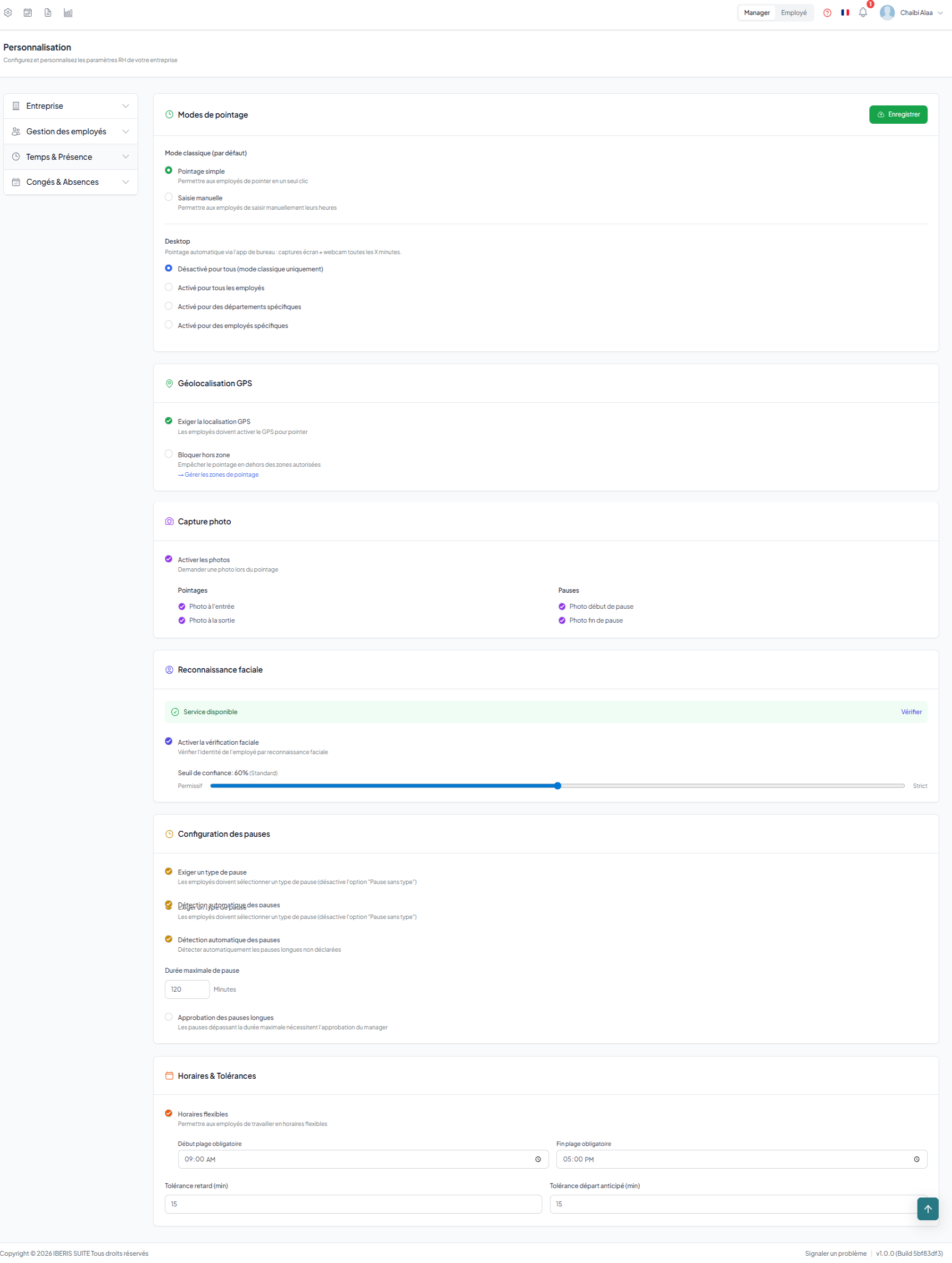
Fine-tune the system: location requirement, photo requirement (on arrival, on departure, on breaks), facial recognition threshold, lateness tolerance (in minutes), flexible or fixed schedules, and automatic break detection.
How to
- Go to Personnalisation › Temps & Présence then open the Modes de pointage section (administrator access only).
- Enable the options you want: Localisation requise, Photo requise, Reconnaissance faciale and its confidence threshold.
- Set the Tolérance retard in minutes, choose Horaires flexibles or fixed, and enable Détection auto pauses and Durée max pause.
- Click Enregistrer; the changes apply immediately to all employees.
Available parameters