Iberis HR
Help
Reports & analytics
Export: all reports are exportable to Excel and PDF. Active filters (period, department, employee) are applied to the export.
Employee reports
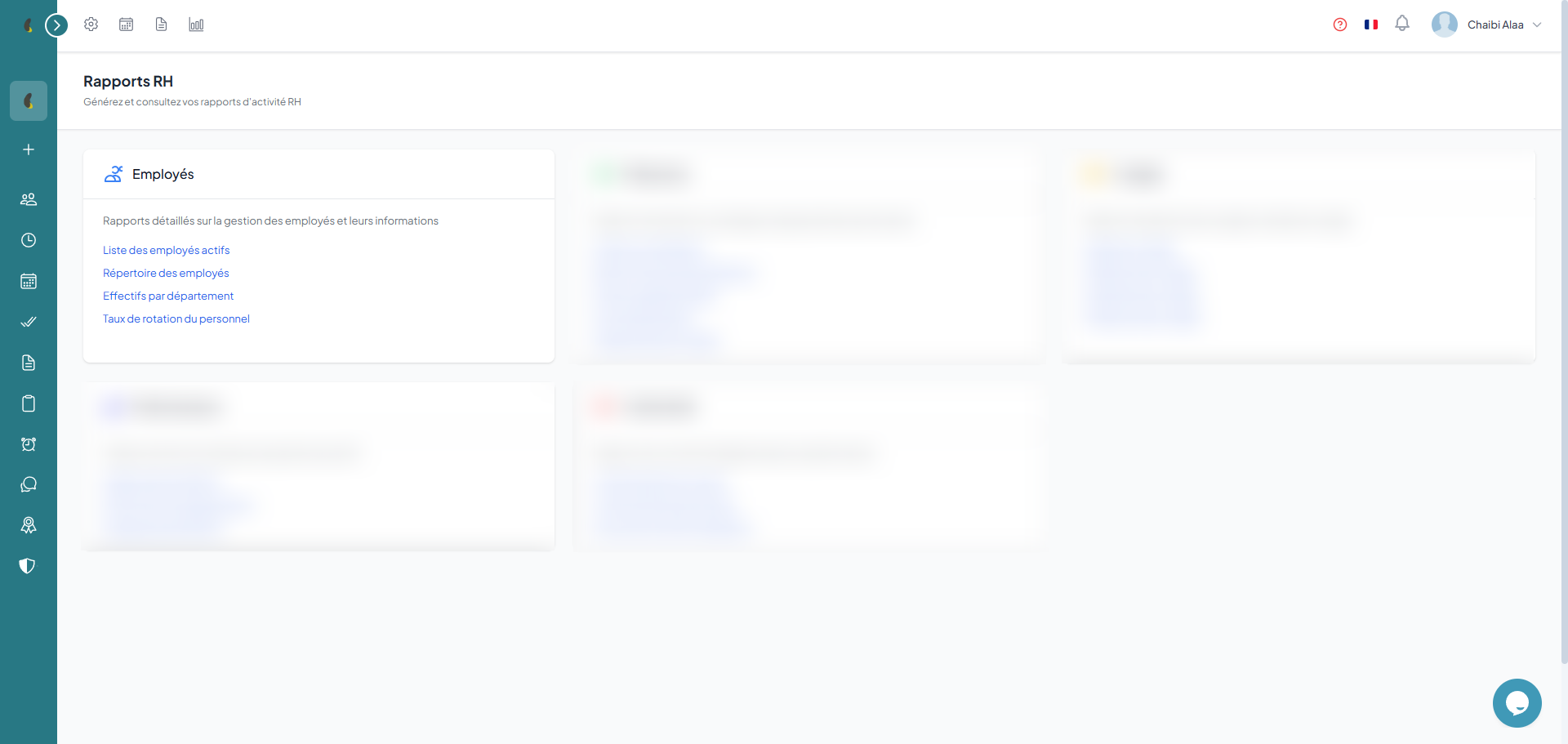
Four reports available: employee list, directory with contact details, headcount by department and turnover analysis. All exportable to Excel and PDF.
Employee list — complete table with personal and professional information, filterable by department and status
Directory — directory with contact details, photo and position of each employee
Headcount by department — staff distribution by organizational unit with charts
Turnover — analysis of arrivals/departures over a period with turnover rate
How to
- Go to Reports then in the Employees card, click the report you want (Active employee list, Employee directory, Headcount by department or Staff turnover rate).
- In the Filters panel, select the Department, the Status and a date range if needed, and the results update automatically.
- Click Reset to clear the filters and return to the full view.
- Click Export then Export to Excel to download the report.
Attendance reports
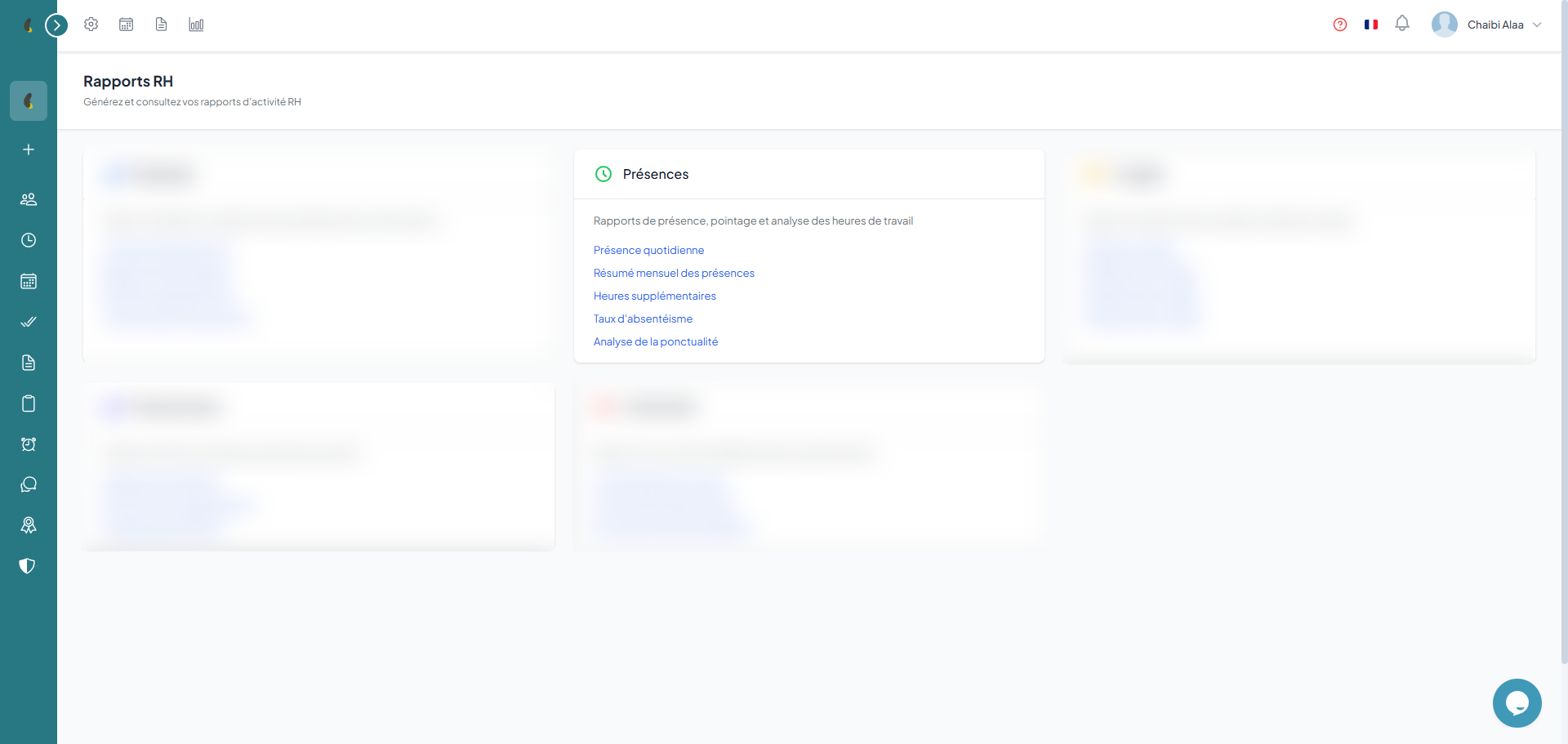
Five reports: daily attendance, monthly attendance, overtime, absenteeism and punctuality. Filter by department, employee and period.
Daily attendance — day-by-day details: arrival, departure, hours worked, lateness, status
Monthly attendance — monthly summary with total hours, days worked and attendance rate
Overtime — details of hours beyond normal schedule per employee and period
Absenteeism — absence rate by department, absence reasons and trends
Punctuality — lateness analysis: frequency, average duration, most affected employees
How to
- Go to Reports then in the Attendance card, click the report you want (Daily attendance, Monthly attendance summary, Overtime, Absenteeism rate or Punctuality analysis).
- Choose the Date or the Period and the Department in the Filters panel to target the data to analyse.
- Review the table and totals (hours worked, late arrivals, absences) updated according to your filters.
- Click Export then Export to Excel to get the report.
Leave reports
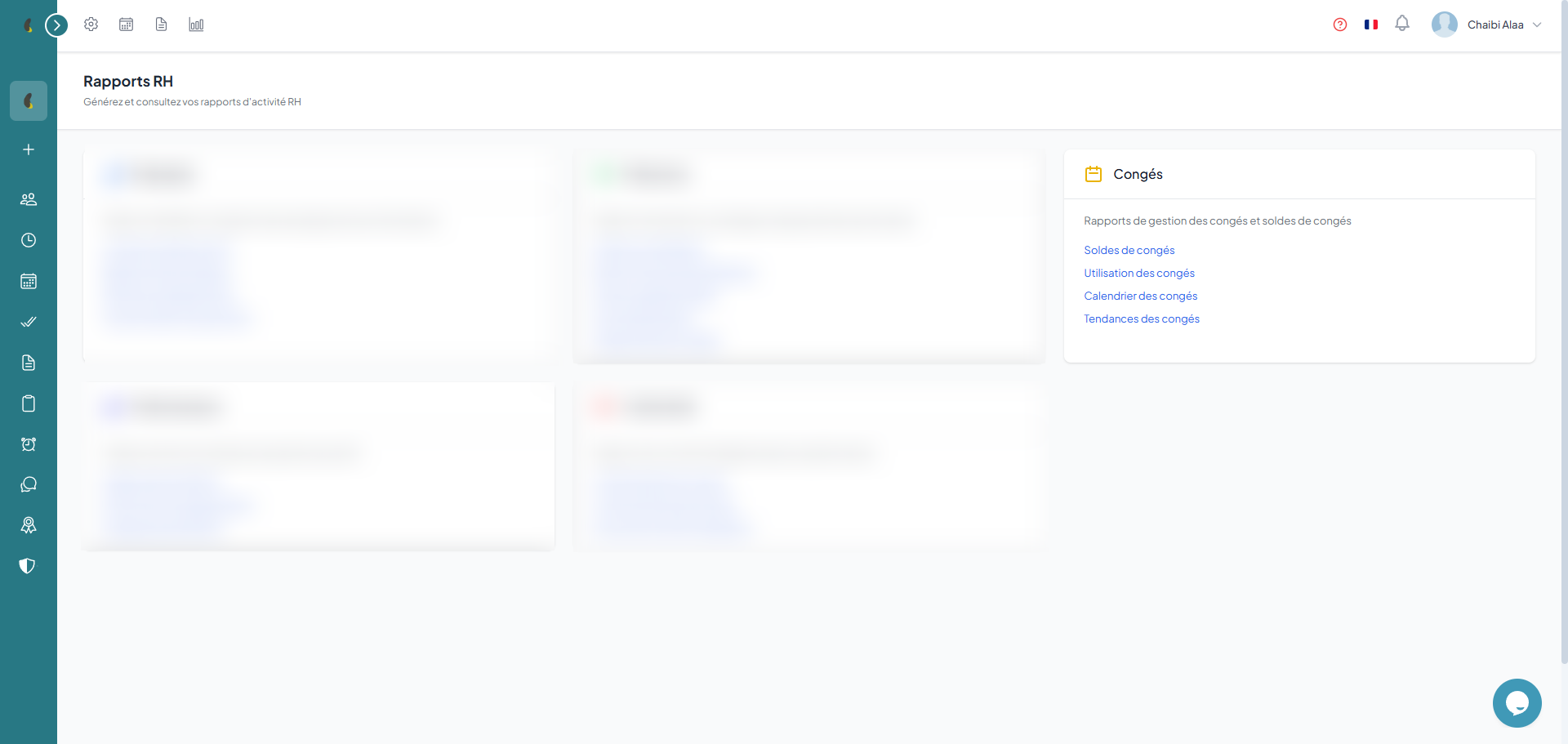
Four reports: balances by employee, usage by department, team calendar and monthly trends. Export to Excel and PDF.
Balances per employee — cross-table employee × leave type with allocated, used and available days
Usage by department — leave consumption by department with inter-department comparison
Team calendar — timeline view of all employees' leaves over a period
Monthly trends — evolution of requests and consumed days month by month with charts
How to
- Go to Reports then in the Leaves card, click the report you want (Leave balances, Leave usage, Leave calendar or Leave trends).
- Select the Year, the Leave type and the Department in the Filters panel to refine the analysis.
- View the remaining balances, days used and the team absence calendar.
- Click Export then Export to Excel to share the report.
Performance reports
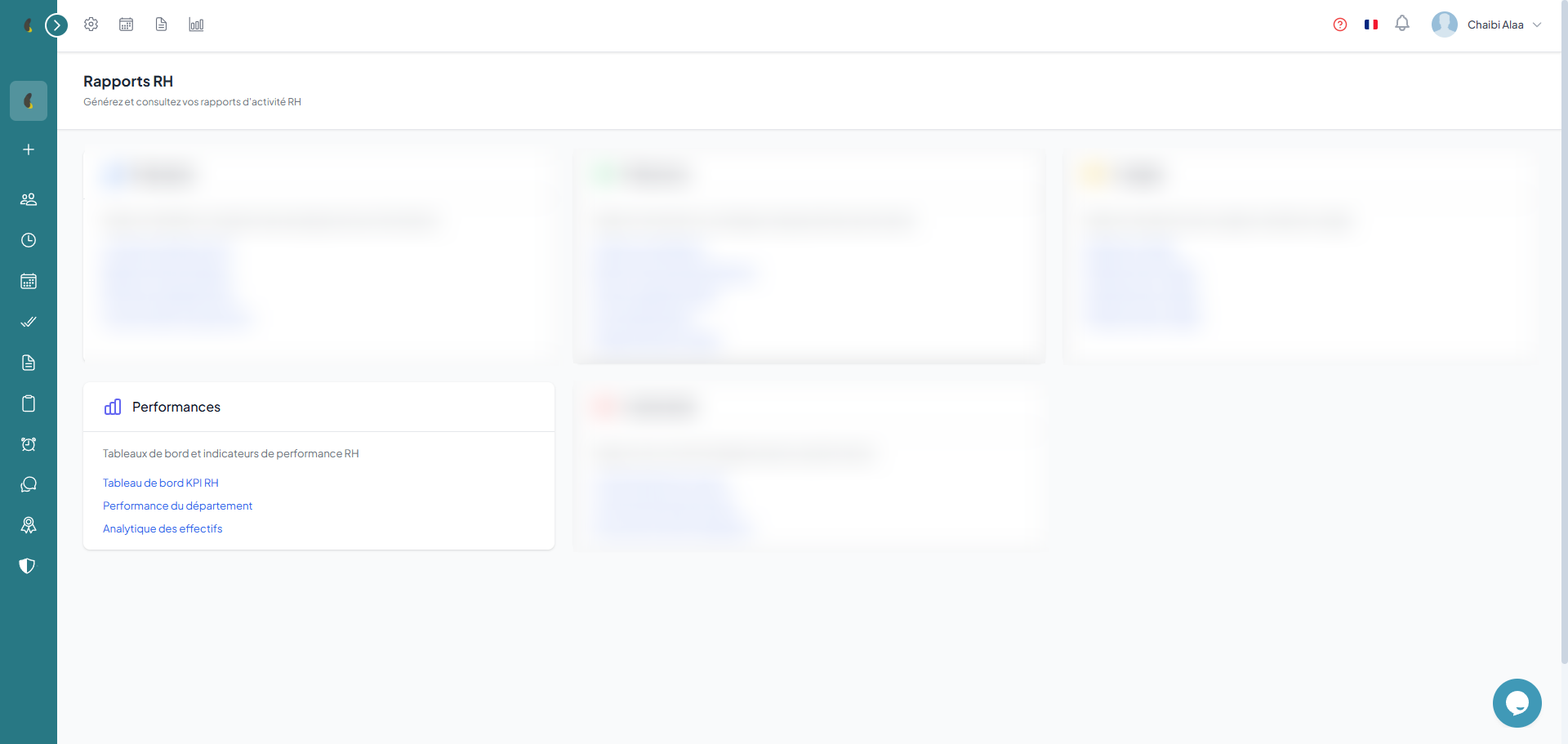
KPI dashboard with key indicators, performance by department and workforce analytics.
KPI Dashboard — key HR performance indicators: attendance rate, productivity, satisfaction
Department performance — average ratings by department with identification of strengths and areas of improvement
Workforce analytics — in-depth analysis: distribution by seniority, age, gender and evolution
How to
- Go to Reports then in the Performance card, click the report you want (KPI dashboard, Department performance or Workforce analytics).
- Choose the Period and the Department in the Filters panel to frame the displayed indicators.
- Analyse the KPIs, team scores and trend charts.
- Click Export then Export to Excel to share the results.
Compliance reports
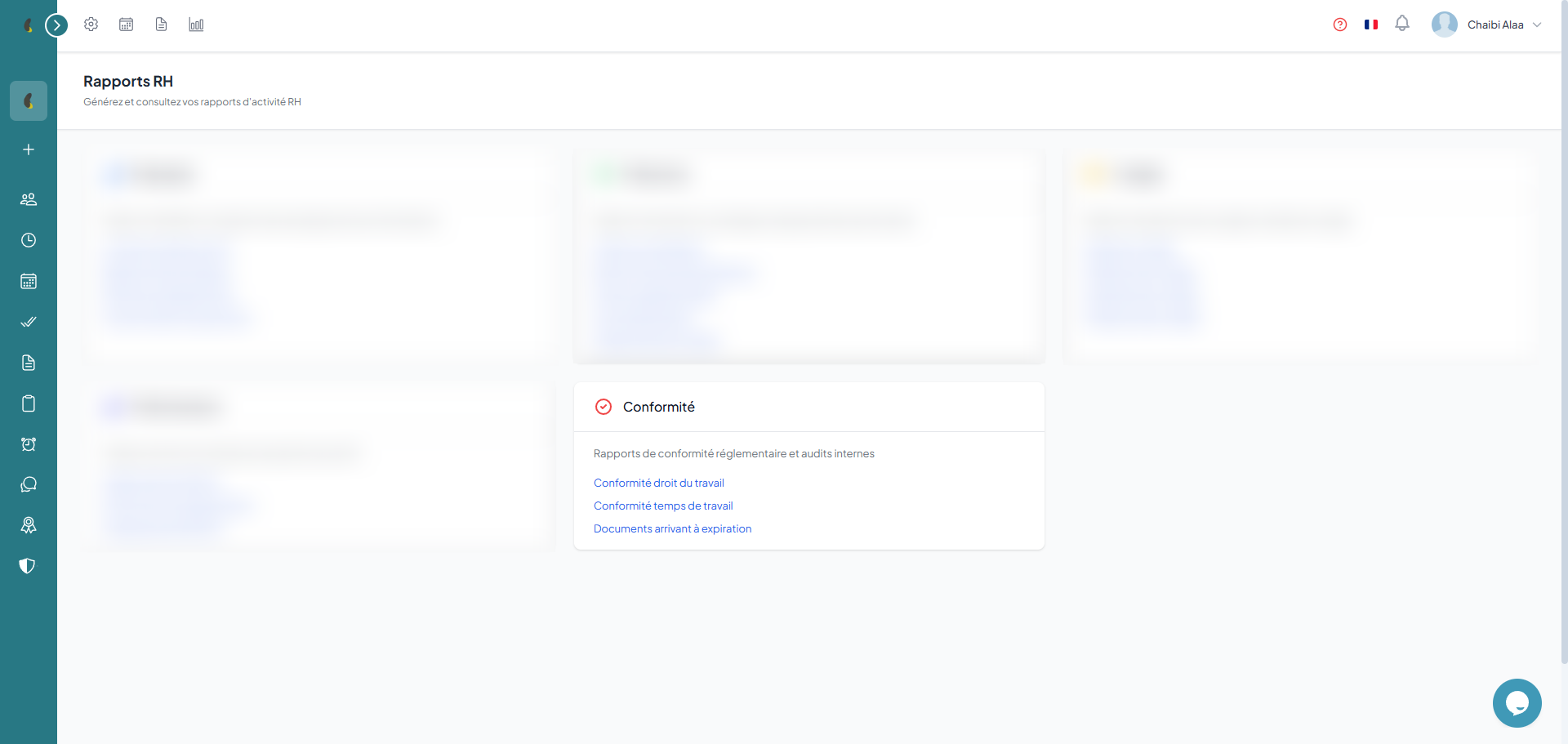
Verify compliance with labor law and work schedules. Document expiry and legal compliance reports.
Labor law compliance — verification of legal obligations: contracts, schedules, rest, minimum leaves
Working time compliance — respect of legal work time limits (max hours/week, minimum rest)
Document expiry — alerts on contracts, ID documents and certificates nearing expiration
Compliance: these reports are indicative and based on recorded data. Consult a lawyer for any legal compliance question.
How to
- Go to Reports then in the Compliance card, click the report you want (Labor law compliance, Working time compliance or Document expiry).
- Set the Period and the Department in the Filters panel to target the checks to verify.
- Spot the flagged alerts (schedule overruns, expired or missing documents) highlighted in the report.
- Click Export then Export to Excel to archive the compliance evidence.