Help
Configuration & customization
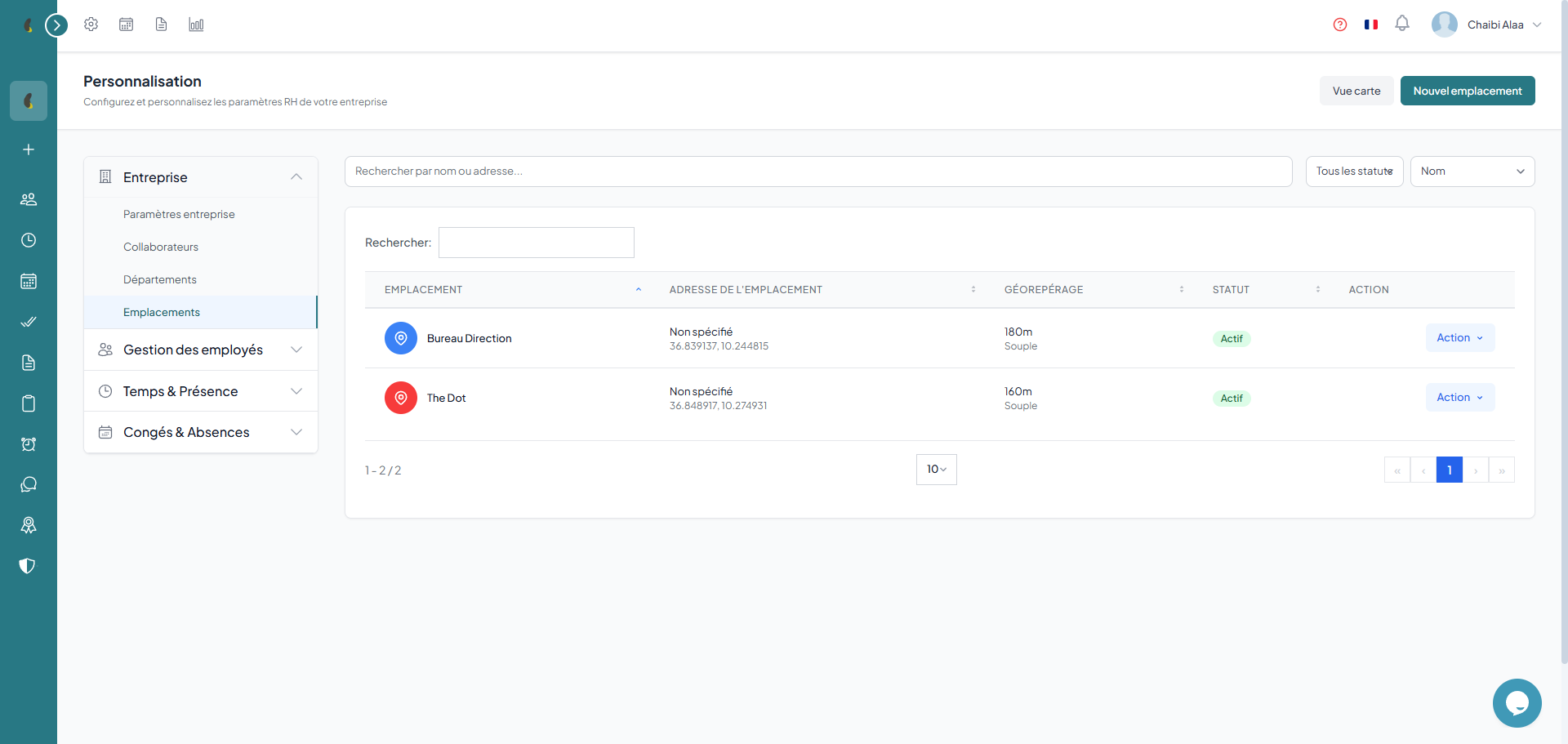
Locations
Manage your work sites with address, GPS coordinates and geofencing radius. Assign locations to specific departments or employees.
Create a location
- Name — location identifier (e.g. "Tunis Headquarters", "Sousse Branch")
- Address — complete postal address
- GPS coordinates — manual entry or selection on the interactive map
- Geofencing radius — authorized zone in meters around the central point
Assignment
Public holidays
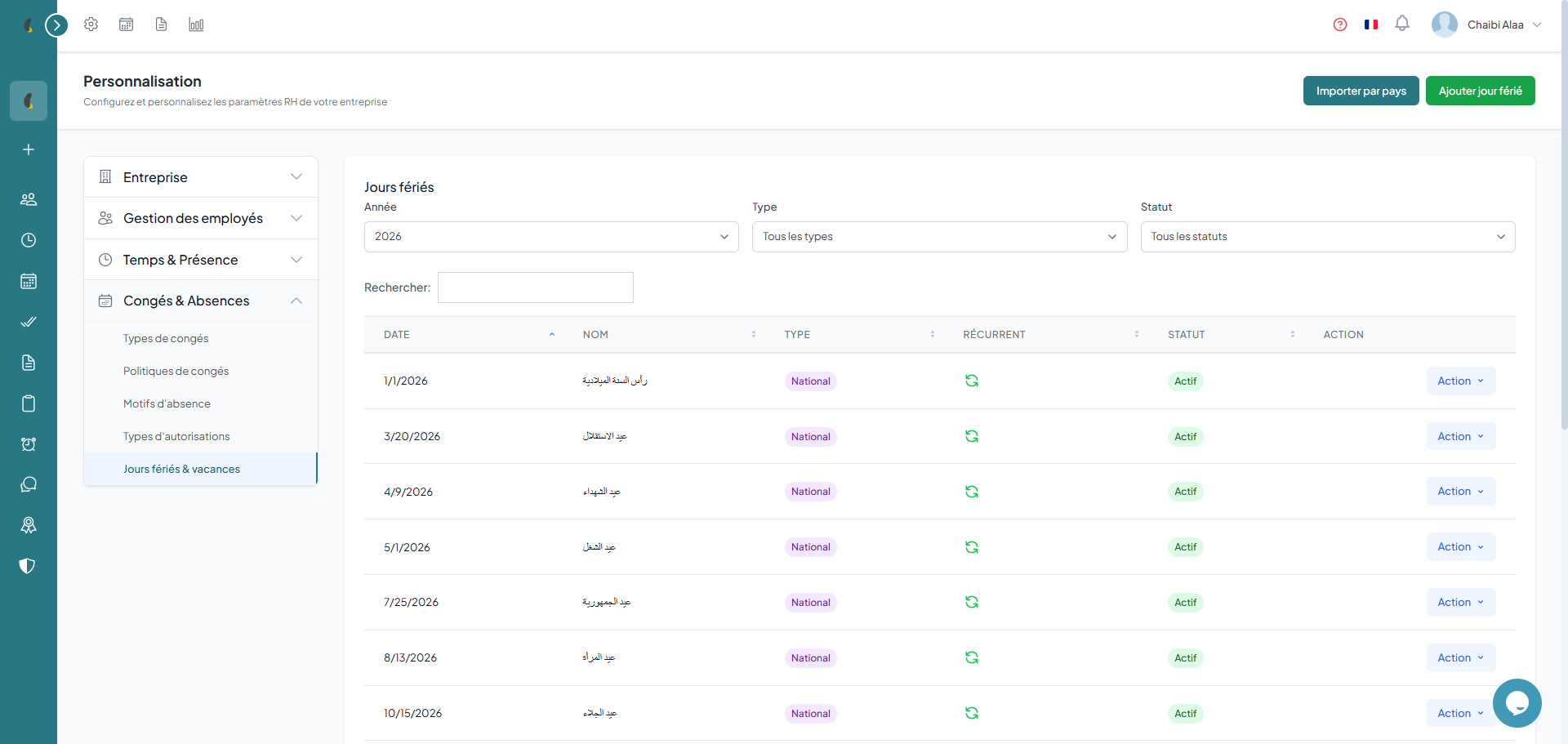
Configure your company's public holidays. These days are automatically taken into account in leave calculations and calendar display.
Configuration
- Holiday name — e.g. "Independence Day", "Eid al-Fitr"
- Date — exact date (fixed or variable depending on the year)
- Recurrent — repeats every year on the same date
Automatic impact
Break types
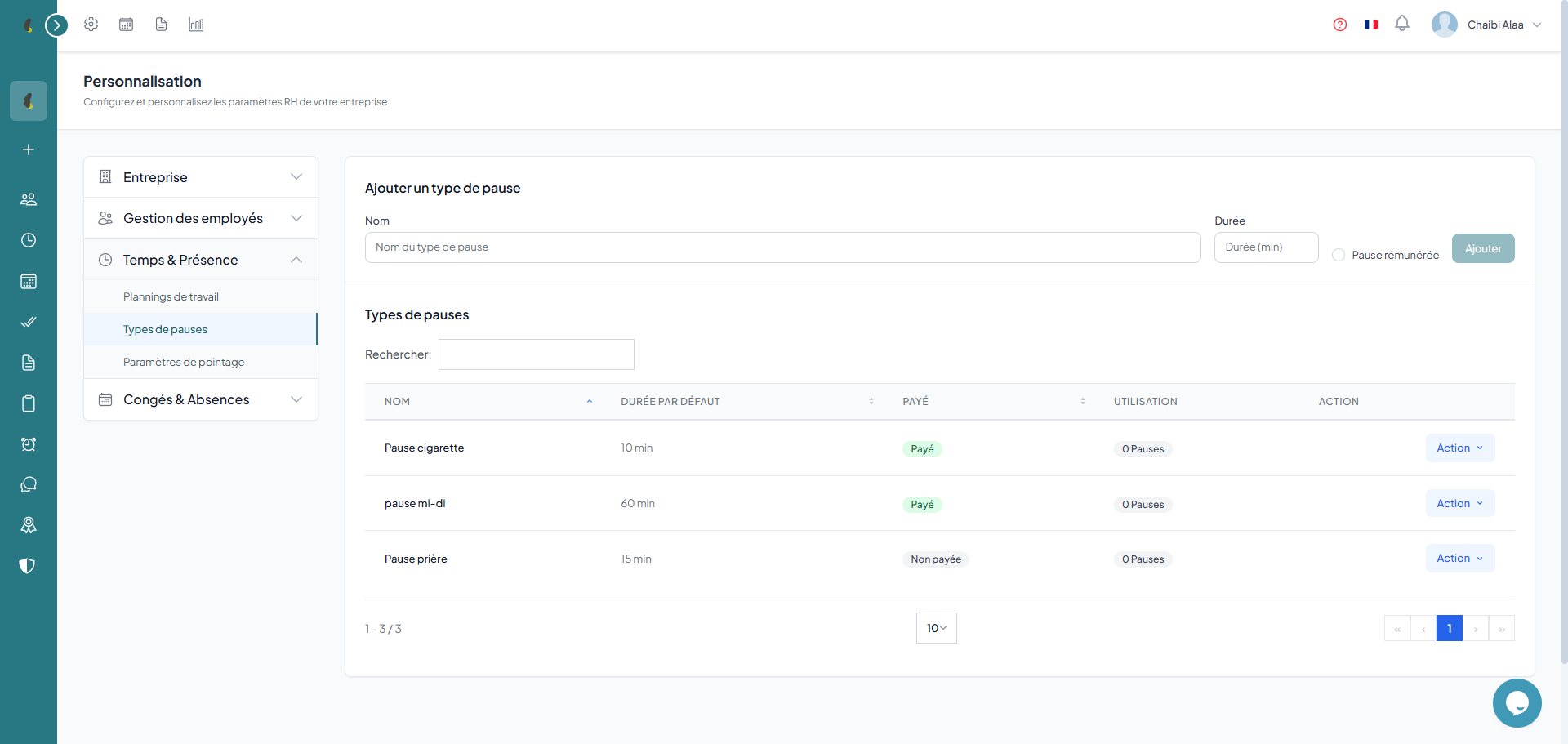
Define the available break types (lunch, coffee, prayer, etc.) with default duration and paid/unpaid distinction.
How to
- Go to Customization › Time & Attendance › Break types.
- In the Add a break type form, enter the Name and, if needed, a default Duration in minutes.
- Tick Paid break if the break is paid.
- Click Add; the type appears in the list and becomes available during time clocking.
- To adjust an existing entry, use Edit or Delete in the row action menu.
Examples of break types
Configurable properties
Each break type has a name, a default duration in minutes and a paid/unpaid distinction. Employees select the type at the start of their break.
Absence reasons
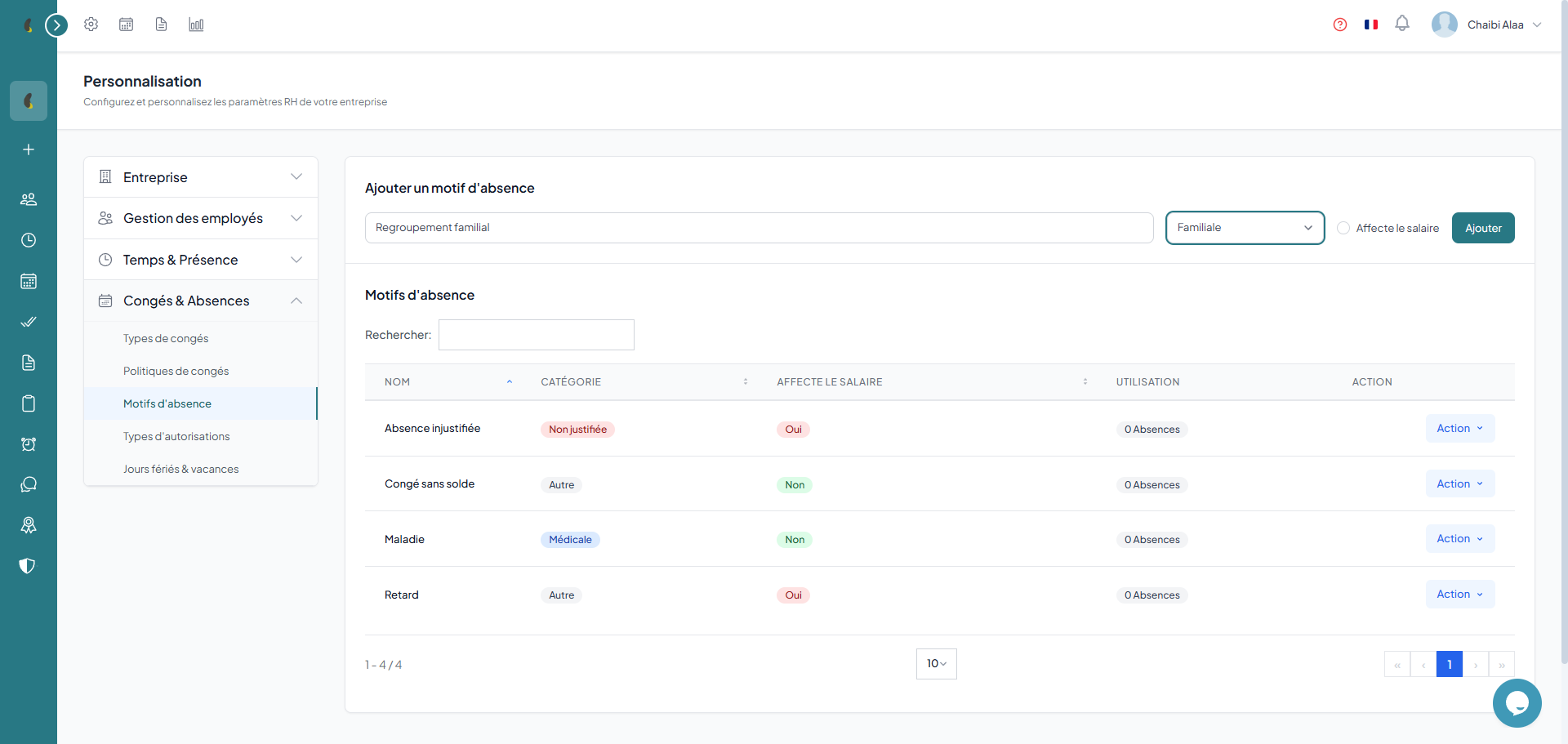
Create absence reason categories to classify your employees' absences.
How to
- Go to Customization › Leave & Absences › Absence reasons.
- In the Add an absence reason form, enter the reason Name.
- Choose a Category (Justified, Unjustified, Medical, Family or Other).
- Tick Affects salary if the absence should be deducted from pay, then click Add.
- The reason is then offered when justifying employee absences.
Examples of reasons
These reasons are used to classify absences in absenteeism reports and allow analysis by category.
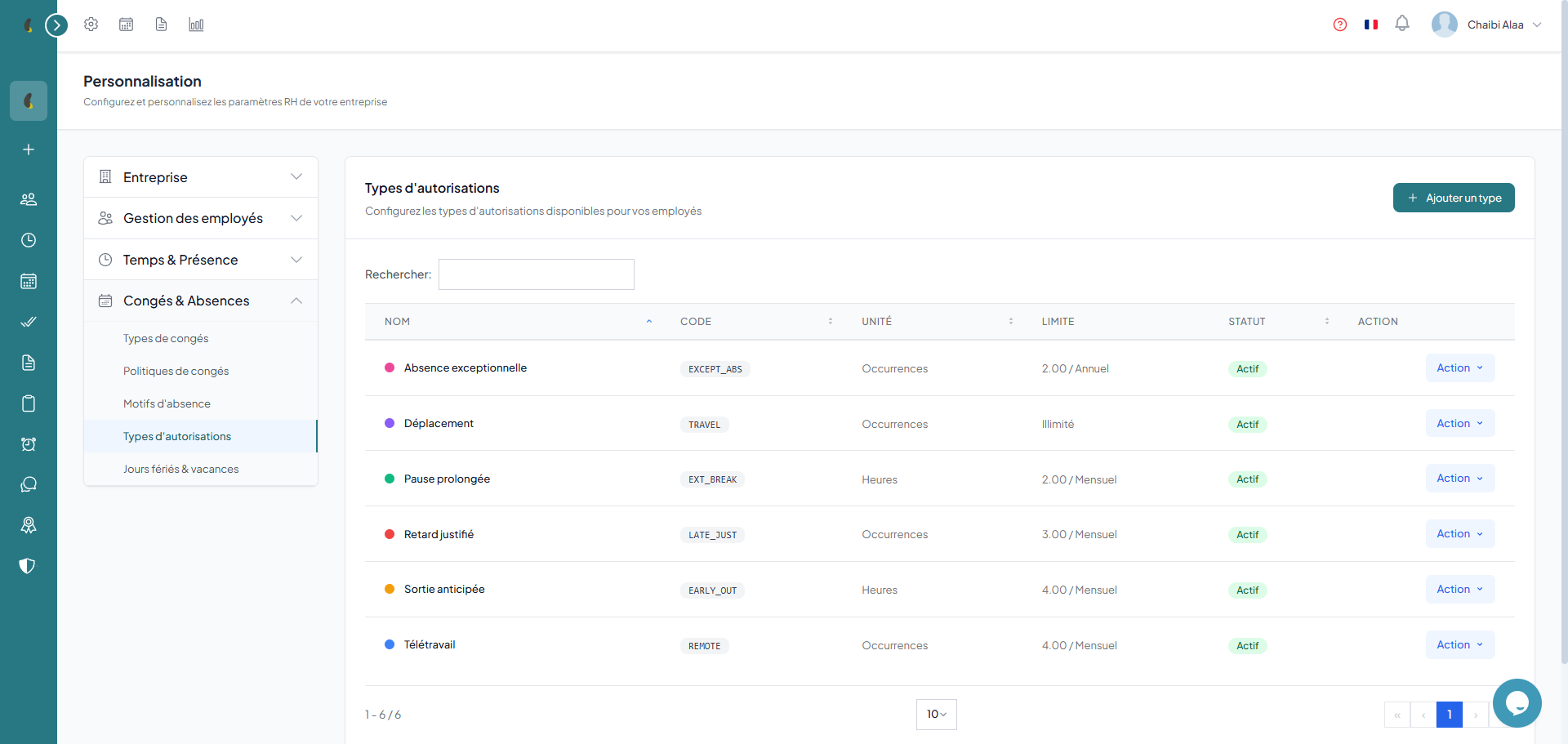
Authorization types
Define the types of authorizations your employees can request (early departure, remote work, etc.).
How to
- Go to Customization › Leave & Absences › Authorization types.
- Click Add an authorization type at the top right.
- Fill in the Name, Code, Unit (hours or occurrences) and the Limit per period.
- Save; the type becomes selectable in employees authorization requests.
Examples of authorization types
Authorizations follow an approval workflow similar to leaves. The employee submits their request, the manager approves or refuses with a reason.