Help
User account management
Create an account
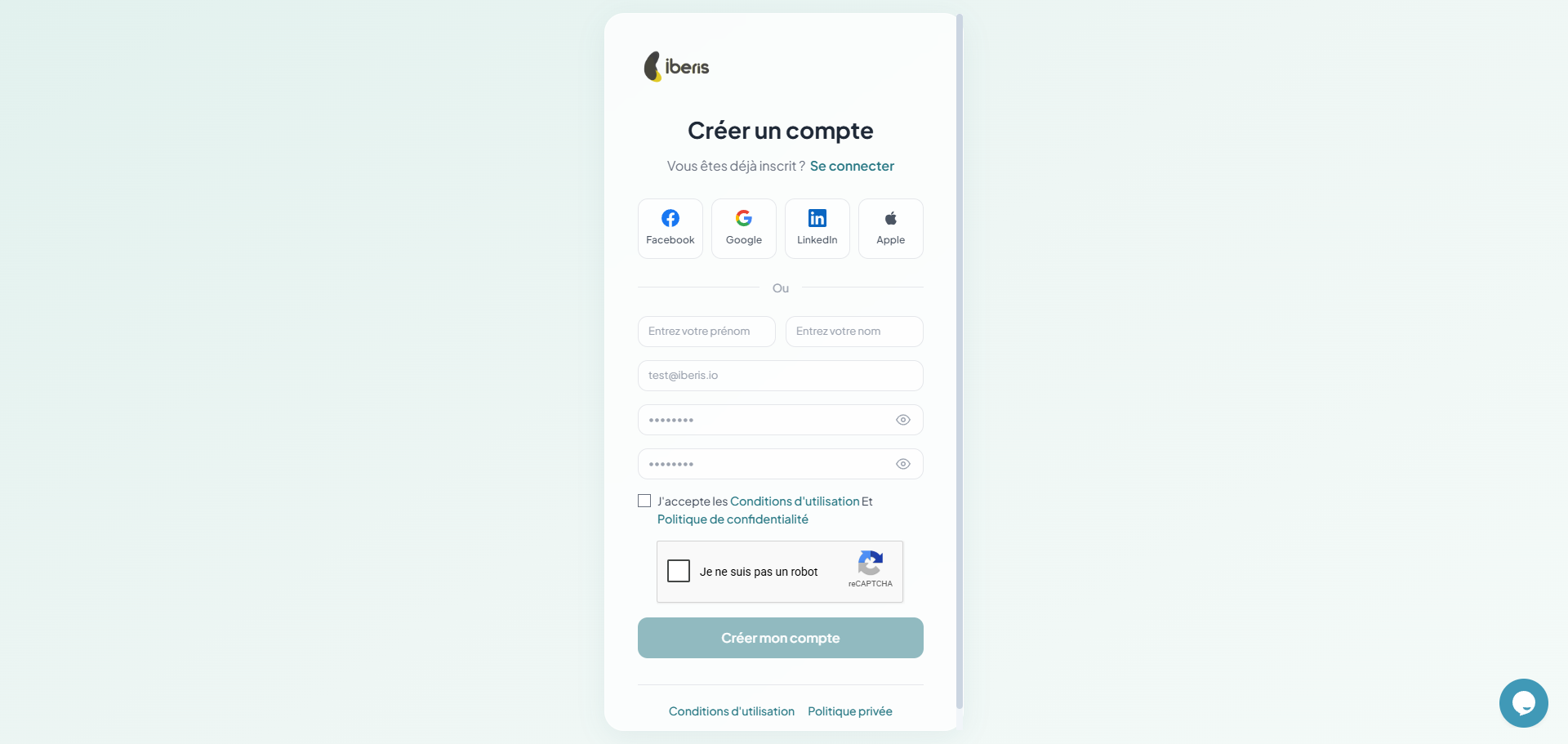
Go to the registration page and fill in the form with your name, email and password. A validation email will be sent to confirm your address.
- First & Last name — enter your personal information
- Professional email — used for login and notifications
- Password — minimum 8 characters, with uppercase and digit
- Email validation — an OTP code is sent to your email address
- Company creation — after validation, create your first company
Login
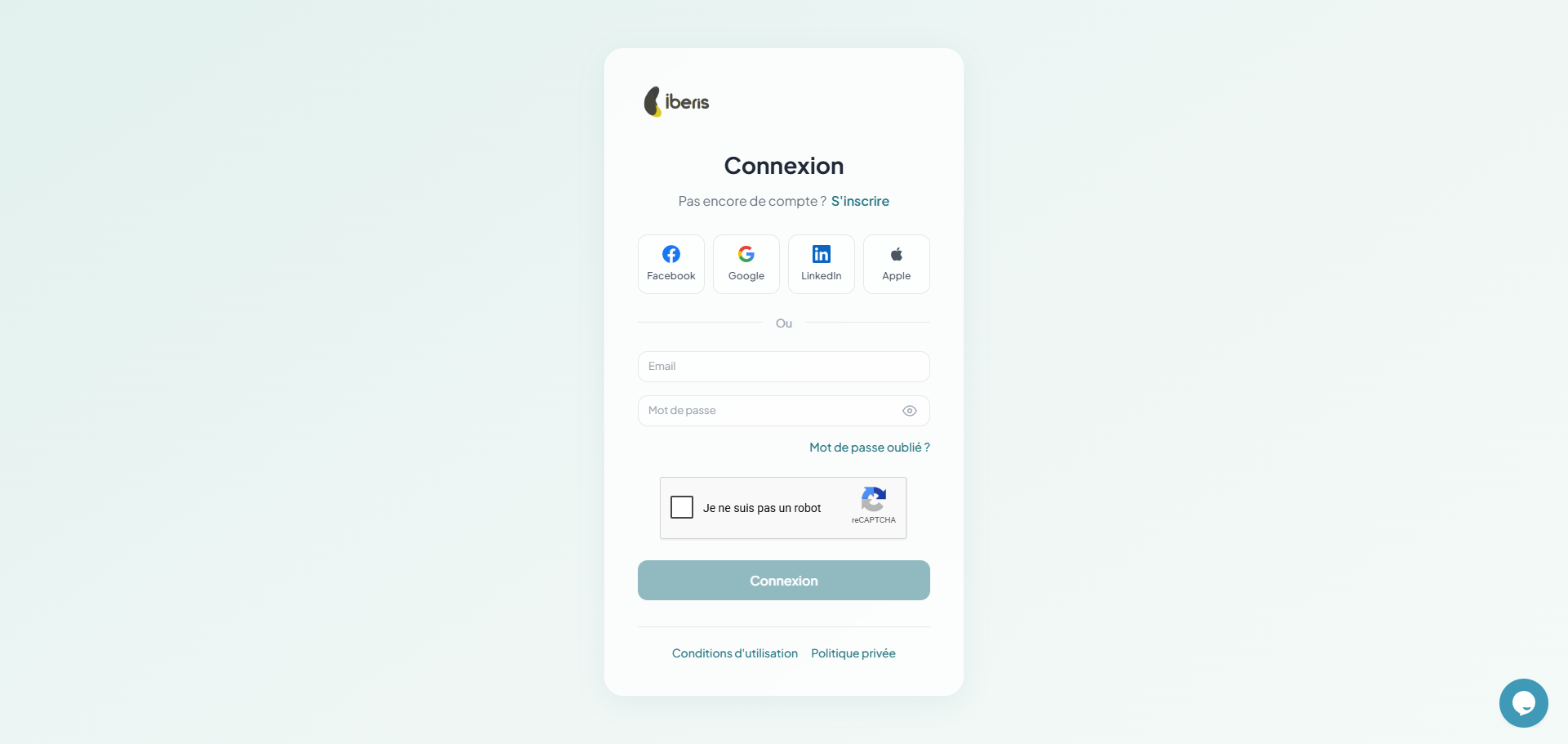
Log in with your email and password. If you have enabled two-factor authentication (2FA), an additional code will be required.
How to
- Open the login page from Se connecter on the home page.
- Enter your Adresse e-mail and your Mot de passe.
- Or choose Continuer avec Google or Continuer avec Facebook to sign in with one click.
- Click Se connecter to reach your Tableau de bord.
Login methods
Two-factor authentication (2FA)
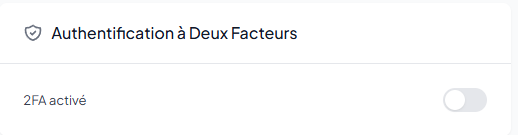
Enable two-factor authentication to secure your account. A temporary code will be required at each login in addition to your password.
- Activation — go to your profile, security section, and enable 2FA
- Configuration — scan the QR code with an authentication app (Google Authenticator, Authy)
- Verification — enter the 6-digit code to confirm activation
- Login — at each login, a temporary code will be required after the password
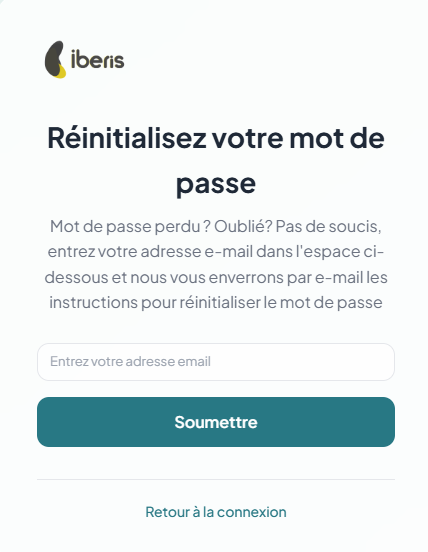
Password reset
If you have forgotten your password, click "Forgot password" on the login page. An OTP code will be sent to your email to create a new password.
- click "Forgot password" on the login page
- enter your email address associated with the account
- receive an OTP code by email (valid for 15 minutes)
- enter the code and create a new password
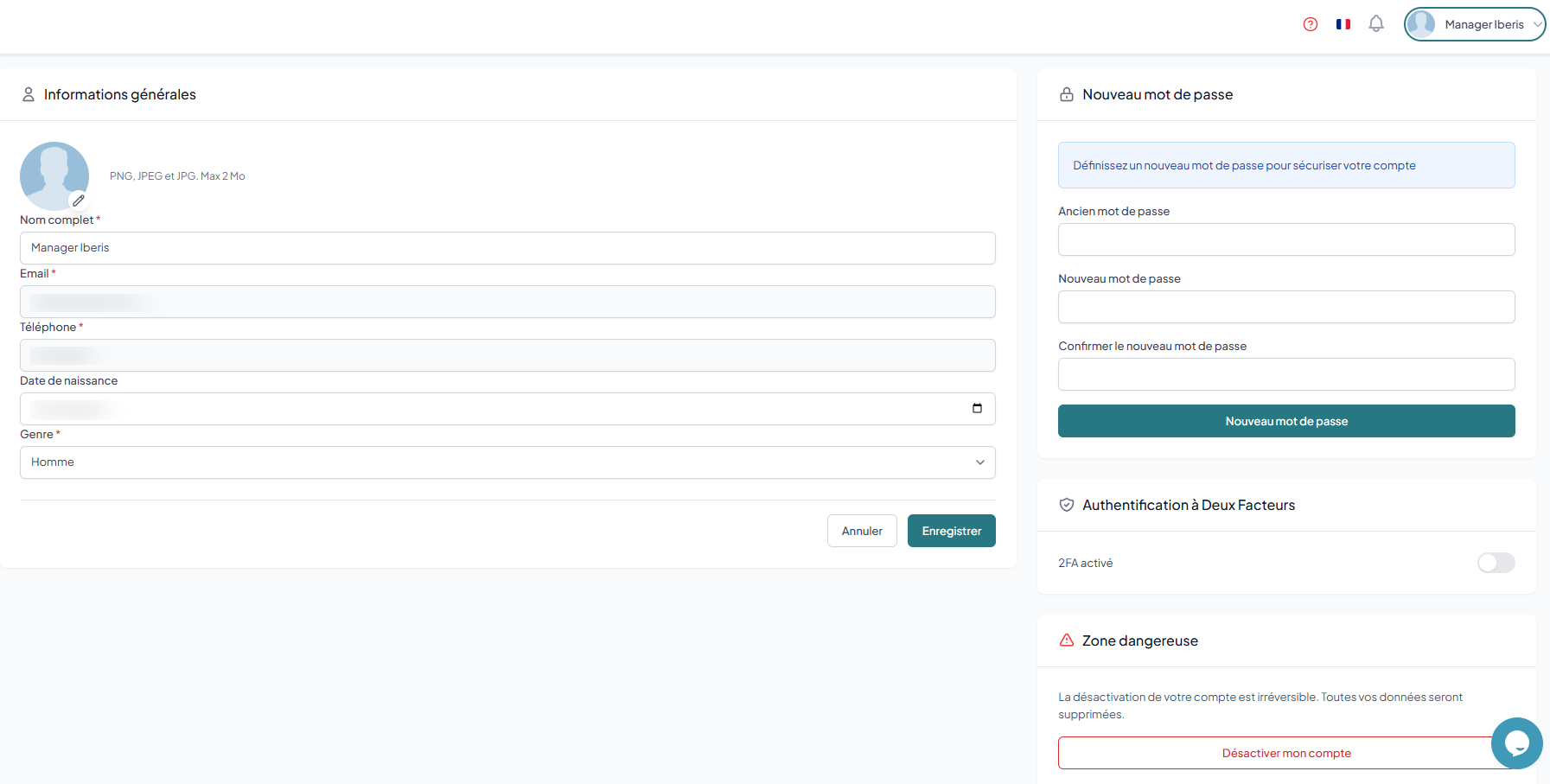
My profile
Edit your personal information, change your profile picture and update your contact details from the profile page.
How to
- Click your Avatar at the top right then on Mon profil.
- Update your information in the Identité, Contact and Préférences sections.
- To change your password, open the Sécurité section and enter the new password.
- Click Enregistrer to apply your changes.
Editable information
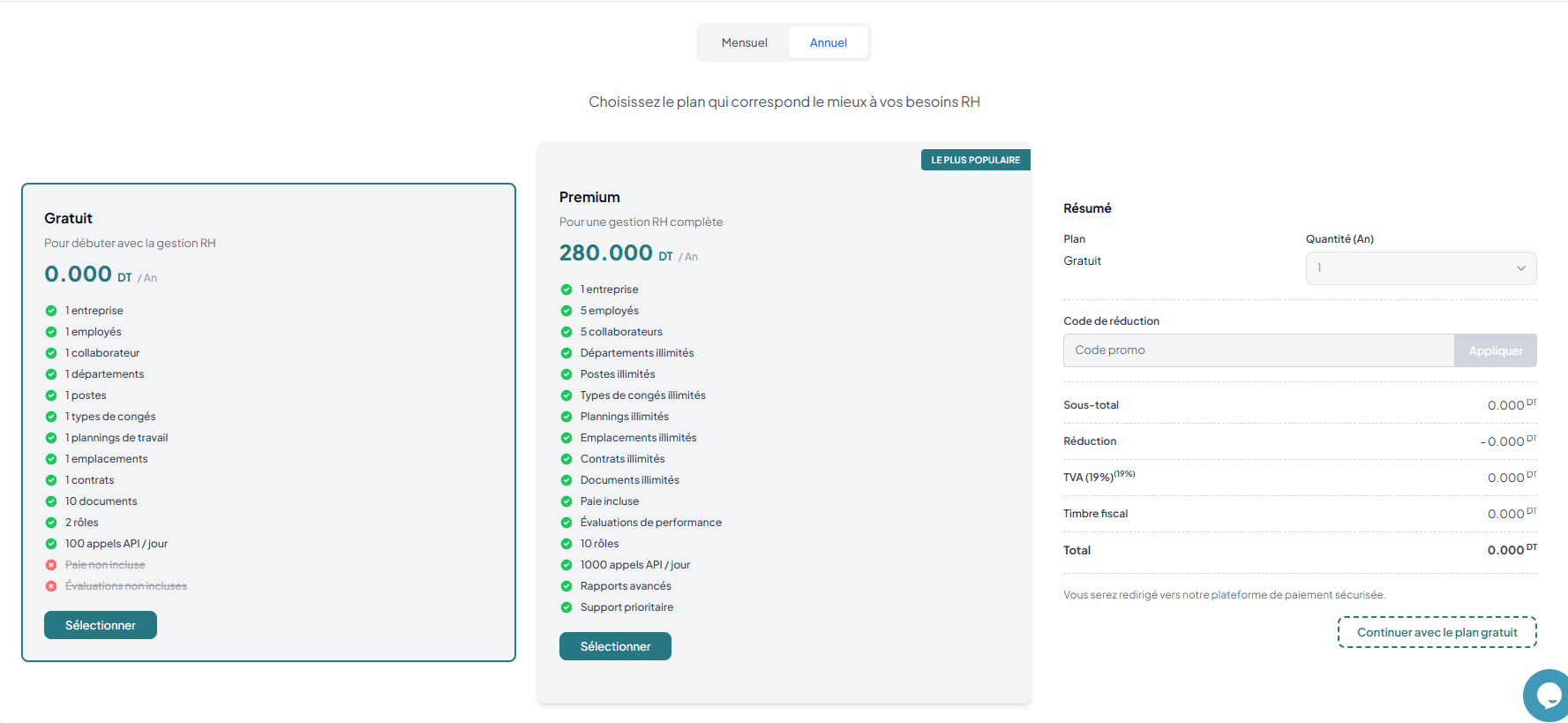
Subscription
View your current plan, upgrade to the Premium plan or manage your subscription. The free plan includes 1 company and 5 employees.
How to
- Click your Avatar at the top right then on Abonnement.
- Choose the Premium plan and the Mensuel or Annuel billing period.
- Optionally enter a Code promo to apply a discount.
- Check the summary with the TVA and the Timbre fiscal then click Souscrire.
- Complete the payment via Konnect to activate your subscription.
Available plans
Notifications
Configure your email notification preferences: clock-in alerts, leave requests, anomalies and reminders.
How to
- Click your Avatar at the top right then on Notifications.
- Browse your Pointage, Congés, Contrats and Performance alerts.
- Enable or disable each notification type according to your preferences.
- Your notification preferences are saved automatically.
Notification types
Support
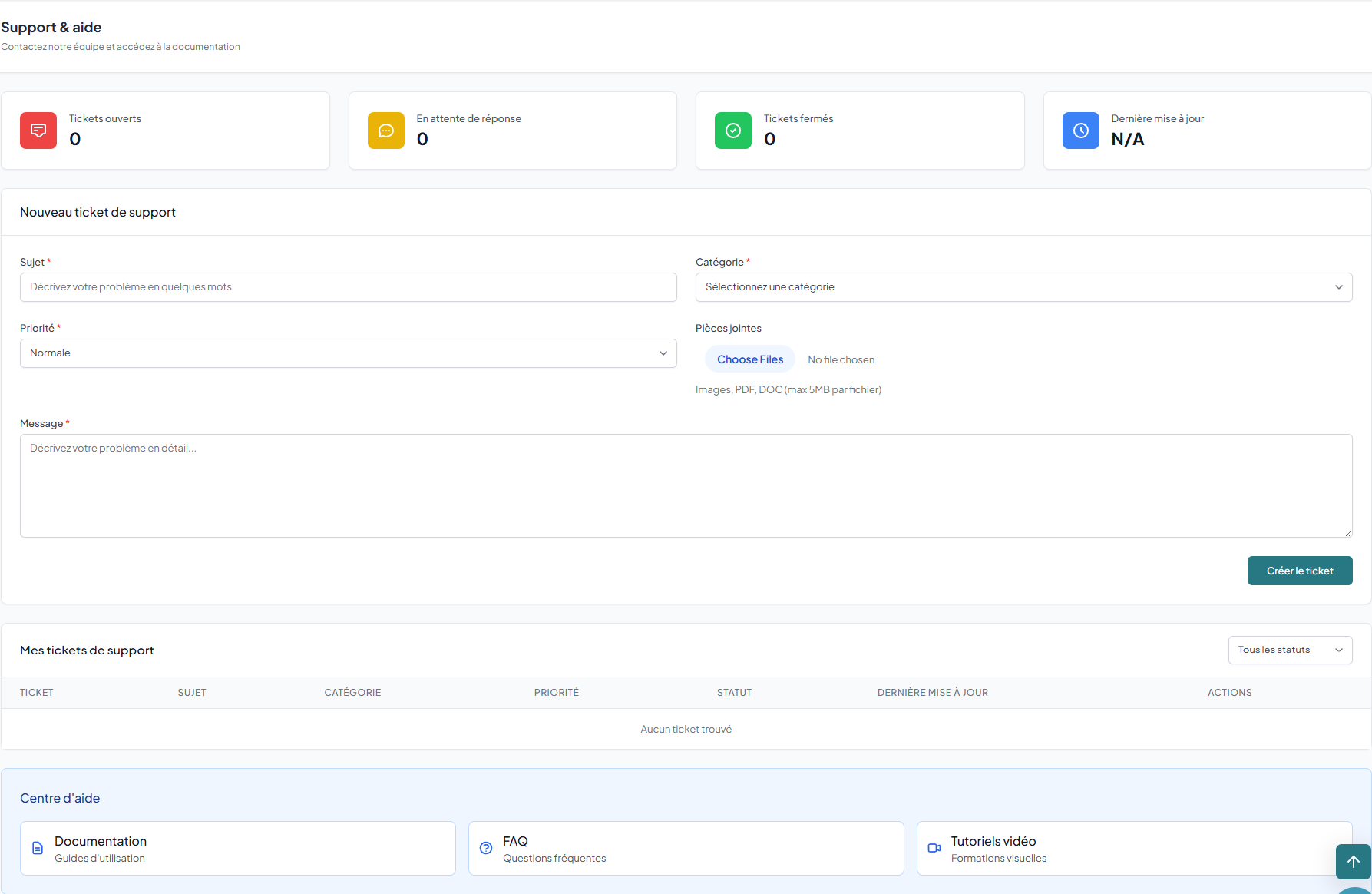
Contact our support team via the integrated ticket system. Create a ticket, track its progress and view the history.
- go to the Support section from the user menu
- click "New ticket" and describe your issue
- track progress and responses in ticket history