Help
Company management
Create a company
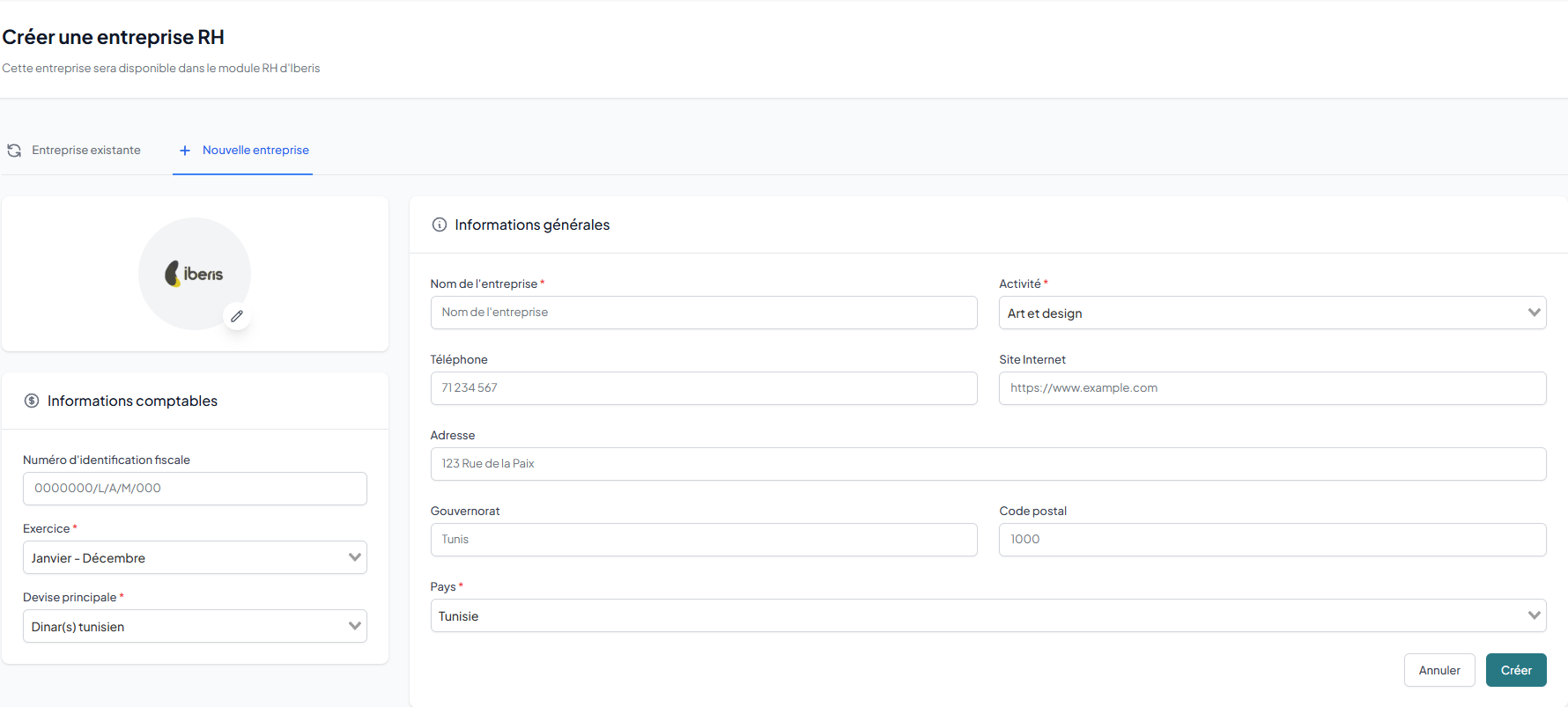
After registration, create your company by entering the name, industry, country and currency. You automatically become the company administrator.
- Company name — the commercial name of your company
- Activity sector — choose from the list of sectors
- Country & Currency — defines regional settings (Tunisia / TND by default)
- Logo — optional, displayed on contracts and PDF documents
Dashboard
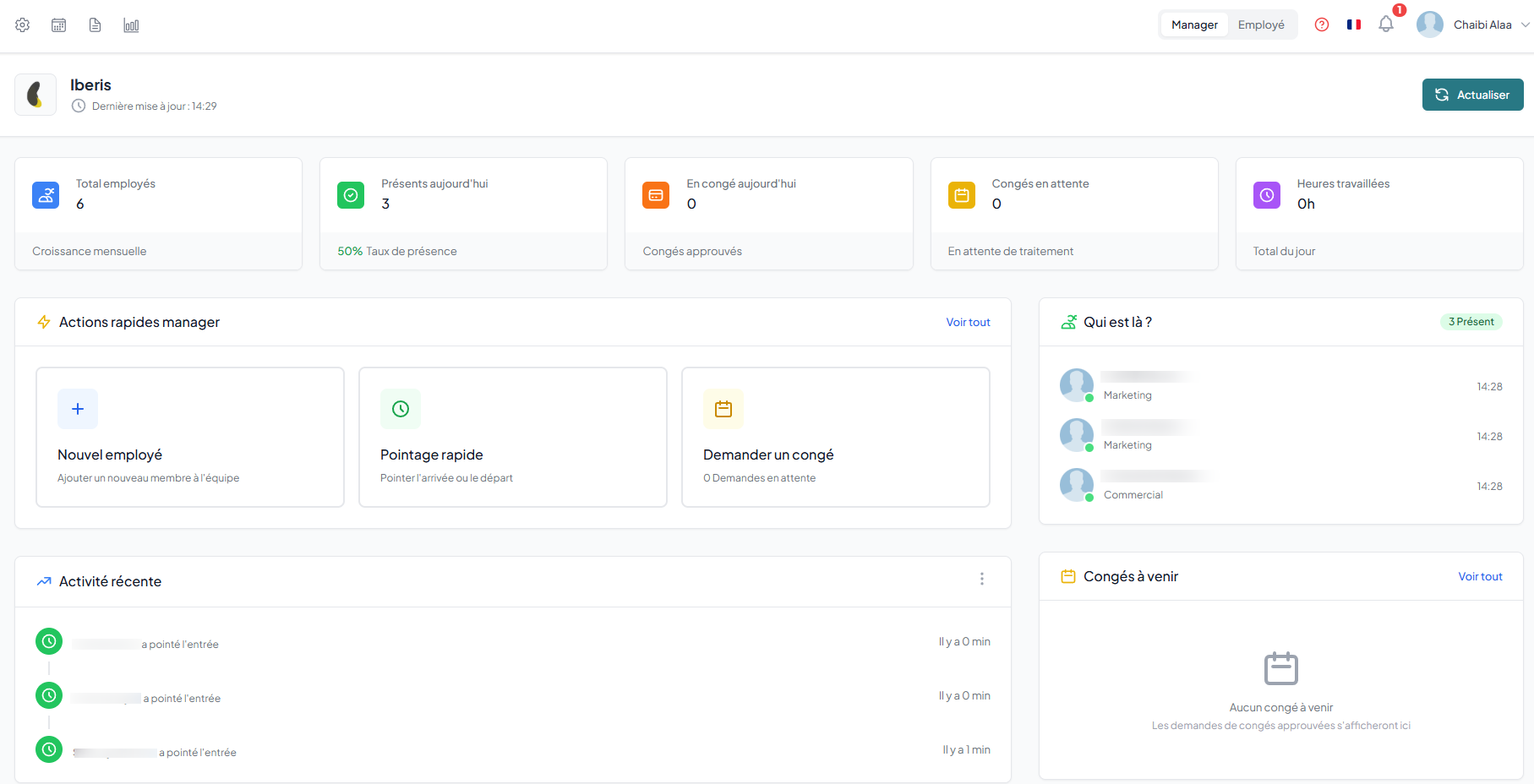
The dashboard displays real-time statistics: employees present, on leave, late, attendance rate and hours worked. Managers see their team's stats, employees see their personal profile.
How to
- Open the Dashboard from the main menu to display your company real-time statistics.
- Review the key indicators: Present employees, On leave, Late and Attendance rate.
- As a manager, use the Manager view to track your team statistics.
- As an employee, open the Employee view to see your hours worked, clock-in status and leave balance.
- Click a Pending request to approve or reject it directly.
Manager view
Employee view
Employees see their personal profile with: hours worked today, clock-in status, leave balance and pending requests.
Company settings
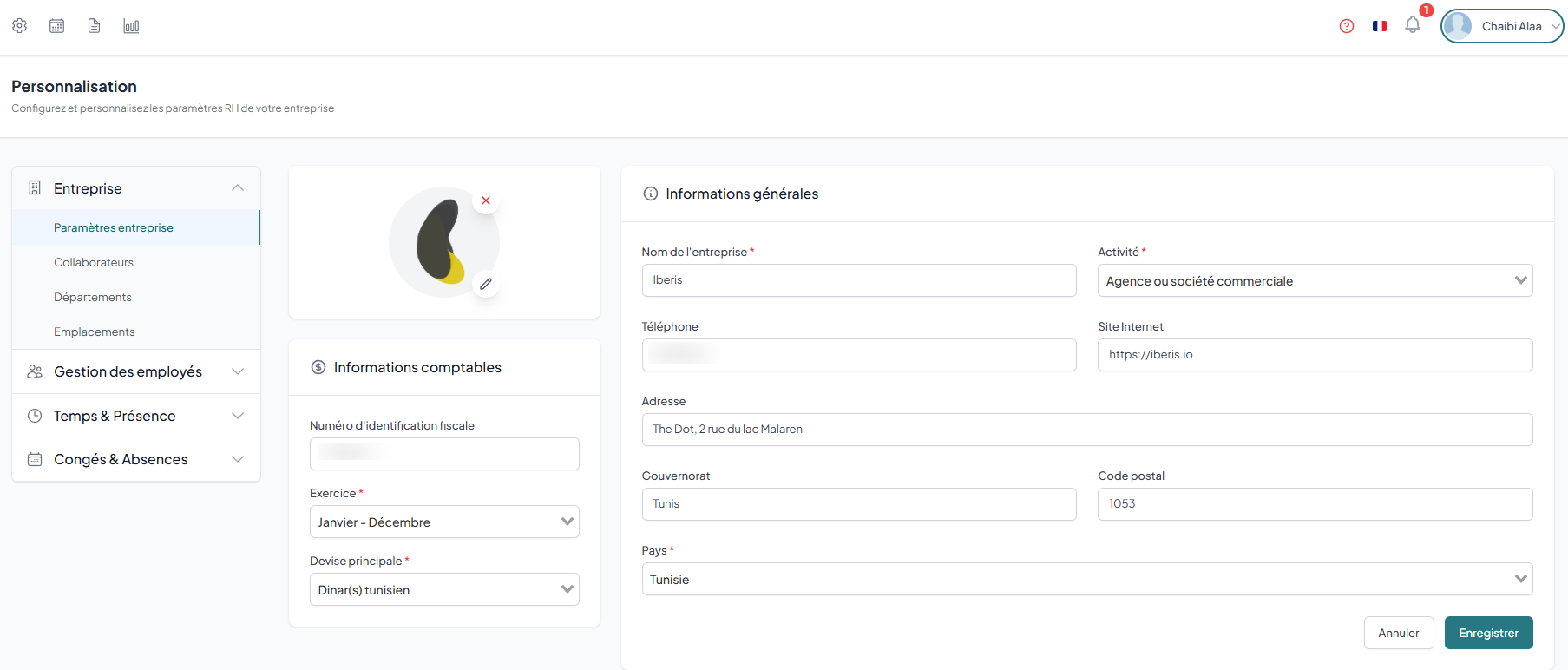
Edit your company information: name, address, logo, industry and regional settings.
How to
- Go to Customization › Company › Company settings.
- In General information, edit the company name, address and tax ID.
- In Logo & Identity, upload your logo and set the colors and stamp.
- Adjust the Regional settings: currency, date format and time zone.
- Click Save to apply the changes.
Users & collaborators
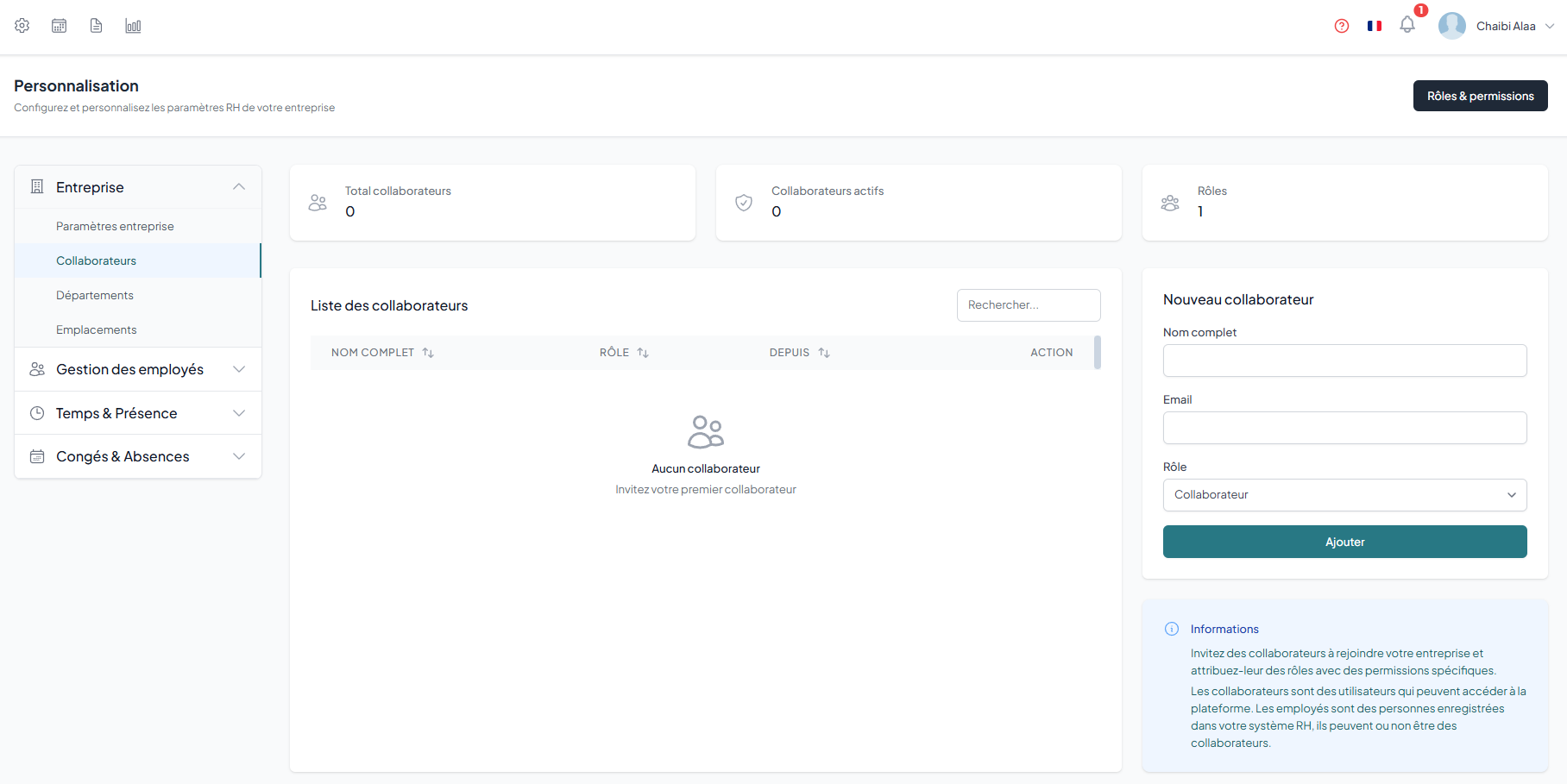
Invite collaborators by email to join your company. Each invited user receives a link to accept or decline the invitation.
- go to Users from settings
- click "Invite" and enter the collaborator's email
- assign a role (administrator, manager, employee)
- the collaborator receives an invitation email with a link to accept
Roles & permissions
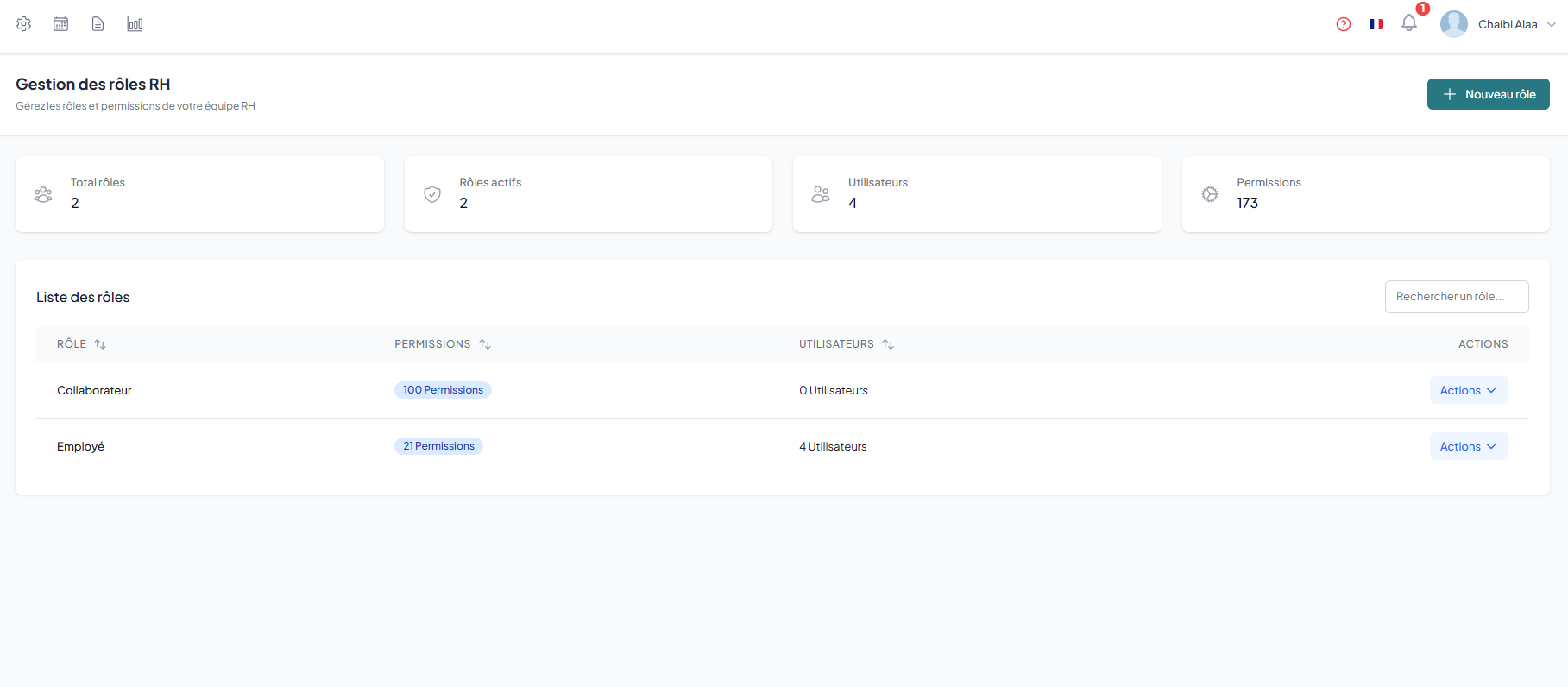
Create custom roles with granular permissions. Each permission controls access to a specific feature: read, create, edit, delete, approve.
How to
- Go to Customization › Company › Roles & permissions then click New role.
- Enter the Role name and a description of its responsibilities.
- Tick the Permissions by category: Employees, Time clock, Leaves, Contracts, Performance and Reports.
- Enable the departmental hierarchy to limit access to the manager team data.
- Click Create role; it becomes assignable to users.
Permission categories
Calendar
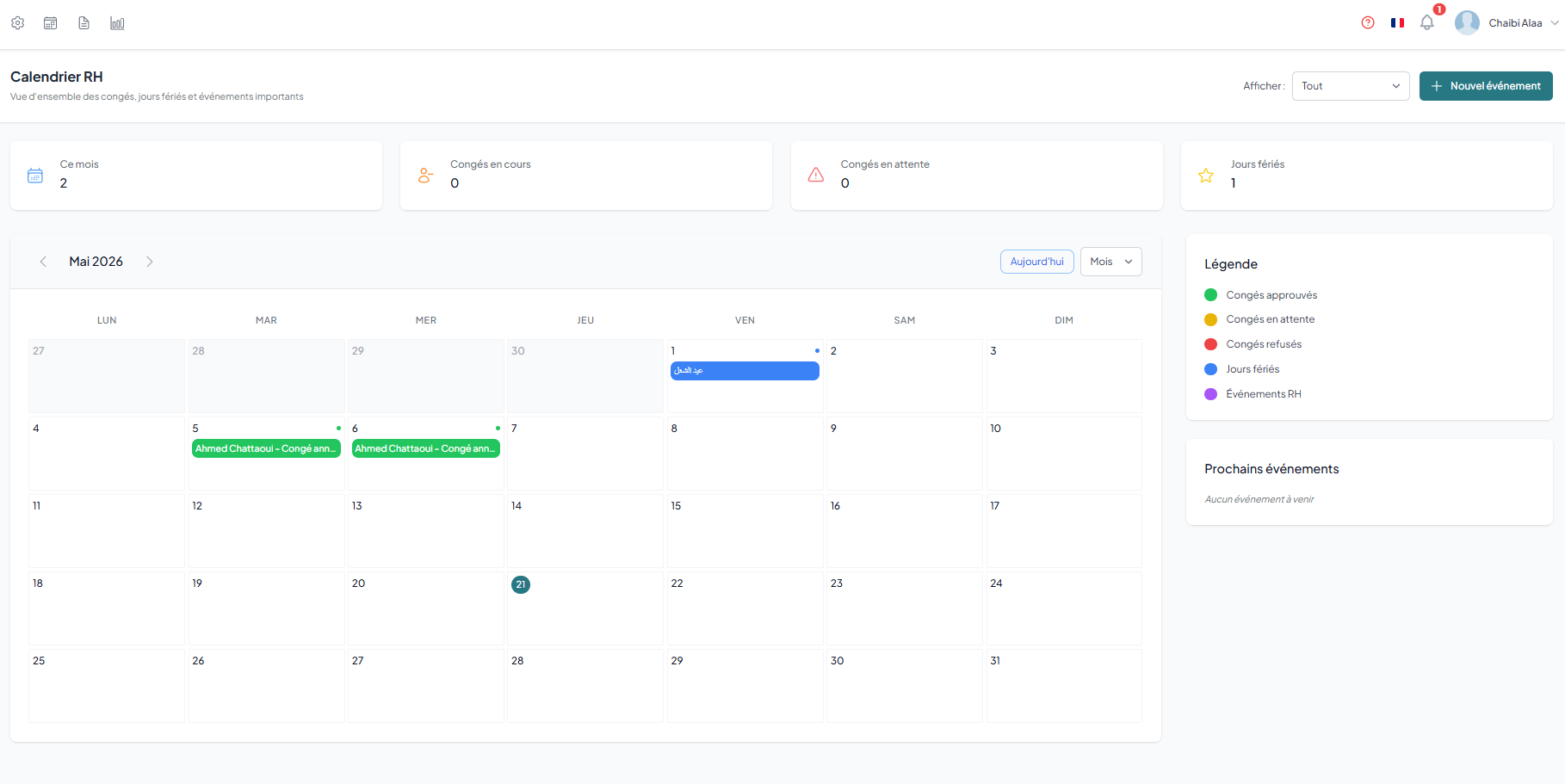
View leaves, public holidays and company events on an interactive calendar.
How to
- Open the HR calendar from the menu to view leaves and public holidays.
- Use the Show filter to choose between All, Leaves only or Events.
- Navigate between months to review the Approved leaves, marked by leave type color.
- Click a leave in the calendar to display its detail (employee, dates, status).
Activity logs
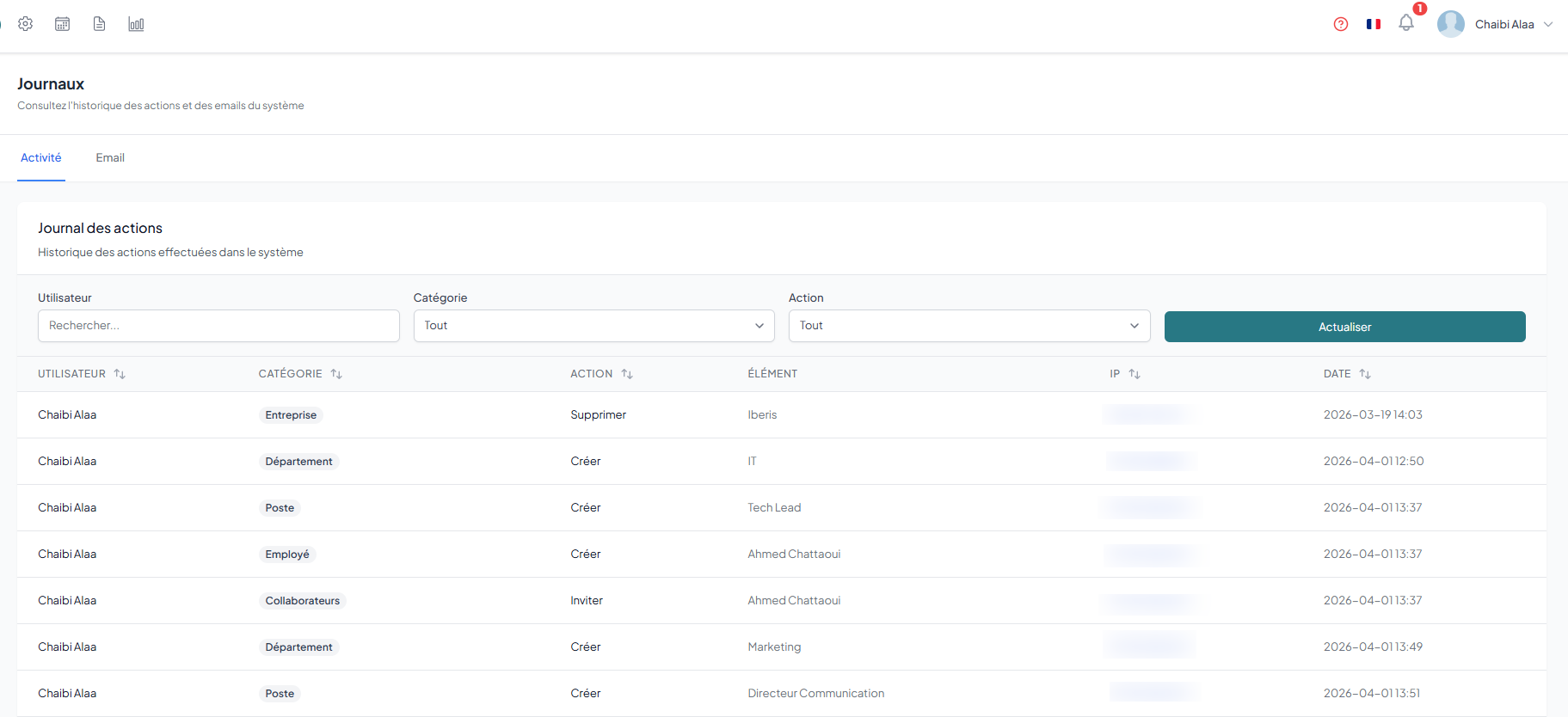
View the history of all actions performed in the application: logins, edits, creations and deletions. Email logs show sent notifications.
How to
- Go to Logs from the company menu.
- Open the Activity tab to review all actions (logins, creations, edits, deletions).
- Filter by User, Action or Date to find a specific operation.
- Open the Email tab to check the history of sent notifications and their delivery status.
Available journals