Help
Employee management
Employee list
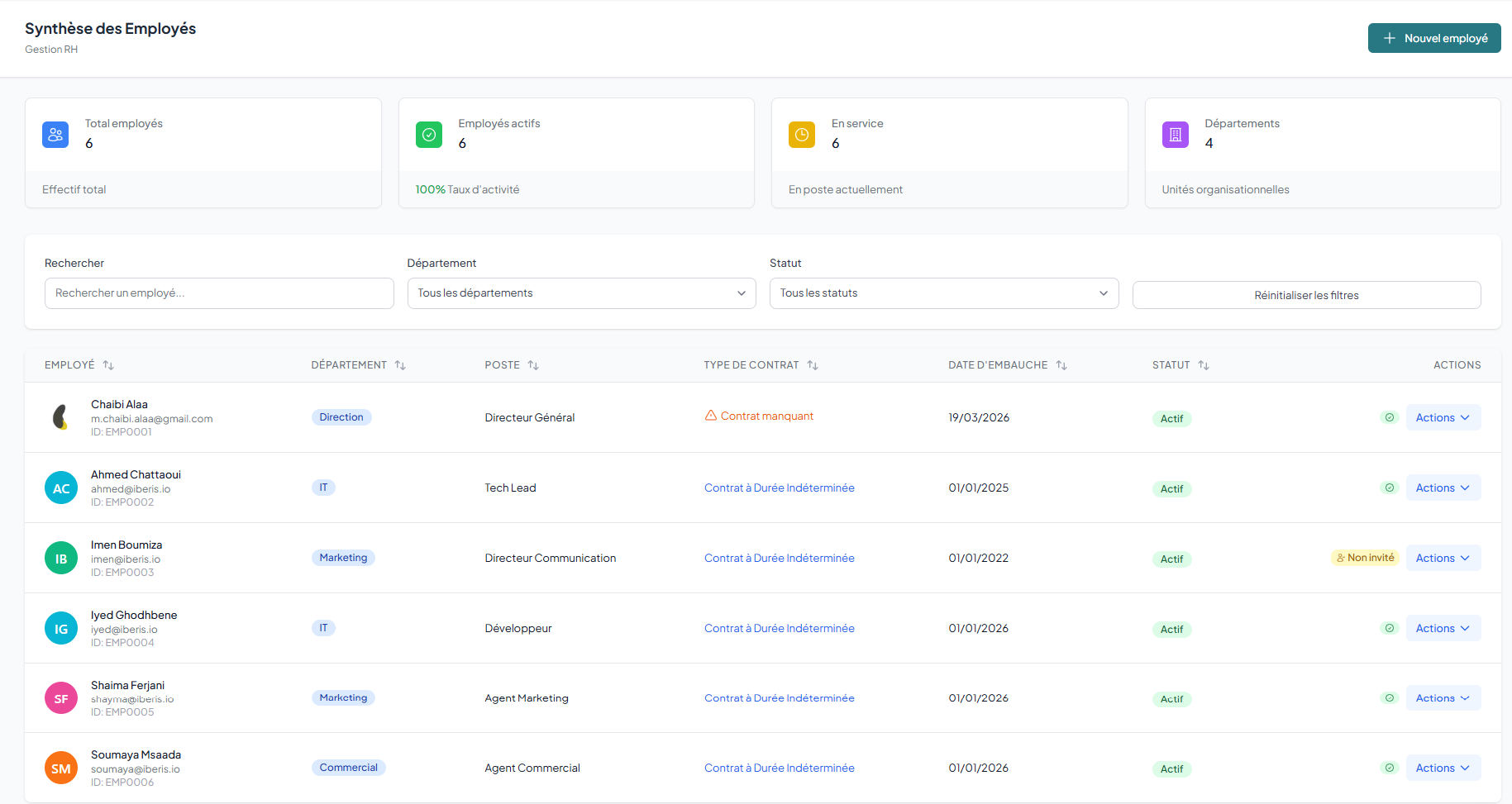
View the list of all your employees with filters by department, position and status. The statistics at the top of the page show the total, active and inactive counts.
How to
- Go to Menu › Employee Overview to display the full list of your employees.
- Check the statistics cards at the top of the page (Total, Active, Inactive) for a quick overview of the headcount.
- Use the Department, Position and Status filters to refine the list; the filters combine together.
- Type a name or email in the Search bar to quickly find a specific employee.
- Click a row to open the employee detailed profile.
Displayed statistics
Available filters
Filter the list by department, position, status (active/inactive) and text search on name or email. Filters can be combined.
Add an employee
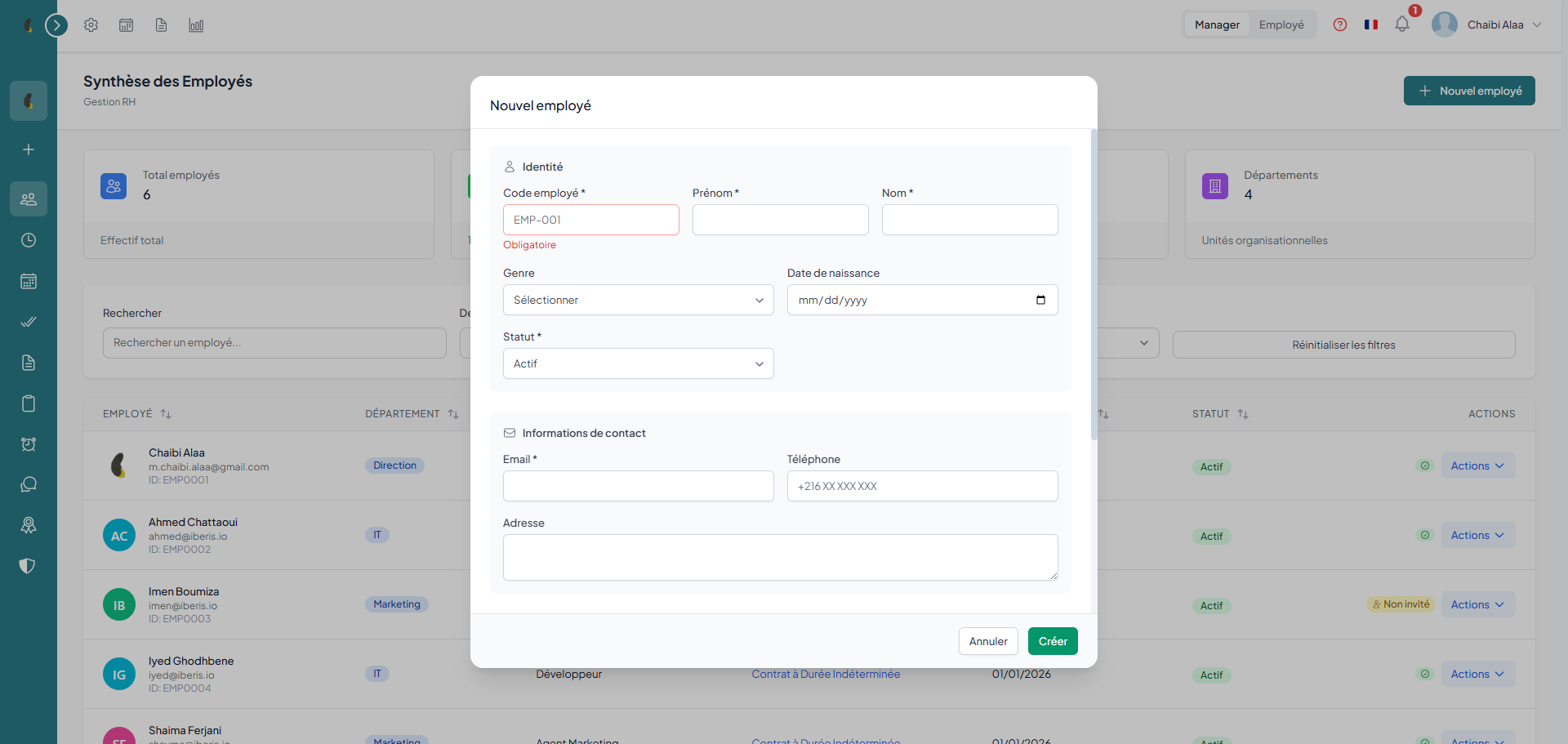
Create a new employee by entering their personal information (last name, first name, email, phone), department, position and hire date. You can then invite them to access the platform.
- Personal information — first name, last name, email, phone, date of birth, gender, nationality
- Emergency contact — name and phone of a person to contact in case of emergency
- Assignment — department, position, hire date
- Contract — contract type, start and end dates
- Schedule — assigned work schedule, daily hours
Edit an employee
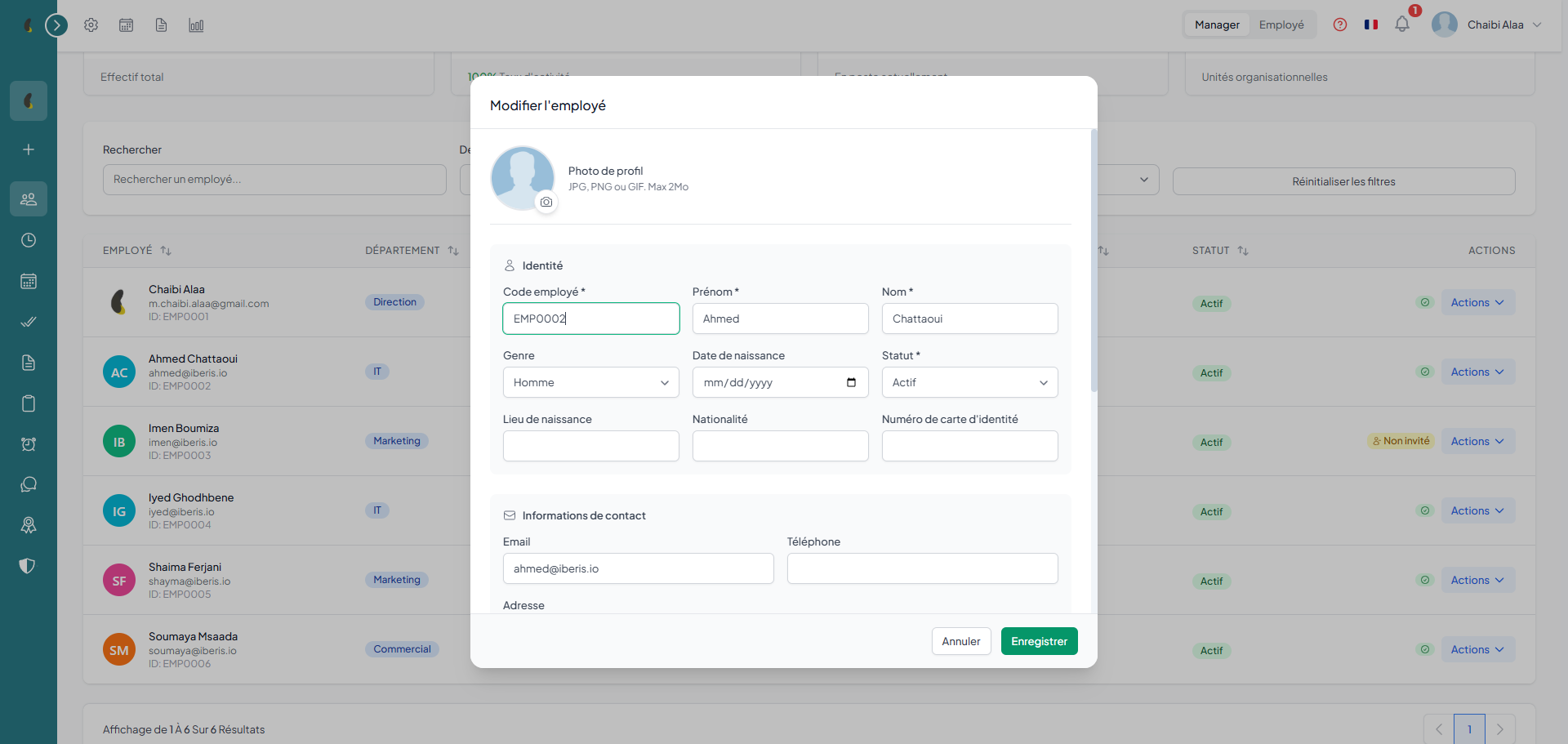
Edit an existing employee's information, change their department, position or status (active/inactive). The change history is preserved.
How to
- Go to Menu › Employee Overview then click the employee concerned to open their profile.
- Click Edit profile to edit the personal and professional information.
- Adjust the Department and Position if needed, and use Change status to activate or deactivate the employee.
- Click Update avatar or Facial recognition to manage the profile photo and the reference face.
- Click Save to apply the changes; the modification history is kept automatically.
Available actions
Departments
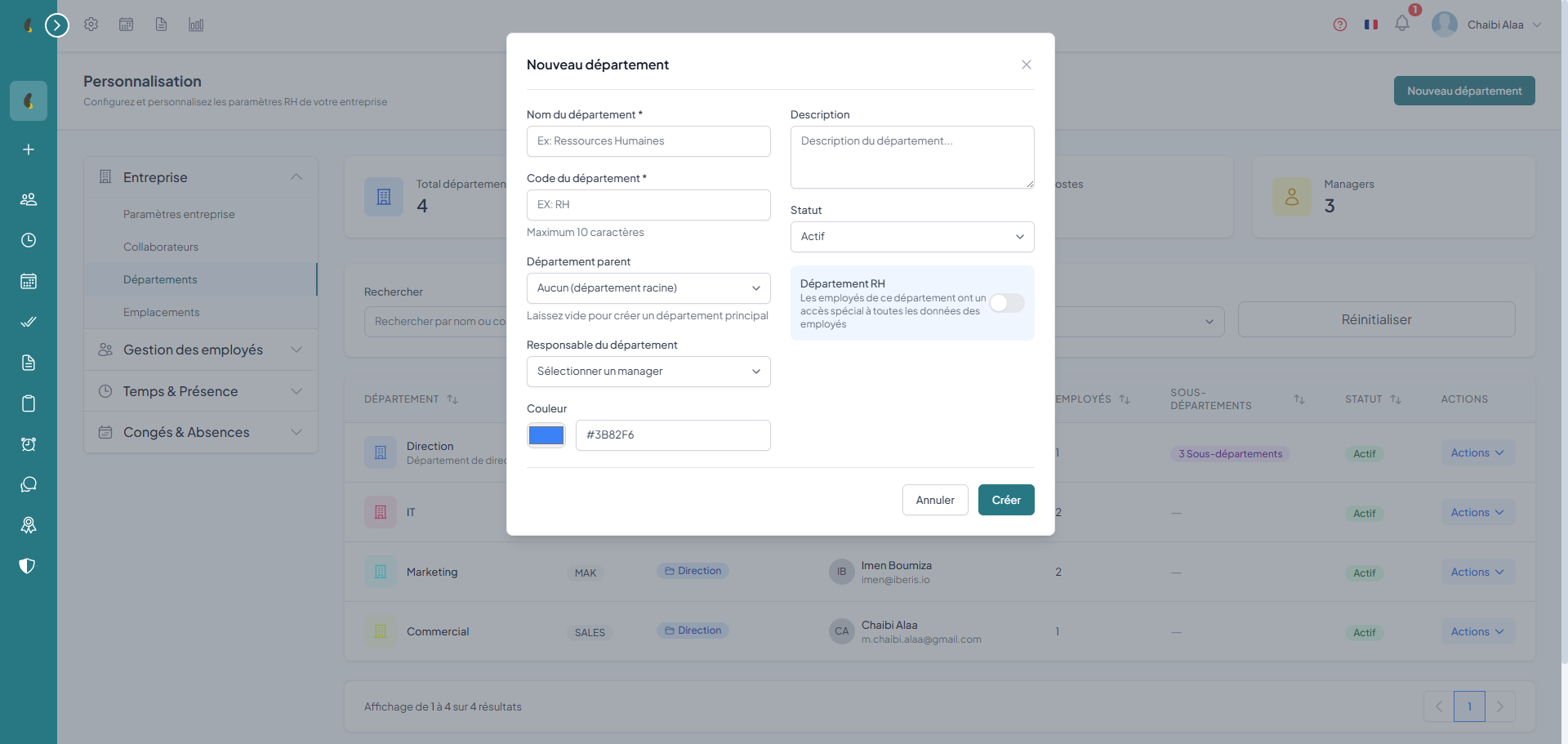
Organize your structure with hierarchical departments. Each department can have a parent department, a responsible manager, a color code and assigned locations. You can merge or duplicate departments.
How to
- Go to Settings › Departments then click New department.
- Fill in the department Name and Code.
- Choose a Parent department, a responsible Manager, a Color and the allowed Locations.
- Click Save to create the department.
- Use the Merge or Duplicate actions to reorganize your hierarchical structure.
Department properties
Advanced actions
you can merge two departments (all employees and positions are transferred) or duplicate a department with its configuration.
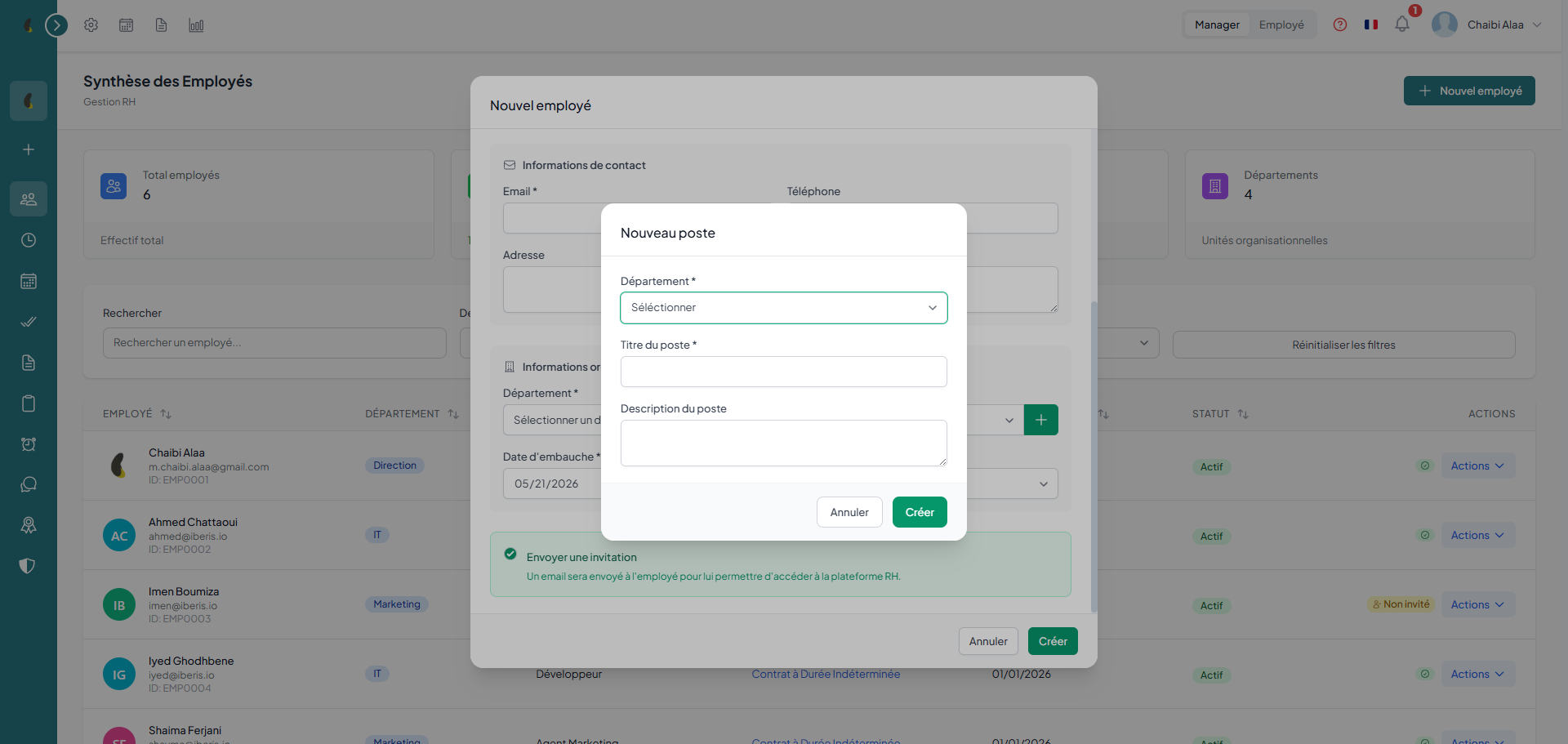
Positions
Define positions within each department with title, description, requirements, responsibilities and salary range.
- Title — position title (e.g. Senior Developer)
- Department — organizational attachment
- Description — mission and scope of the position
- Requirements — required skills and qualifications
- Salary range — minimum and maximum salary
- Level — position in the hierarchy
Import & export
Bulk import your employees from an Excel file. Export the filtered list to Excel, CSV or PDF. You can also invite employees by email to join the platform.
Bulk import
- download the Excel template file
- fill in the columns: first name, last name, email, phone, department, position, hire date
- upload the file and check the error report
Export
export the complete or filtered list to Excel, CSV or PDF. Active filters (department, status) are applied to the export.
Email invitation
Send an email invitation to one or more employees. They will receive a link to create their account and access the platform with their role permissions.