Help
Disciplinary procedure & questionnaires
Questionnaire creation
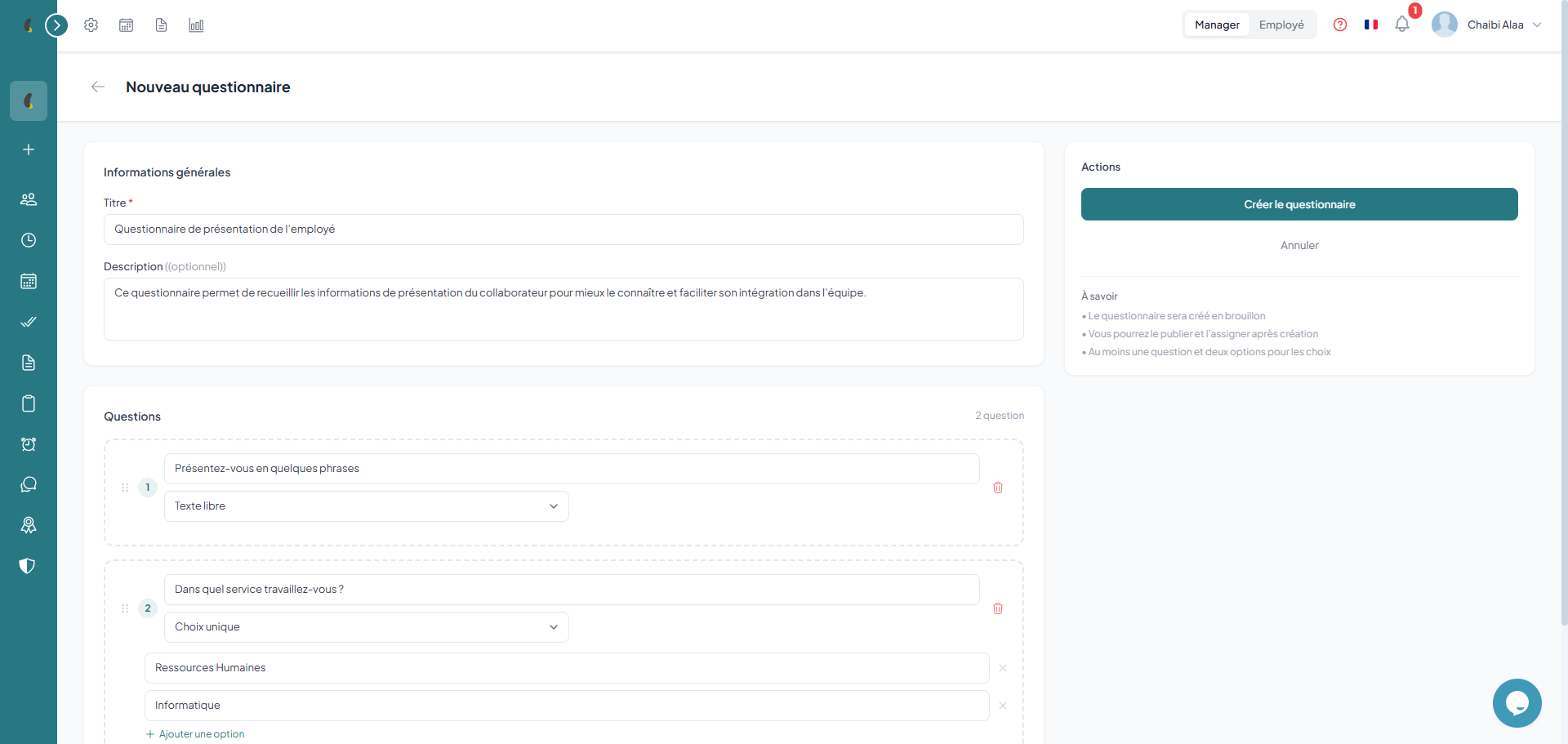
HR creates a questionnaire with a title, description and a list of questions. Four question types are available: free text, single choice (radio), multiple choice (checkbox) and dropdown list. The questionnaire is created as a draft and can be freely edited as long as it has not been published.
Creation steps
- Title — questionnaire title (e.g. "Procedure - Repeated lateness")
- Description — context and purpose of the procedure (optional)
- Questions — add as many questions as needed in a defined order
- Type per question — choose from Free text, Single choice, Multiple choice, Dropdown
- Options — for non-text types, list the possible choices
Available question types
Publication
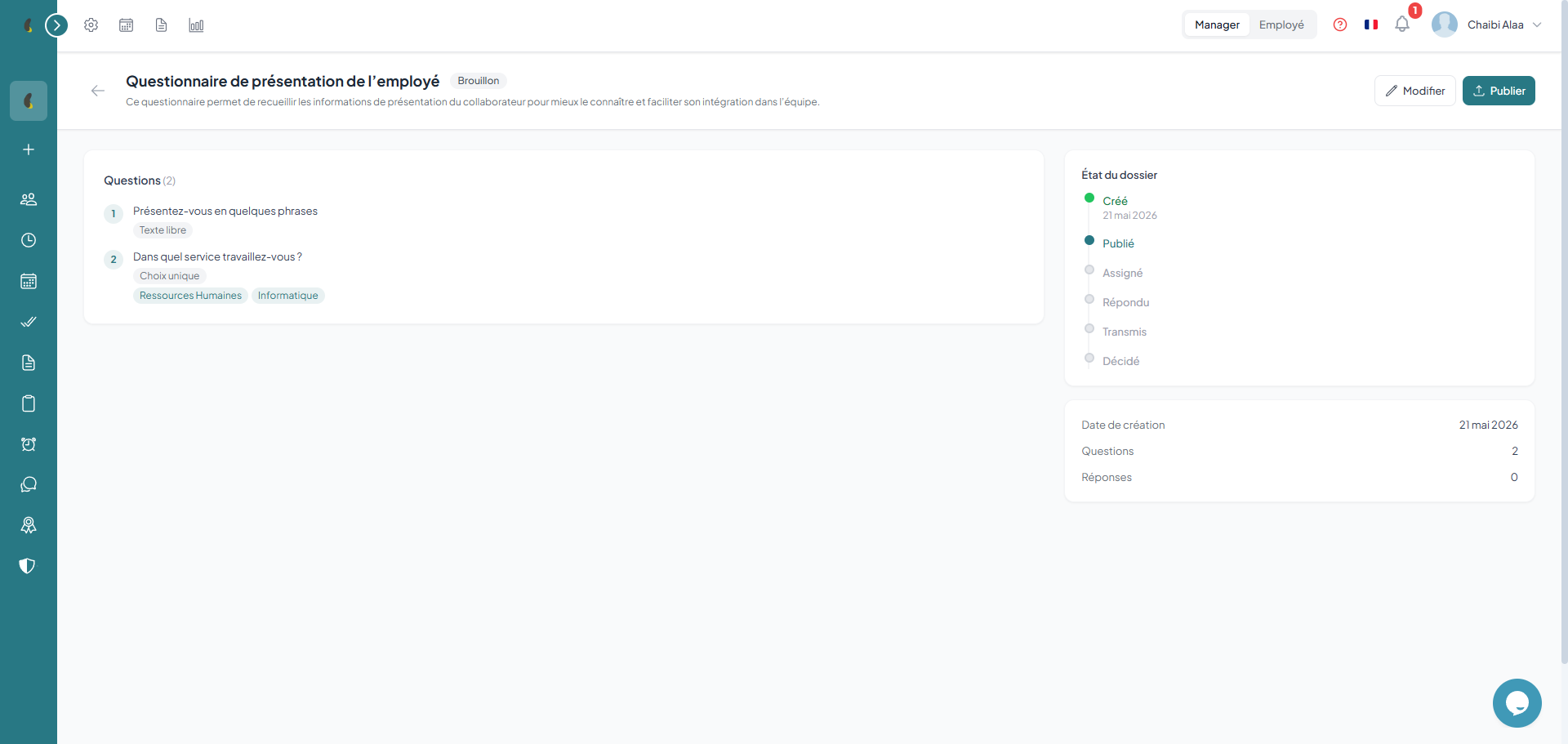
Once ready, publish the questionnaire to make it assignable to employees. After publication, you can no longer modify the questions, only assignment and the rest of the workflow are possible. A draft questionnaire can be deleted as long as it has never been assigned.
How to
- Go to Performance & Discipline › Questionnaires then open the Draft questionnaire you want to publish.
- Review the questions and their types one last time, as they can no longer be edited after publishing.
- Click the Publish button; the status changes from Draft to Published.
- The questionnaire becomes assignable to employees through the Assign action.
Questionnaire lifecycle
Employee assignment
Select one or more employees concerned by the procedure. The system automatically sends each of them an email with a token-secured link and an expiration date. The manager can revoke a token before the employee has responded.
Assignment mechanism
- Employee selection — one or more employees concerned by the procedure
- Token generation — a unique secured link is created for each employee
- Automatic sending — email sent to each recipient with the link
- Expiration — the token has a validity deadline
- Revocation — the manager can cancel a link before use
canManageDisciplinary permission can create and assign questionnaires.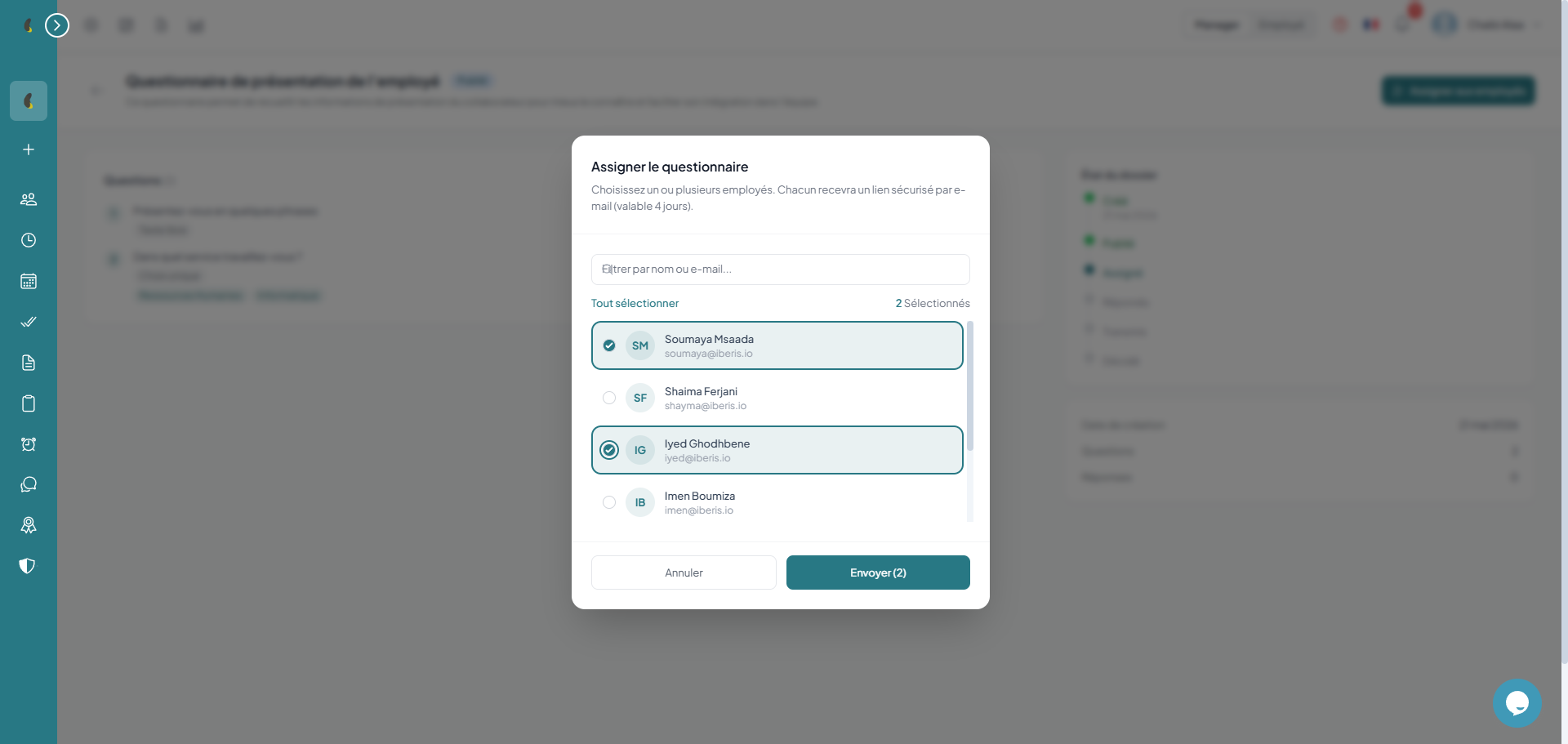
Employee response
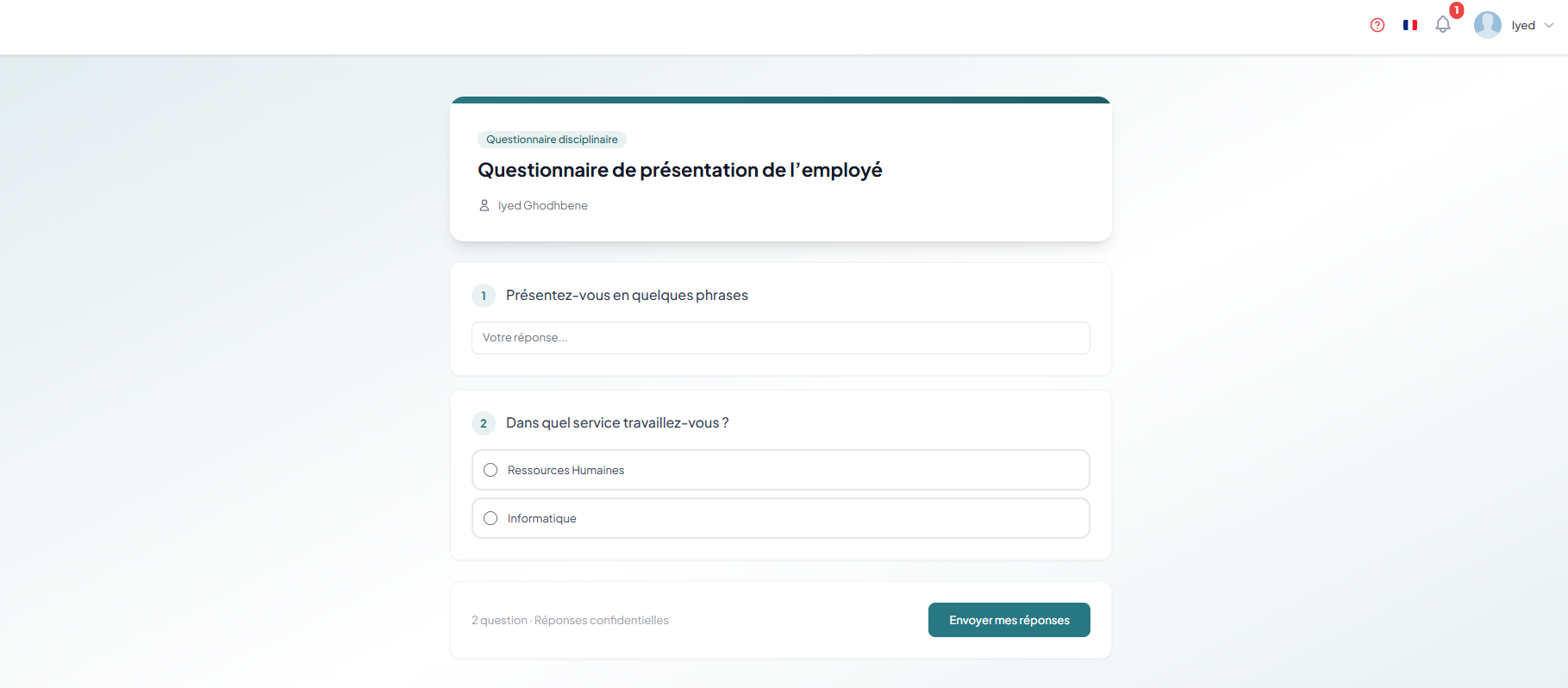
The employee receives an email with a direct link to a public page (no login required). They can also see their pending questionnaires under the "My Questionnaires" section. They answer the questions and submit their response, which is timestamped and tied to their identity.
How to
- Open the email you received and click the link to the public questionnaire page, or go to Performance & Discipline › My questionnaires.
- Select the questionnaire with the Pending status to open it.
- Answer each question according to its type (Text, Single choice, Multiple choice or Dropdown).
- Click Submit to send your answer; it is timestamped and the status changes to Submitted.
Two ways to access the questionnaire
Employee-side statuses
Complement rounds
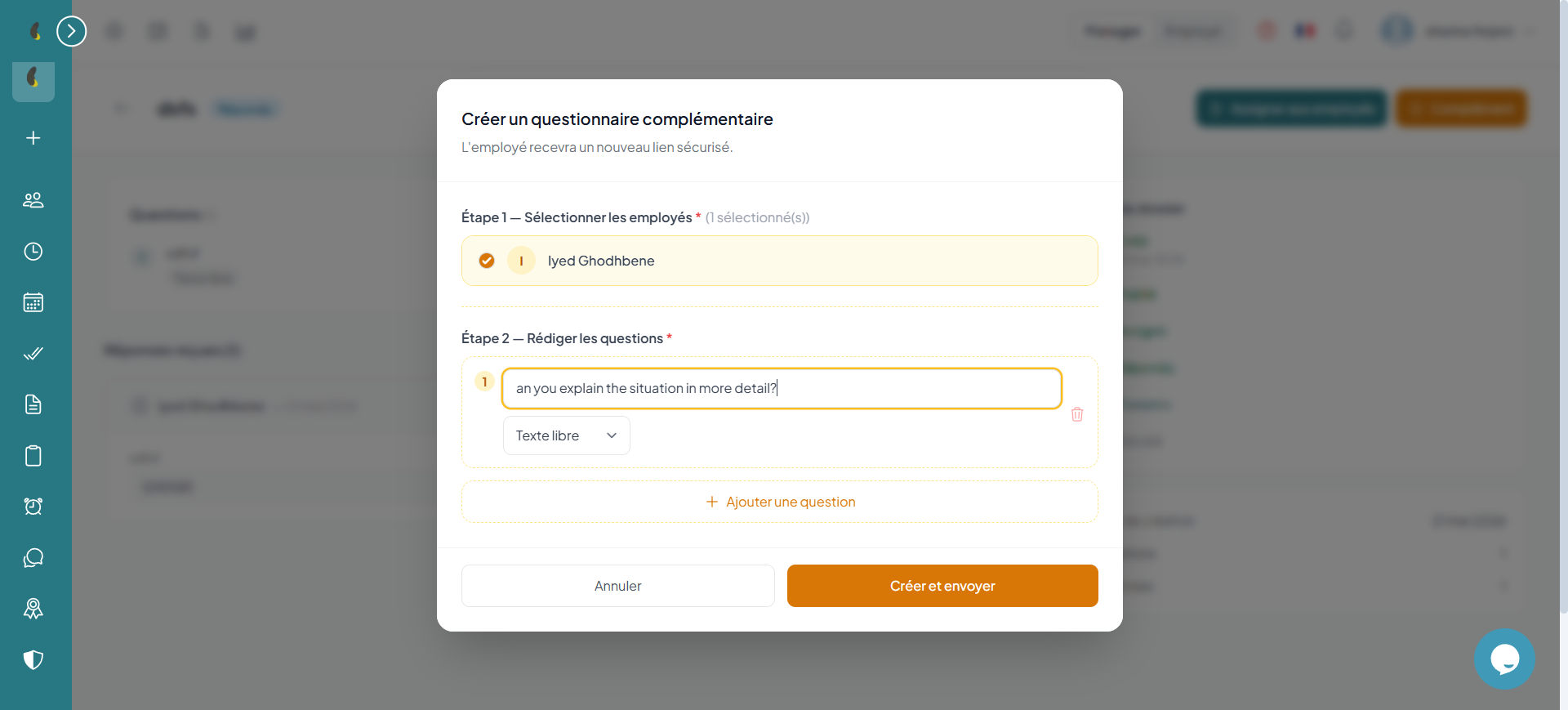
If the employee's response is incomplete or needs clarification, HR can create a complement round with new questions. The employee receives a new link to respond. Multiple rounds can be chained until the dossier is complete.
Creating a complement round
- Review the initial response — check the questions and answers from the previous round
- Add new questions — specific to the points to clarify
- Send the complement — a new link is generated and sent to the employee
- Iterate if needed — multiple rounds can be chained until the dossier is complete
Transmission to Direction
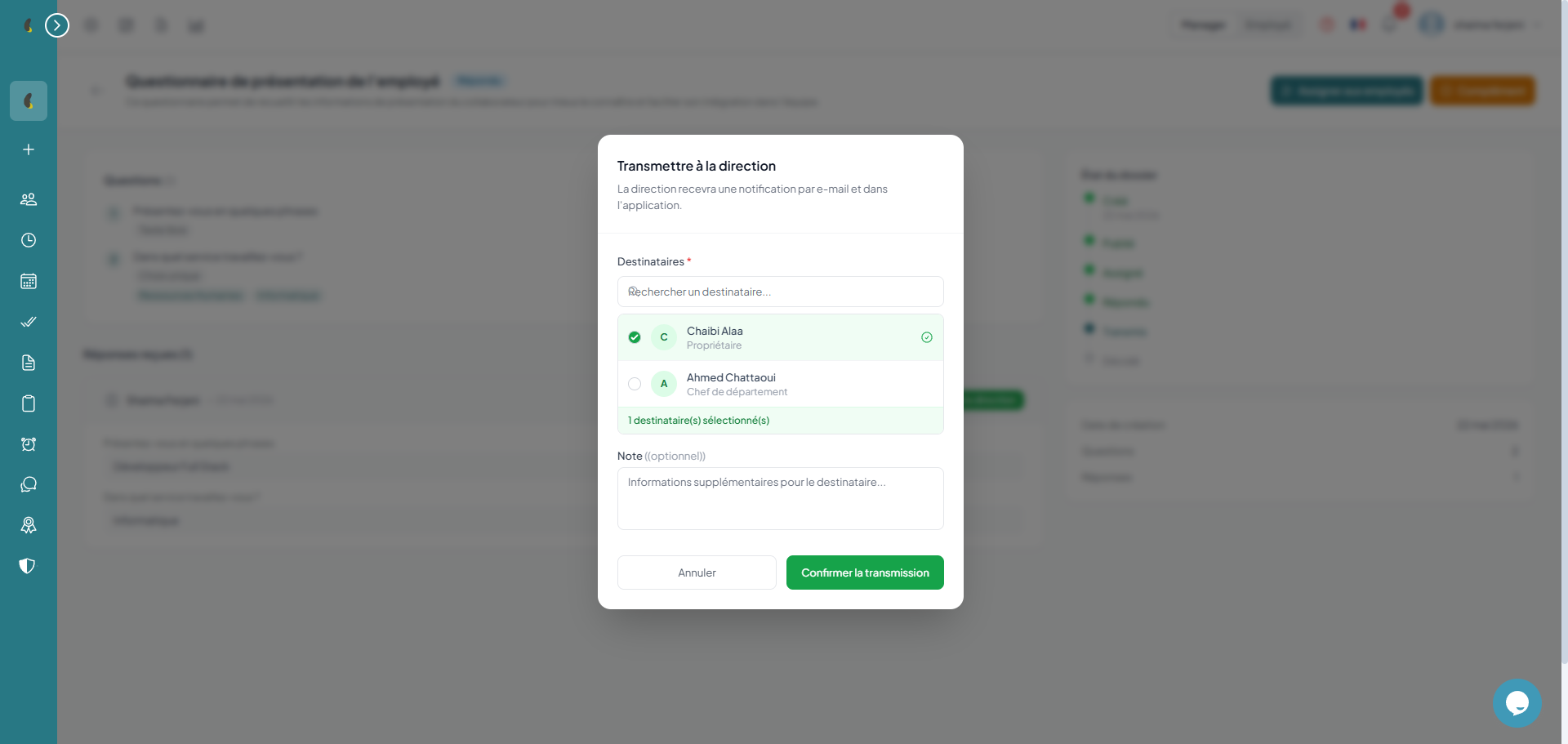
Once the dossier is complete, HR transmits the whole package (questionnaire + responses + complement rounds) to the Direction for validation. HR can add a transmission note and choose the recipients (Direction, department head, HR).
How to
- Go to Performance & Discipline › Questionnaires then open the questionnaire whose file is complete.
- Click Transmit to Management to prepare the submission.
- Write the Transmission note and select the Recipients (Management, department head, HR).
- Click Transmit; the complete file (questionnaire, answers and follow-up rounds) is sent for validation.
Transmission content
Direction validation
The Direction reviews the full dossier: employee information (seniority, oral warnings, active cases), history of rounds with questions and answers, and the transmission note. They can then approve or reject the dossier with a mandatory comment.
How to
- Go to Performance & Discipline › Validations then open the transmitted file to validate.
- Review the employee profile, the history of rounds and the transmission note.
- Click Approve or Reject depending on your decision.
- Enter the mandatory Comment justifying your choice.
- Confirm to record the decision and move the workflow forward.
The validation dossier
canValidateDisciplinary can access the Validations section.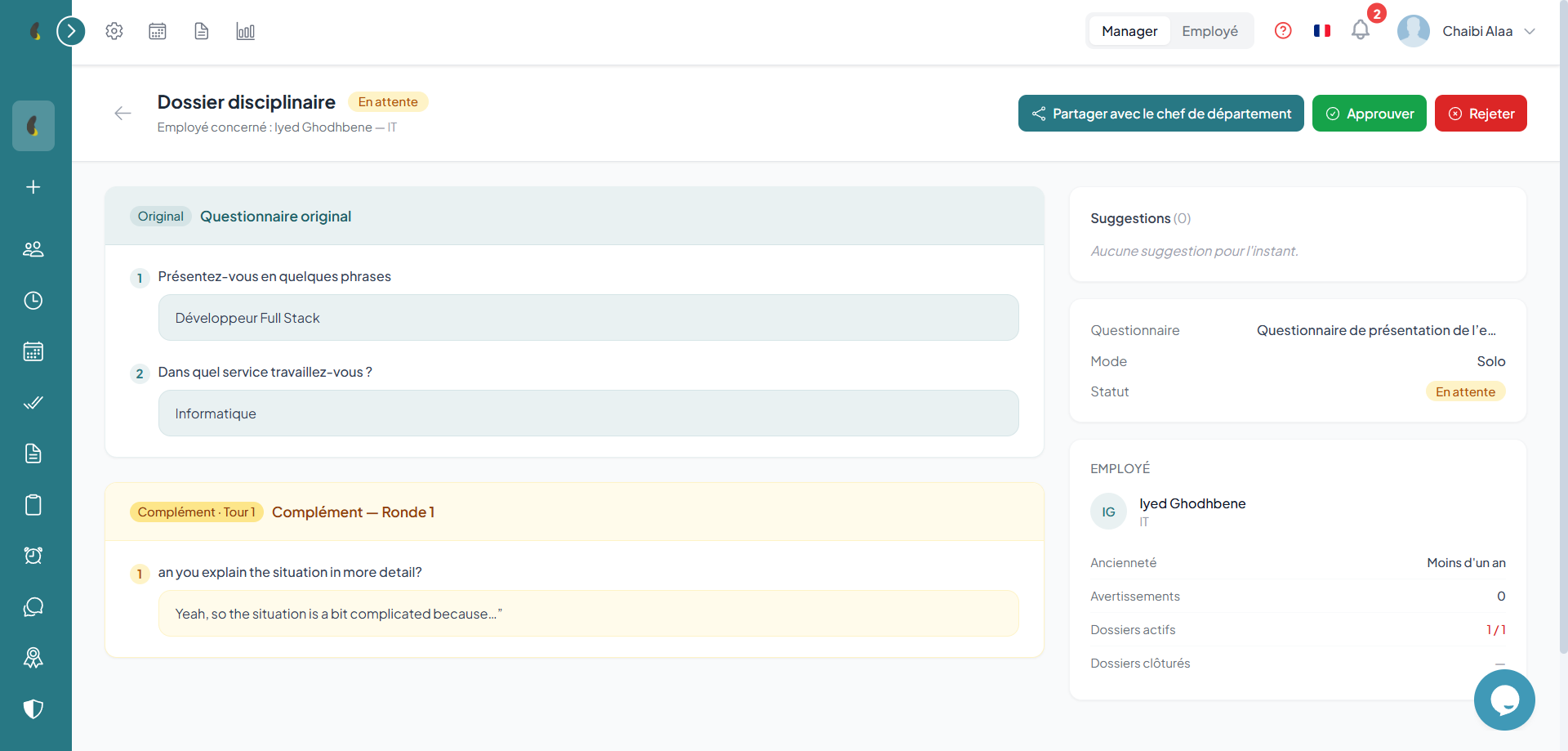
Suggestions & sharing
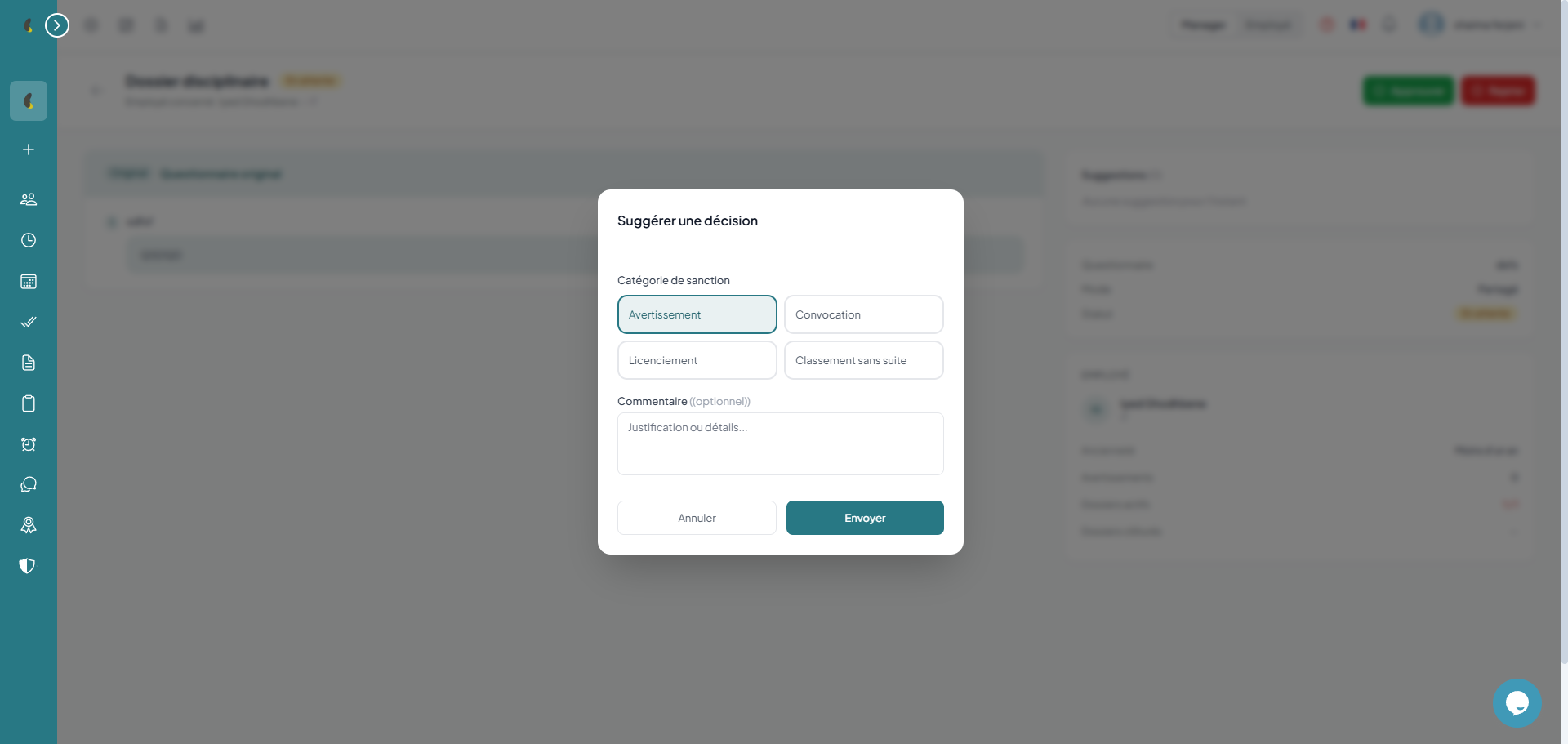
The Direction can share the dossier with the department head to gather their opinion. Each participant can submit a suggested sanction (warning, summons, dismissal or close) with a comment. The sharing mode is either solo (Direction only) or shared (with department head).
How to
- Go to Performance & Discipline › Validations then open the relevant file.
- Choose the sharing mode Solo (Management only) or Shared (with the department head).
- Click Add a suggestion then select the proposed sanction (Warning, Summons, Dismissal or Closed).
- Add a Comment to justify your opinion.
- Click Save to submit the suggestion to the file.
Sharing modes
Suggestion categories
Final decision & sanction
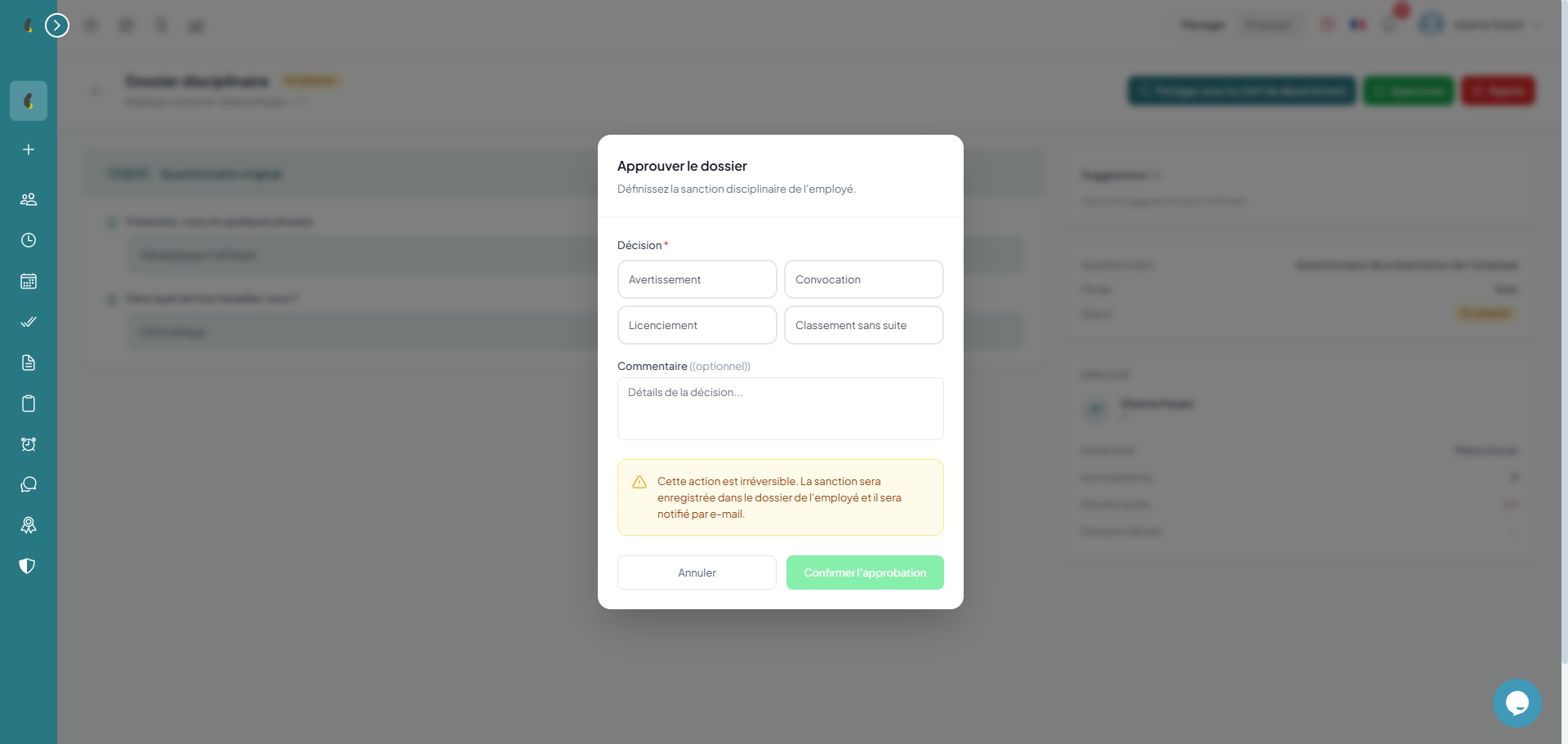
The Direction takes the final decision by choosing the sanction among four categories: warning, summons to an interview, dismissal or closed without action. A disciplinary situation is created and recorded in the employee's file. Rejection must be justified with a comment of at least 10 characters.
Approve the dossier
- Sanction choice — Warning / Summons / Dismissal / Closed
- Comment — optional justification for the decision
- Situation creation — a disciplinary situation is added to the employee's file
- Closure — the questionnaire moves to Closed status
Reject the dossier