Help
Contract management
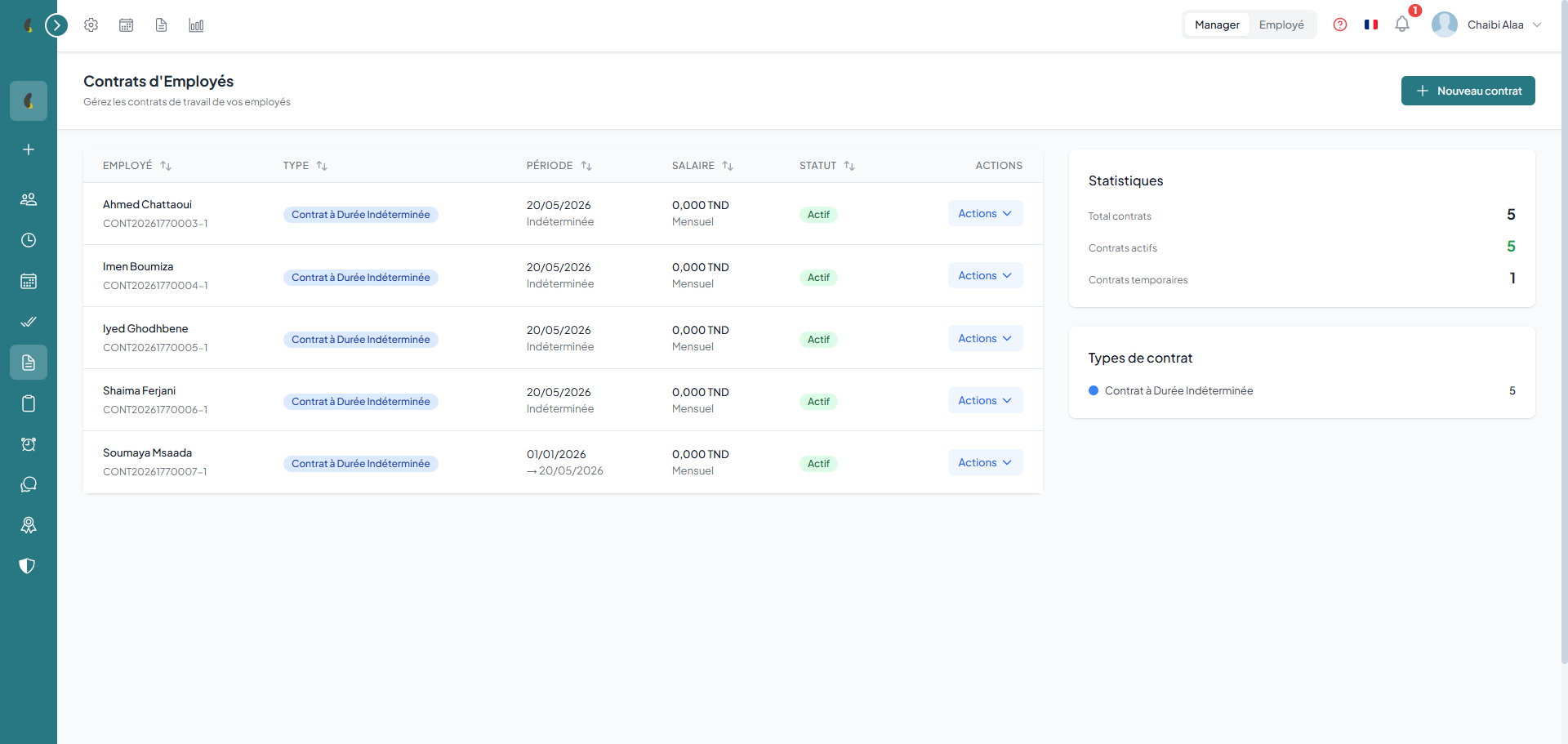
Contract list
View all your employees' contracts with filters by type, status and dates. The table displays the contract type, start/end dates, probation period and status.
How to
- Go to Contract & Payroll › Employee Contracts to display the list of all contracts.
- Use the search bar and the Employee, Type and Status filters to find a specific contract.
- Click a row to open the contract and view its details.
- Click New Contract at the top right, fill in the employee, type and dates, then confirm to create the contract.
Displayed information
Managers see their team's contracts. Employees only consult their own current contract and the history.
Contract types
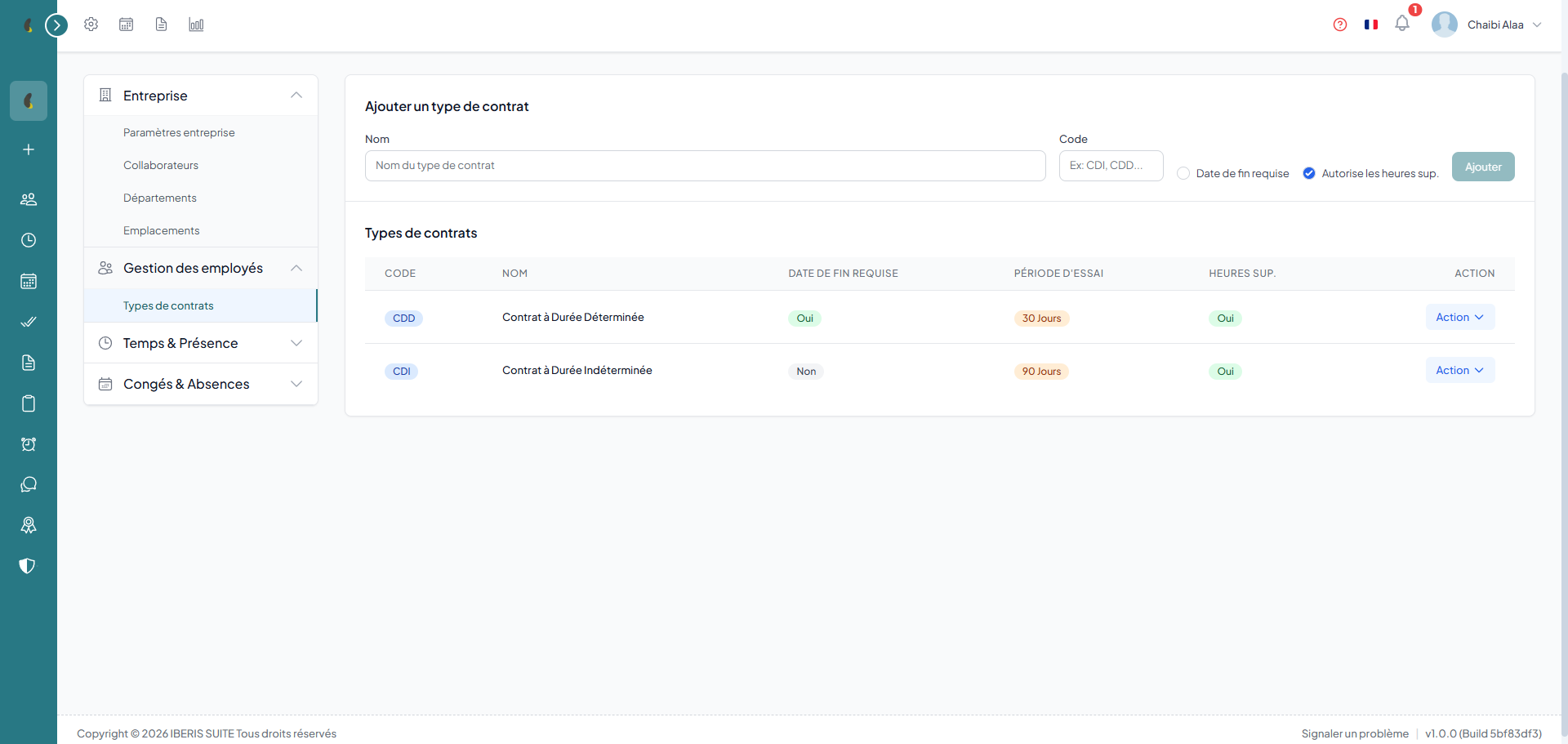
Manage your contract types: permanent, fixed-term, internship, apprenticeship, freelance and any custom type. Each type has its own rules and settings.
How to
- Go to Contract & Payroll › Employee Contracts then open the Contract Types tab.
- In Add Contract Type, enter the Contract Type Name and its Code.
- Tick End Date Required and/or Allows Overtime according to the rules of the type.
- Click Add: the new type appears in the list and becomes available when creating a contract.
Predefined types
You can create custom contract types adapted to your company with their own rules and parameters.
Contract templates
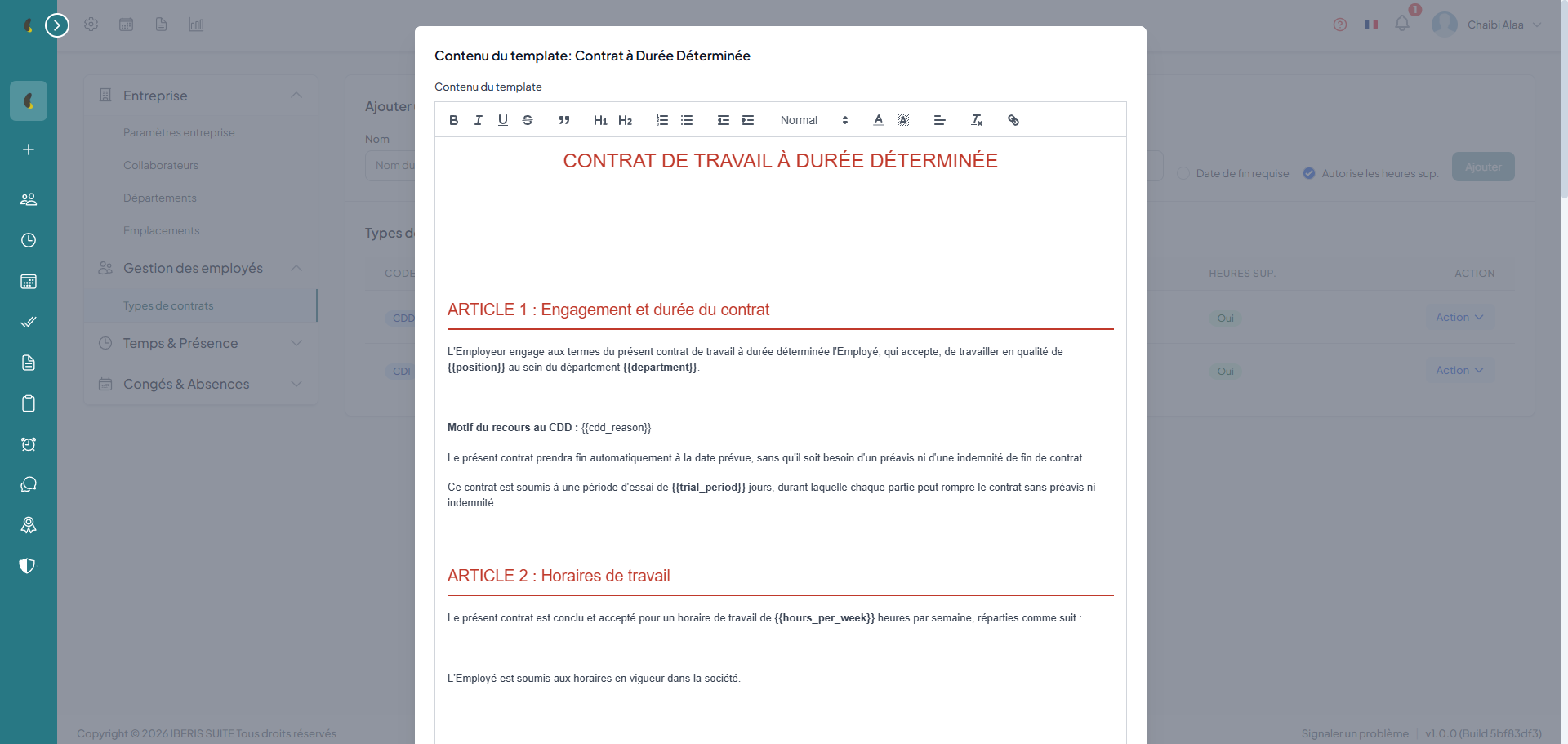
Use predefined templates available in French, English and Arabic. Customize them with your company and employee variables.
How to
- Go to Contract & Payroll › Employee Contracts then open the Contract Templates tab.
- Locate the template you need by its type (CDI, CDD) and its language (FR, EN, AR).
- Click Edit Template to customize its content and clauses.
- Insert the dynamic variables (name, position, salary, dates) then save to reuse the template when generating the PDF.
Available templates
Dynamic variables
Templates use variables that are automatically replaced during generation: company name, employee name, position, salary, dates, etc.
PDF generation
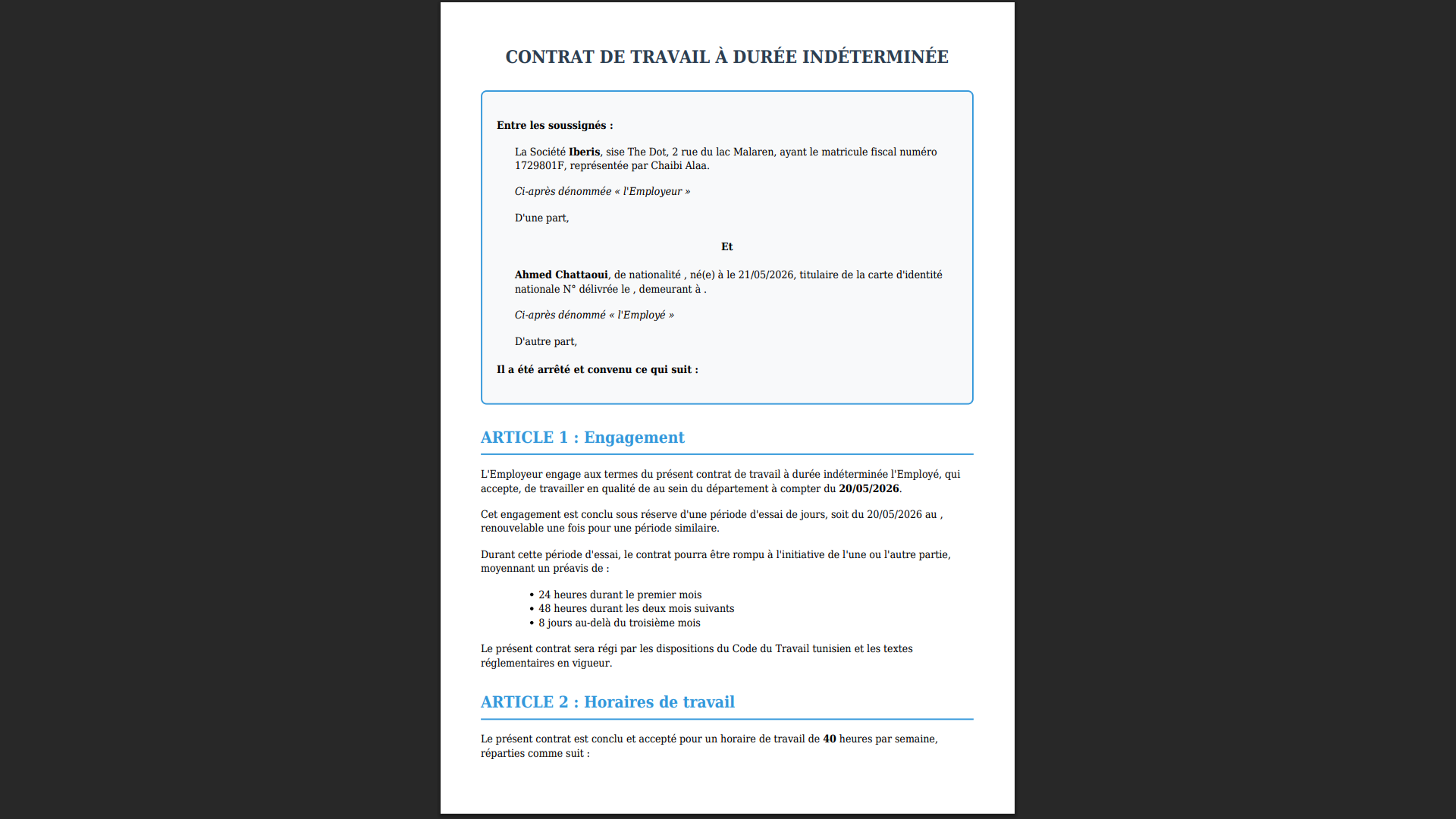
Automatically generate your contracts as PDFs from templates. Documents are ready to print with all information pre-filled.
- select the employee's contract
- click "Generate PDF"
- the system replaces the variables with real data
- the PDF document is ready to download or print
Termination & renewal
Manage contract endings with a termination reason. Track renewals and view the complete contract history for each employee.
Termination
- open the employee's active contract
- click "Terminate"
- select the termination reason and the effective date
- the contract moves to "Terminated" status in the history
Complete history
Each employee has a complete history of all their contracts: current, former, amendments and terminations. All modifications are timestamped and traceable.