Help
Leave management
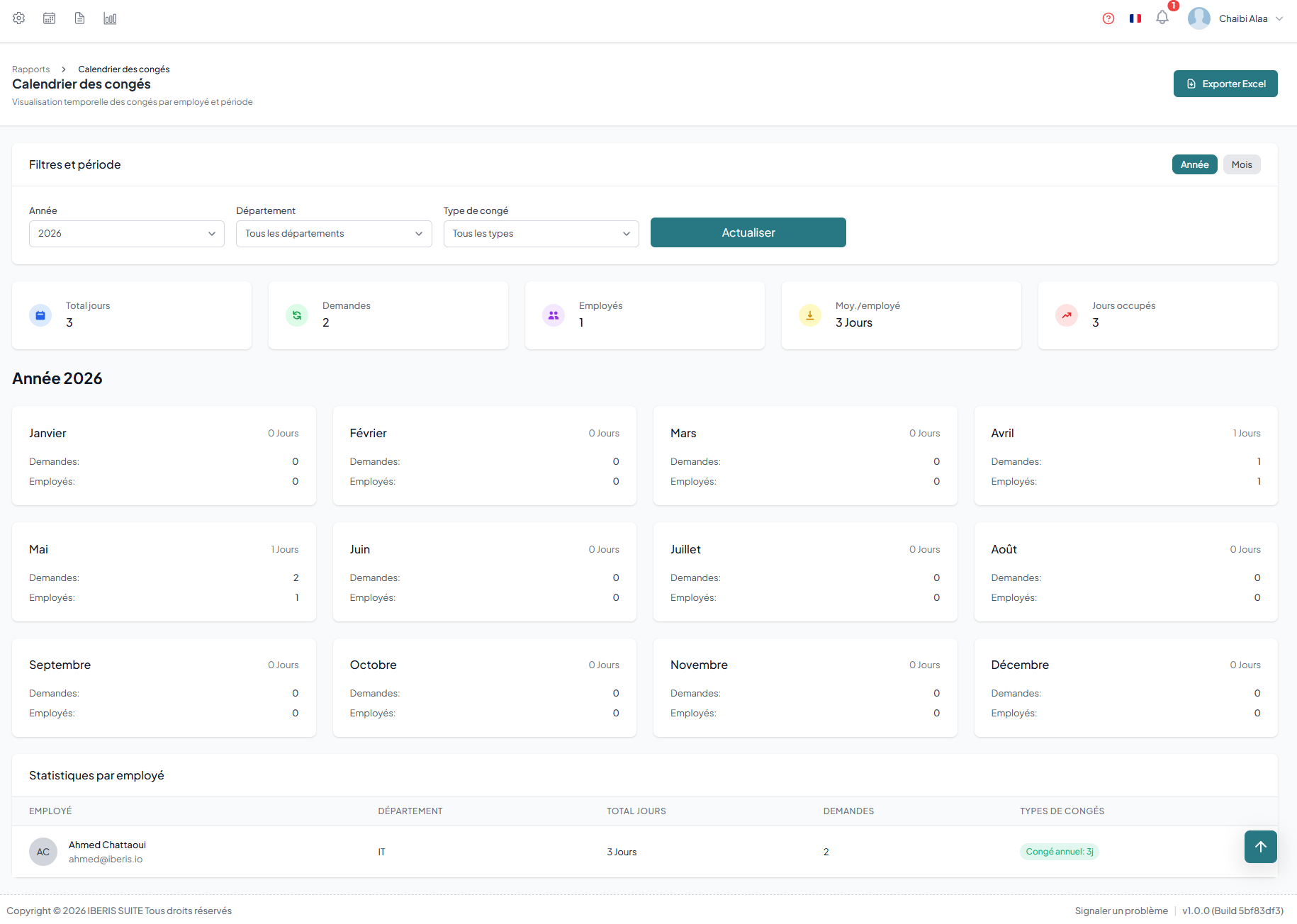
Leave requests
Employees submit a request by choosing the leave type, dates, half-day option (morning/afternoon) and a reason. They can attach supporting documents. The status is tracked in real time: pending, approved, rejected or cancelled.
Create a request
- Leave type — select from configured types (annual, sick, etc.)
- Dates — start date and end date
- Half-day — morning or afternoon option if applicable
- Reason — reason for the request (optional depending on configuration)
- Proof — attachment if required by the leave type
Request lifecycle
Leave types
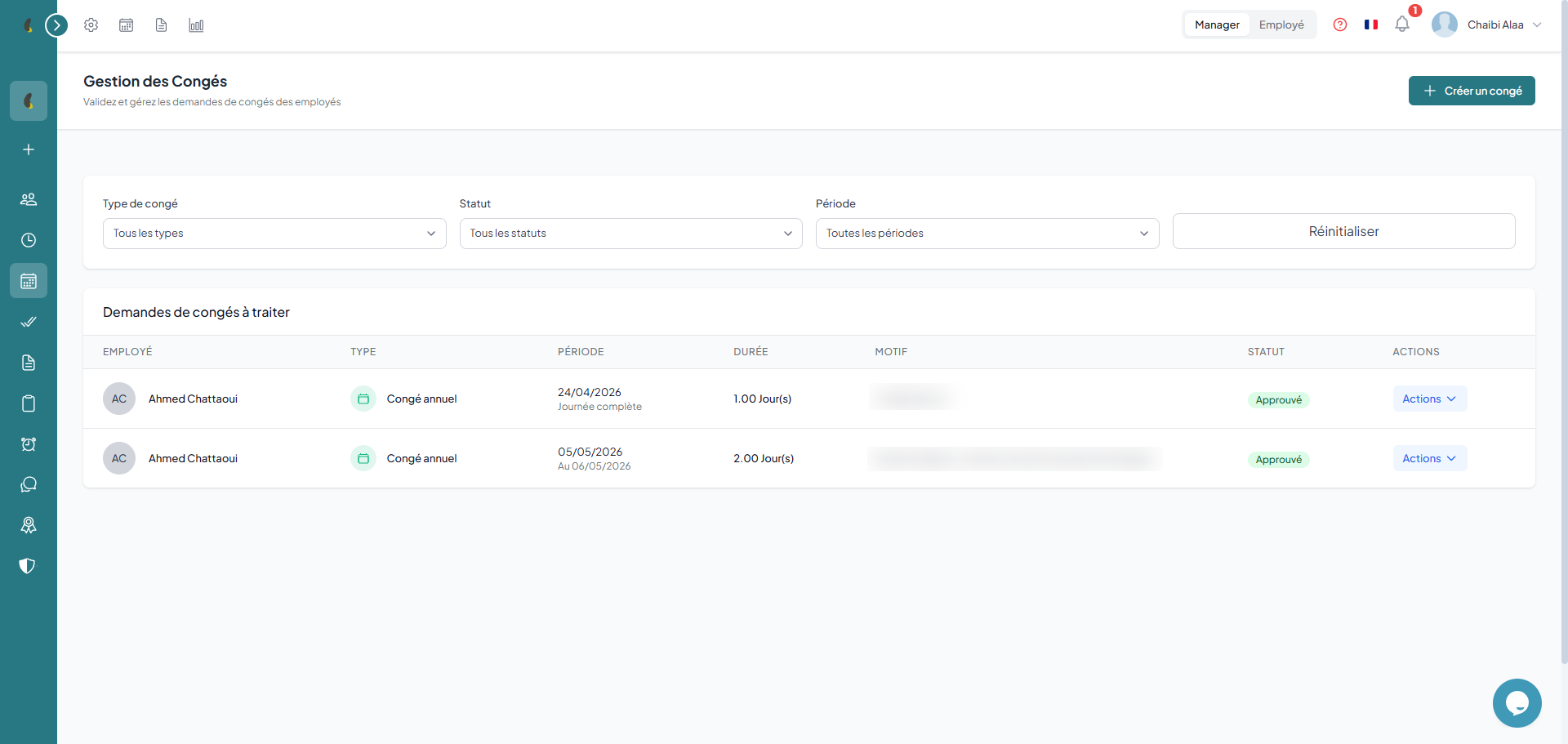
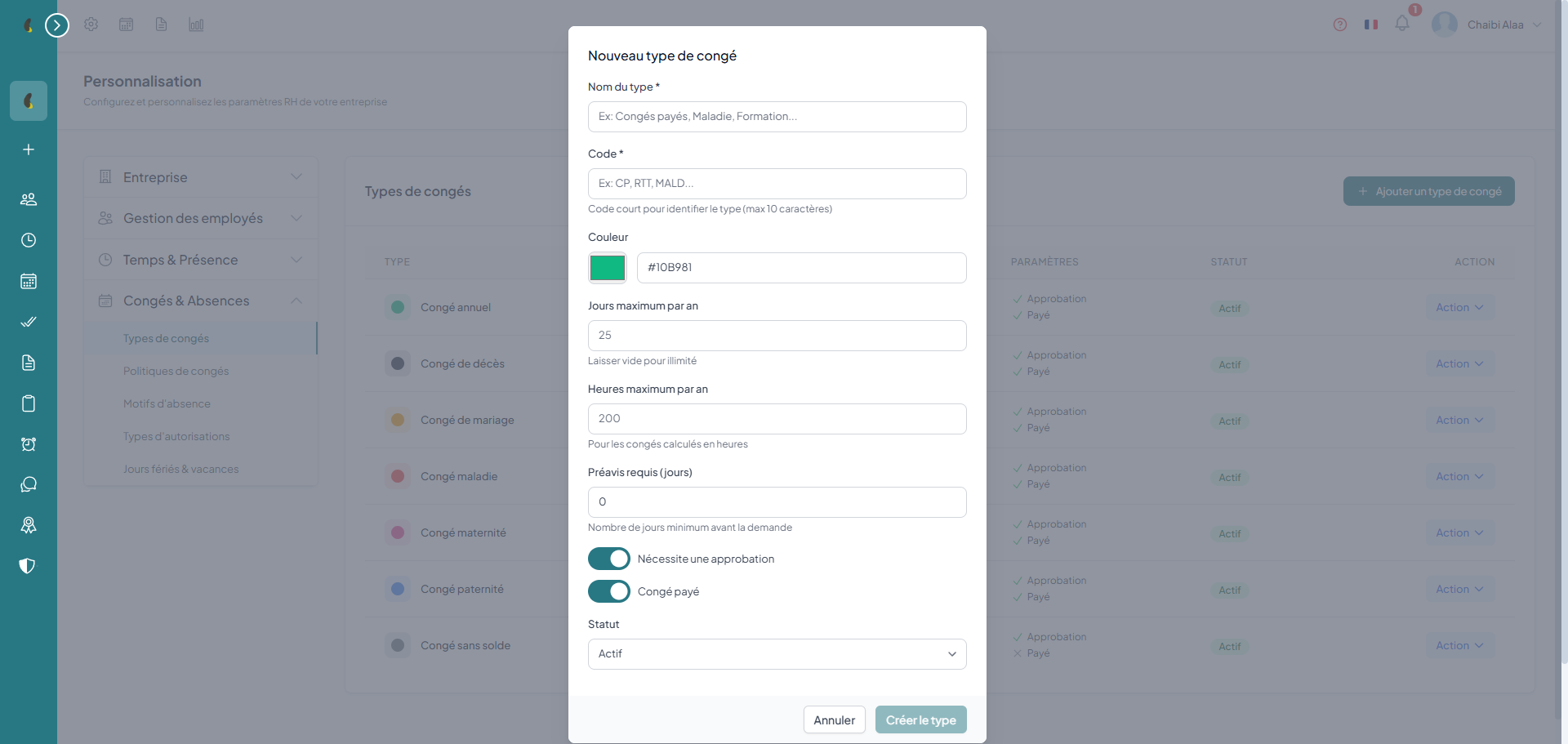
Create your own leave types with specific rules: maximum days per year, maximum consecutive days, minimum notice, supporting document requirement, paid or unpaid. Each type has a name, a code and a color.
How to
- Go to Customization › Leaves & Absences then click Add a leave type.
- Enter the type Name (e.g. annual leave, sick leave) and pick an identification Color.
- Set the rules: Maximum days per year, Maximum consecutive days and the minimum Notice required.
- If needed, enable Proof required, Paid leave and Requires approval.
- Click Save: the type becomes available in leave requests.
Leave type properties
Balances & allocations
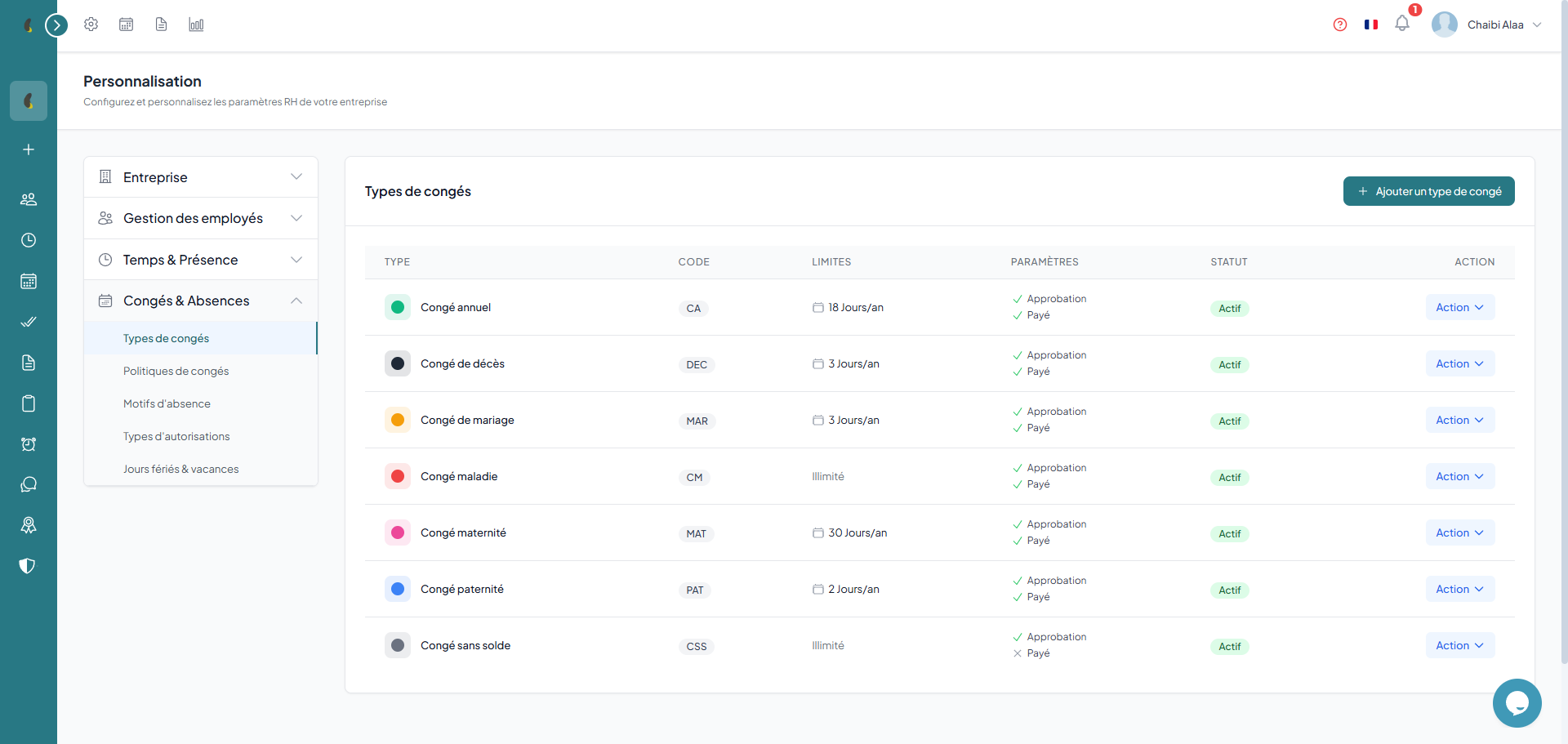
The system automatically tracks balances per employee and per leave type: allocated, used, pending and available days. Carry-over of days from one year to the next is configurable with an expiry date.
How to
- Go to Reports › Leave balance to display the balances of all employees.
- Use the Employee, Leave type or Year filters to target the data you need.
- For each row, review the Allocated, Used, Pending and Available columns.
- Allocations come from the assigned leave policy: adjust them in Customization › Leaves & Absences if needed.
Balance composition
Validators & approval
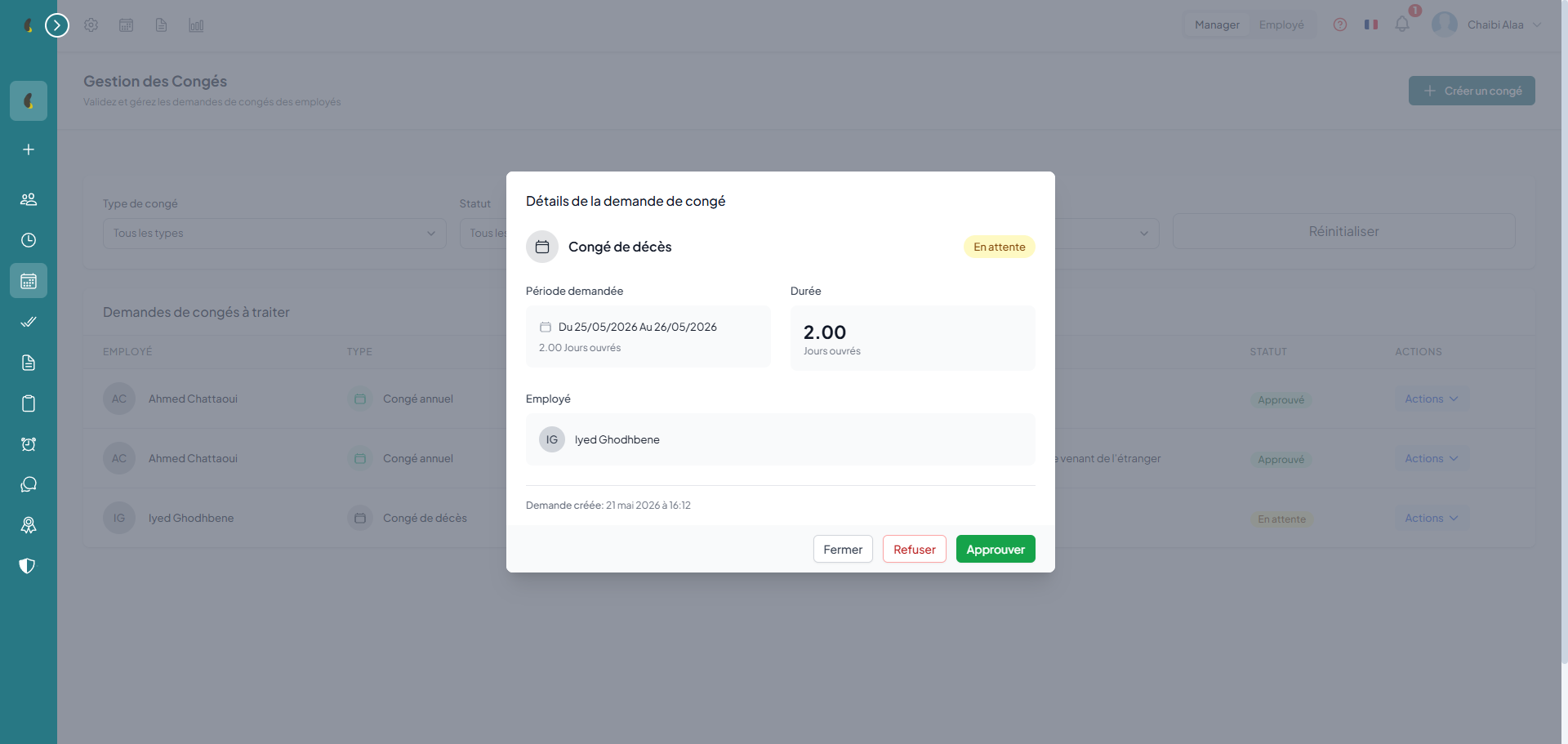
Configure up to 5 approval levels per department. Each validator can be limited to certain leave types, with caps per request and per month. Validation can be sequential or parallel.
Validator configuration
- Department — choose the concerned department
- Level — from 1 (first approver) to 5 (last)
- Validator employee — the person who approves requests
- Leave types — restrict to certain types (optional, all by default)
- Caps — max days per request and per month (optional)
Leave policies
Define reusable policies with accrual method (annual, monthly), carry-over allowed, maximum carry-over days, first-year pro-rata and default policy.
How to
- Go to Customization › Leaves & Absences then click Add a policy.
- Enter the name and the number of Days per year allocated as well as the Accrual mode (yearly or monthly).
- Configure the Carry-over of unused days: Maximum carry-over and Carry-over expiry.
- Enable Pro rata to compute the allocation based on the hire date during the year.
- Click Save then assign the policy to the relevant employees.
Policy parameters
Leave calendar
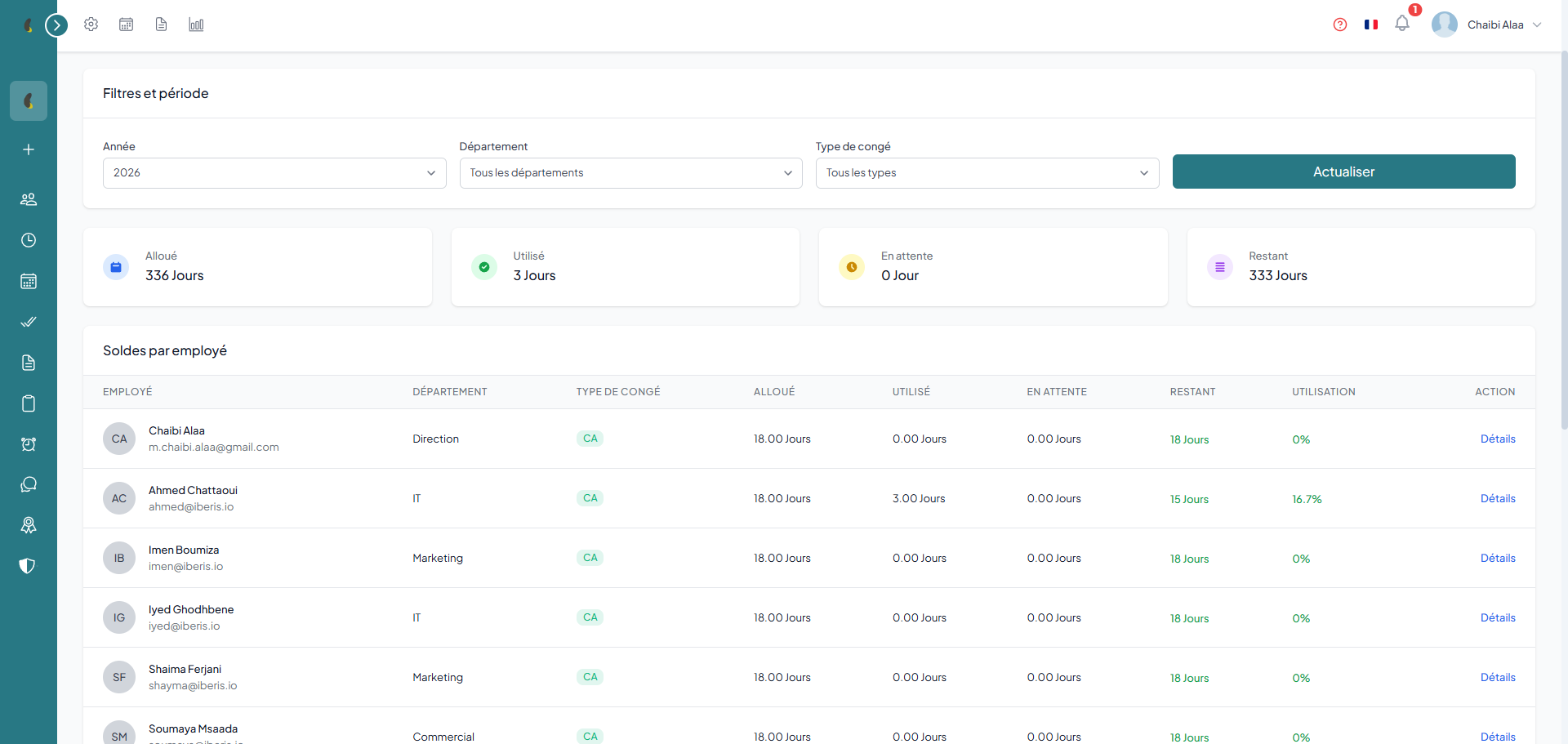
View the entire team's leaves on an interactive calendar. The system automatically detects date conflicts and displays the team coverage rate.
How to
- Open the HR Calendar menu to display the monthly view of the team leaves.
- Identify leaves by Color according to the type and check the team Coverage per day.
- Spot the Conflicts when several employees are absent at the same time.
- Click New event to add an event to the calendar, then save.
Calendar features