Help
Payroll
The Payroll module computes and generates your employees payslips from their contract, attendance and your country payroll rules, then prepares payment and the accounting entry.
Payroll dashboard
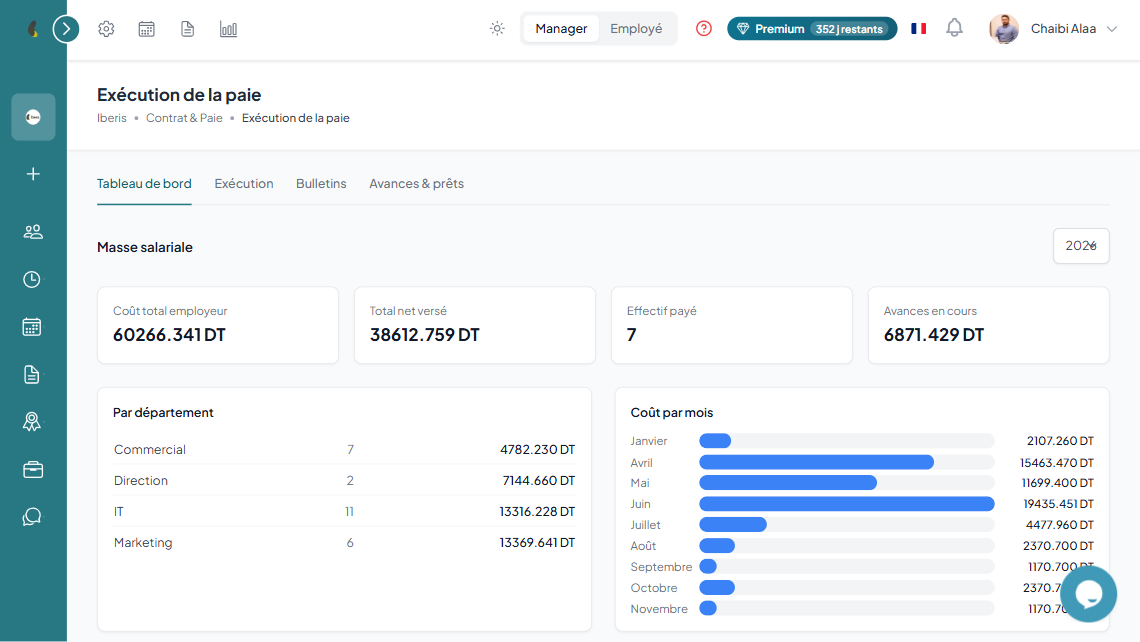
Under "Contract & Payroll › Payroll run", the Dashboard tab gives an overview of the period: payroll cost, number of payslips generated, contributions and net pay.
How to
- Go to Contract & Payroll › Payroll run, then open the Dashboard tab.
- Choose the month and the year of the period you want to review.
- Review the indicators: total employer cost, total net paid, paid headcount and outstanding advances.
- Browse the By department and Cost per month breakdowns to gauge the payroll burden.
Run: generate payslips
The Run tab lets you compute and generate an employee payslip for a given month, or all employees at once.
Generate a payslip
- Pick the employee, the month and the year.
- Adjust the payroll decisions (see below) to match the month.
- Click Preview to review the full calculation (base salary, bonuses, contributions, deductions, net pay) without saving anything.
- Click Generate payslip to save it, or Generate for all employees to process the whole company (already-created payslips are skipped).
- The generated payslip appears in the Payslips tab and can be downloaded as PDF.
Payroll decisions
Payslips & employee space
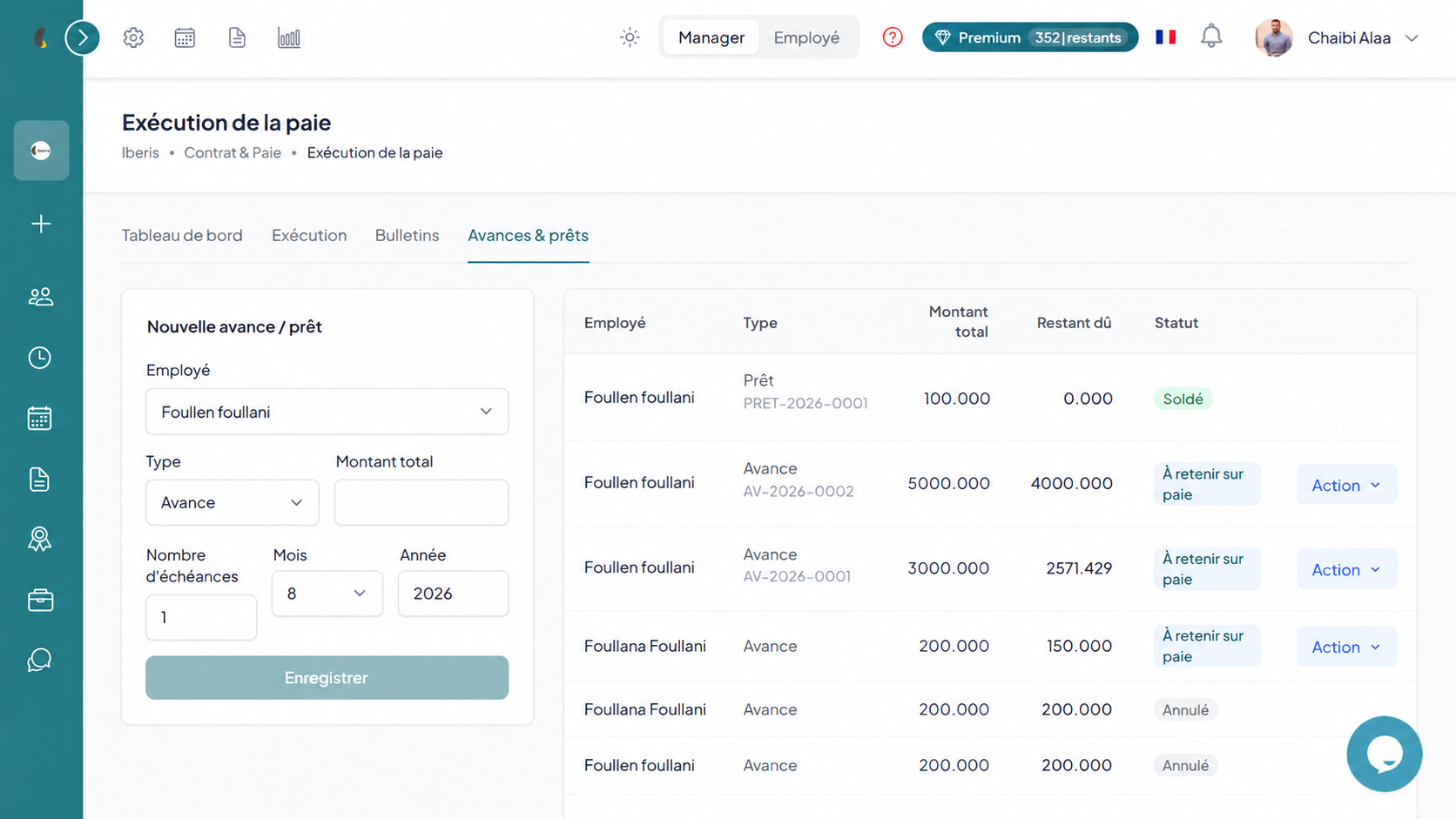
The Payslips tab lists every generated payslip with its status, and lets you view and download them.
How to
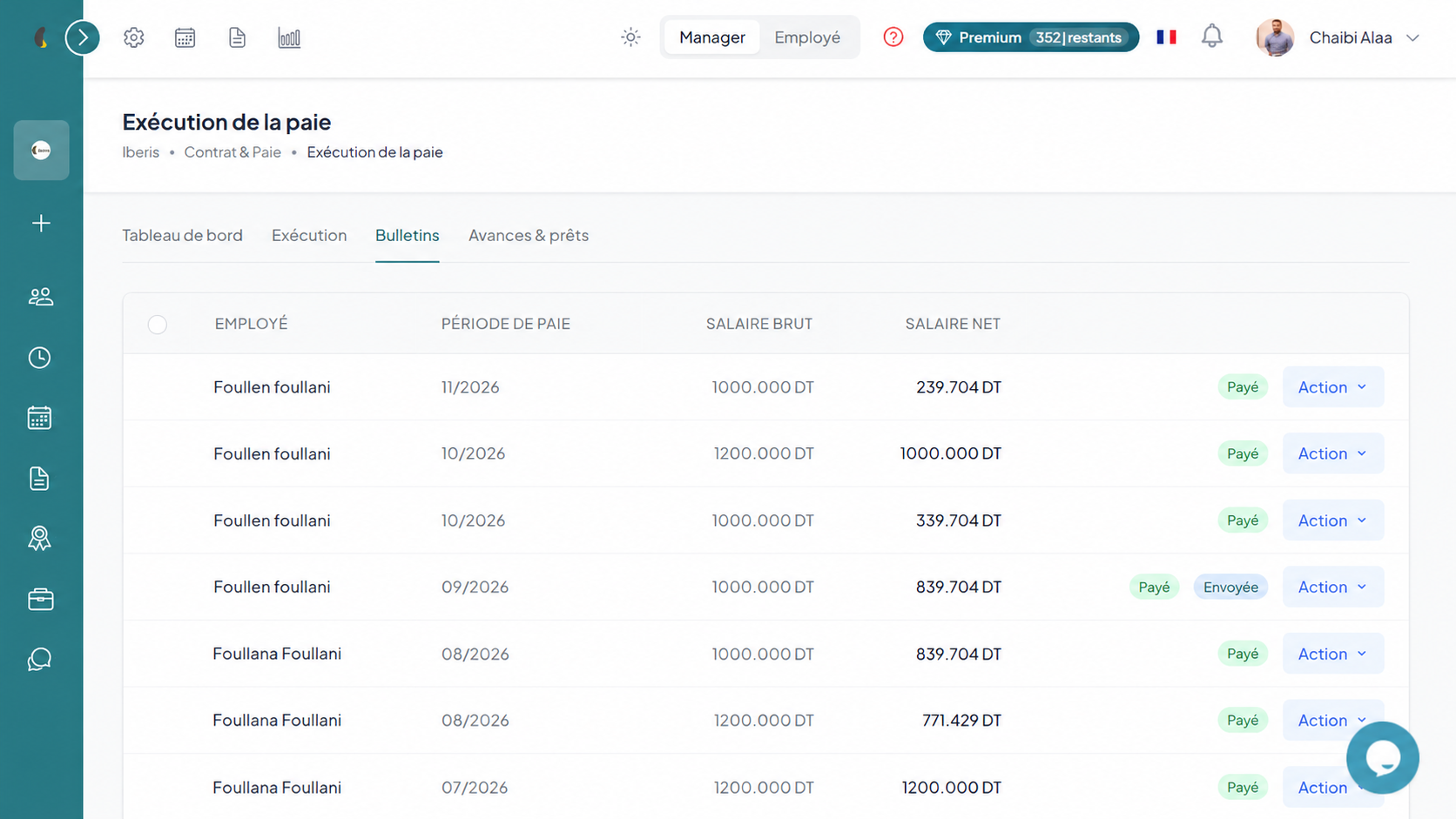
- Go to Contract & Payroll › Payroll run, then open the Payslips tab.
- Locate the payslip you need by its employee, period and status.
- Open the row's Actions menu then click Download PDF to export the payslip.
- On the employee side, each employee finds and downloads their own payslips from My payslips.
Advances & loans
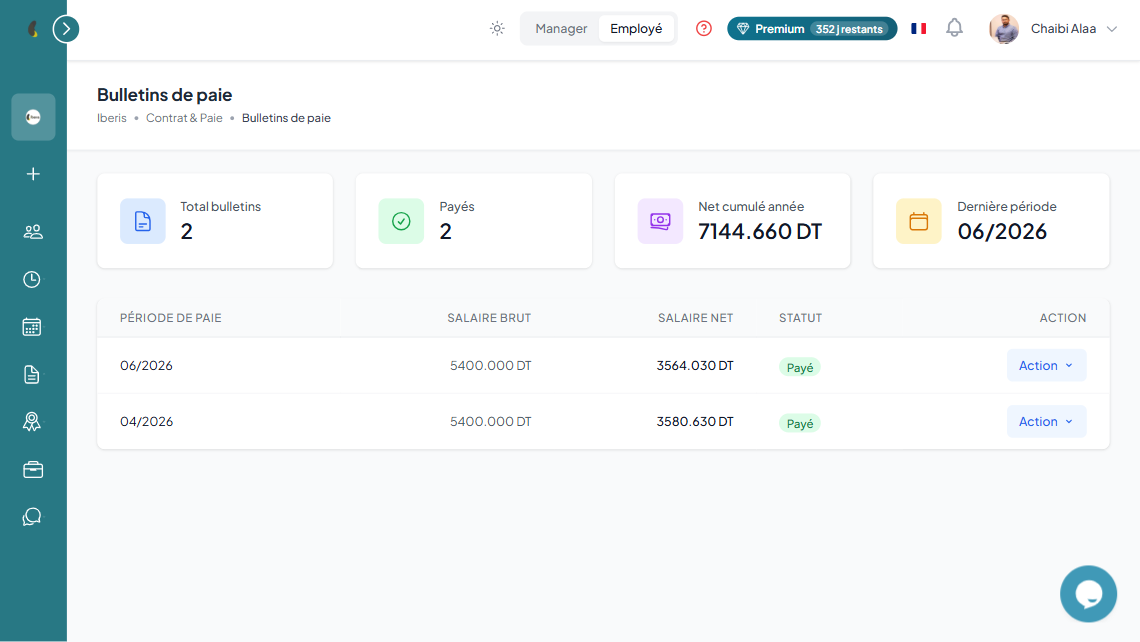
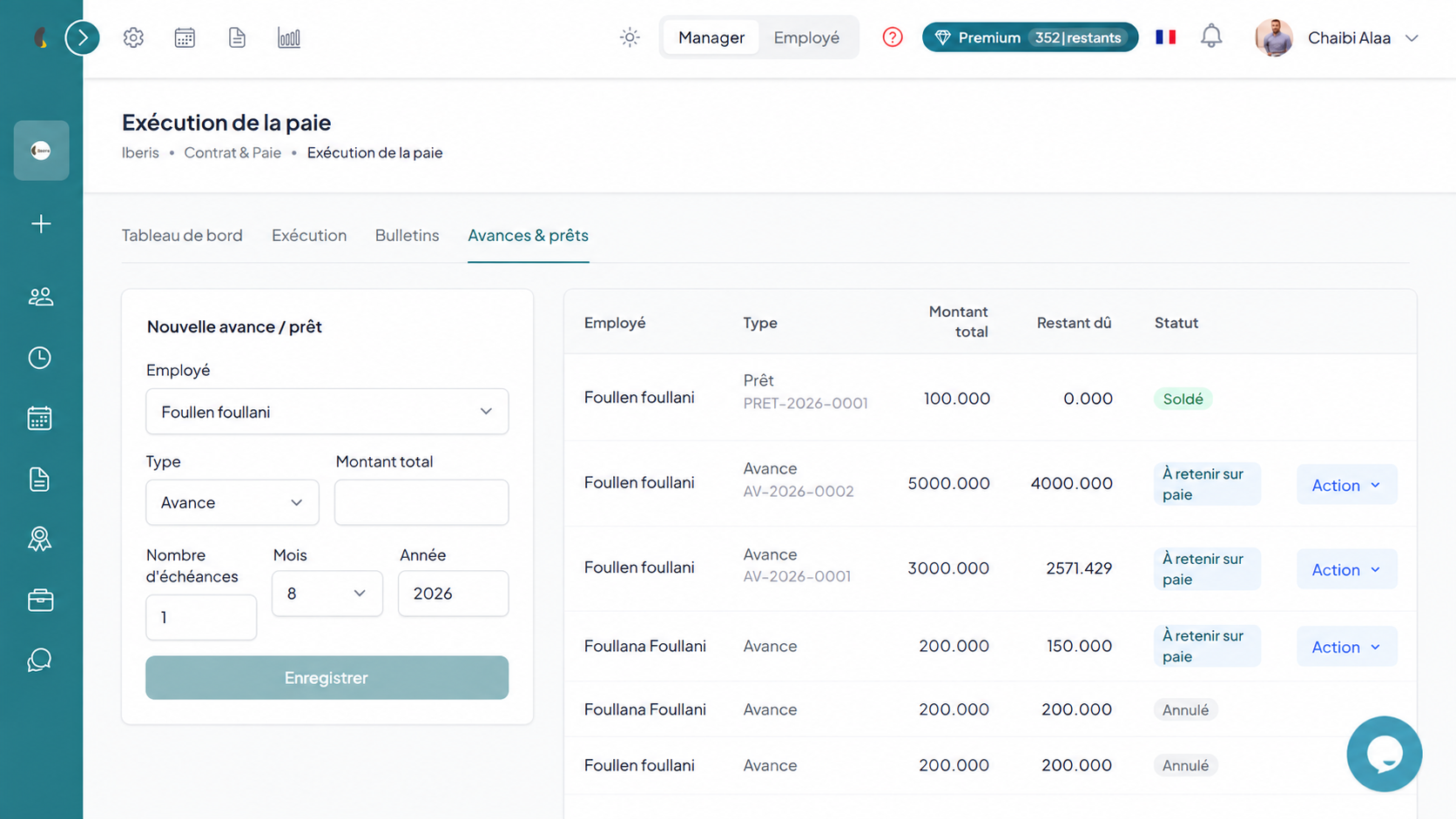
The Advances & loans tab lets you grant a salary advance or a loan to an employee, repaid automatically on their next payslips.
- Click New advance, choose the employee and the type (advance or loan).
- Enter the total amount and the number of instalments; the monthly withholding is computed automatically.
- On each payroll, one instalment is automatically deducted from the net until full repayment.
Configuration: components, contributions & brackets
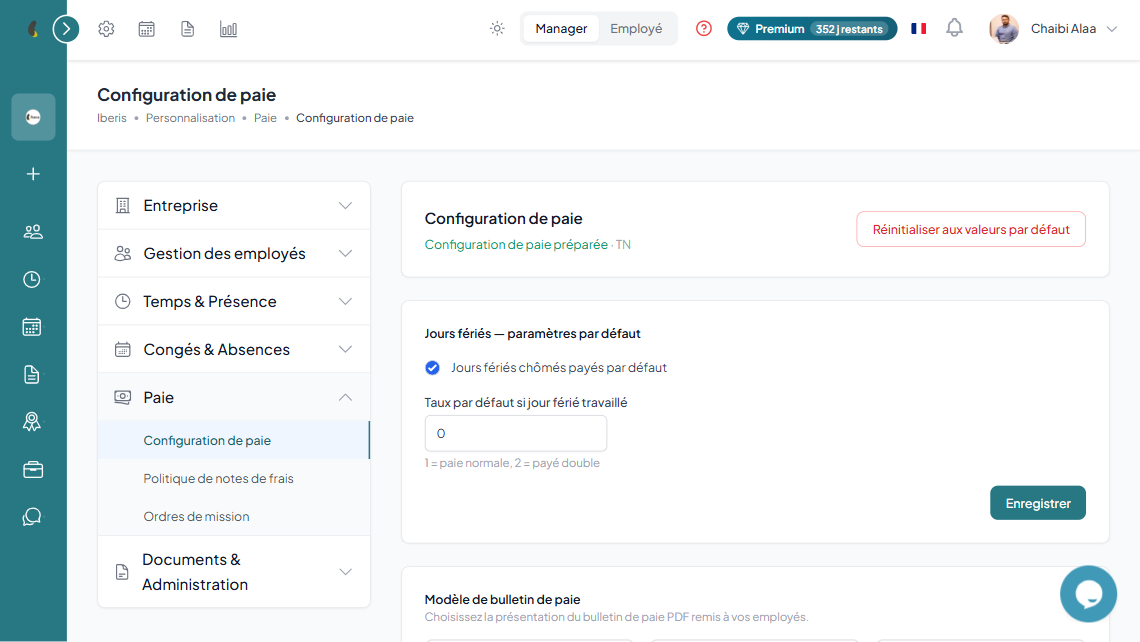
Under "Customization › Payroll configuration", you adapt the calculation rules to your company. Iberis provides a base pack per country that you can override.
How to
- Go to Customization › Payroll configuration.
- Choose the payroll structure to adapt, according to the relevant contract type.
- Edit the salary items, the social contributions and the tax brackets to align them with your company.
- Save: the new rules apply to payslips generated afterwards, without affecting already validated payslips.
Payment & accounting
Once payslips are generated, the salary payment records the settlement and creates the matching accounting entry in Iberis Finance.
How to
- Go to Contract & Payroll › Payroll run, then open the Payslips tab.
- Tick the payslips to settle; only unpaid payslips can be selected.
- Click Pay, then enter the pay date and any bank fees.
- Confirm: the net payable is recorded as settled and the accounting entry is generated in Iberis Finance.